 COPIER
How to Make a Scanned PDF Smaller (Without Losing Text)
The quickest way to make a scanned PDF smaller is to scan it again in black and white at a sensible resolution (150 to 300 dpi), because color and pixel count are what make scans big. To reduce the PDF file size of a scan you already have, use a compressor: Preview on a Mac (File, Export, Reduce File Size), the Optimize File Size of PDF action in Shortcuts on an iPhone, or a desktop PDF editor.
A scanned PDF isn’t like a PDF exported from Word. Every page is a photo, so the usual tricks that shrink text documents do little. The fixes that work are about the images: fewer pixels, less color and cleaner pages, without going so far that the text blurs.
Why scanned PDFs are so big
A scanned page is a grid of pixels, and its size depends on three things: how many pixels, how much information each pixel holds, and how well it compresses.
This table shows the raw size of one Letter page before any compression. These are exact figures from the pixel counts (2550 × 3300 at 300 dpi, 1275 × 1650 at 150 dpi).
| Letter page | Color (24-bit) | Grayscale (8-bit) | Black & white (1-bit) |
|---|---|---|---|
| 150 dpi | 6.3 MB | 2.1 MB | 0.26 MB |
| 200 dpi | 11.2 MB | 3.7 MB | 0.47 MB |
| 300 dpi | 25.2 MB | 8.4 MB | 1.05 MB |
| 600 dpi | 101 MB | 33.7 MB | 4.2 MB |
Two rules follow. Doubling the resolution multiplies the size by four. And color holds three times the data of grayscale and 24 times the data of true black and white.
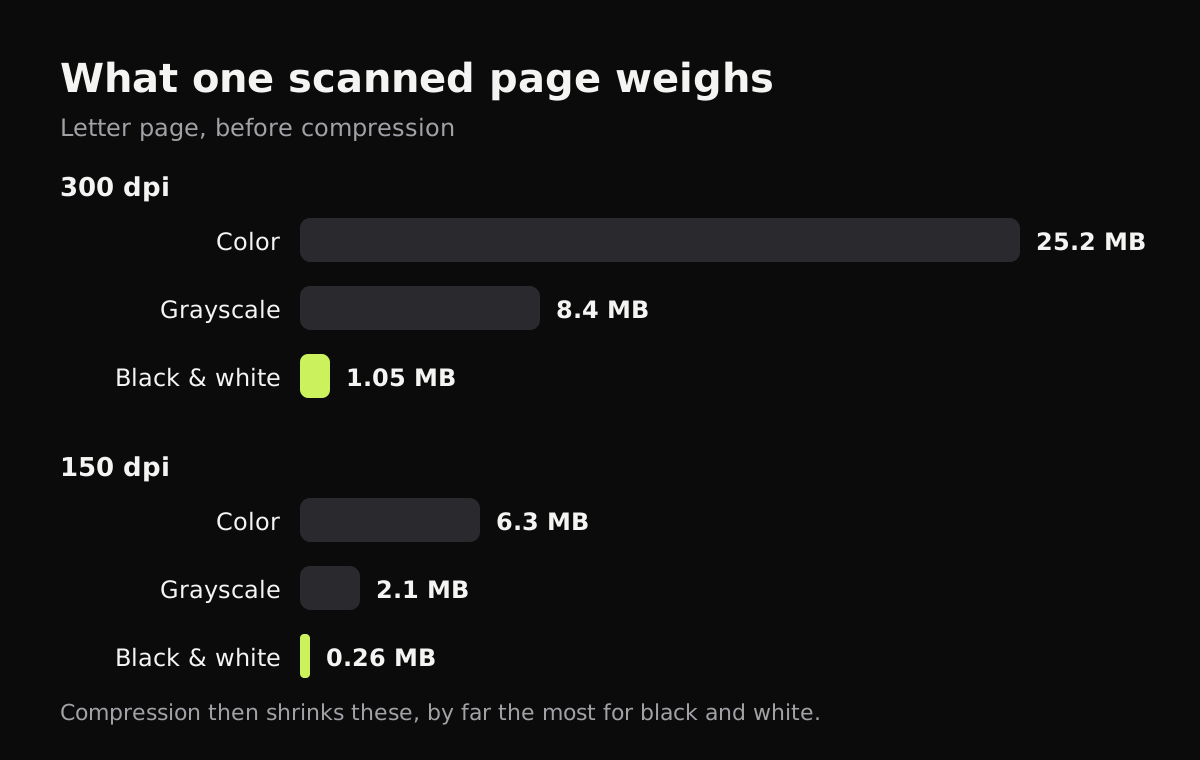
Compression then shrinks those numbers a lot. These are rough estimates for one page of typed text, labeled as such because real sizes depend on the page, the app and its settings:
| Page saved as | Typical size per page (estimate) |
|---|---|
| Color JPEG, 300 dpi | about 0.5 to 1.5 MB |
| Color JPEG, 150 dpi | about 150 to 400 KB |
| Grayscale JPEG, 300 dpi | about 300 to 800 KB |
| Black & white, 1-bit (CCITT G4 or JBIG2), 300 dpi | about 30 to 100 KB |
| Color PNG or uncompressed TIFF, 300 dpi | several MB to 25 MB |
A grainy gray background, shadows and table texture all cost bytes too, because the compressor has to keep that noise. A clean white page compresses much better than a gray one.
Rescan smarter: the biggest saving
If you still have the paper, a better scan beats any compressor:
- Use black and white for text. Forms, letters, statements and contracts don’t need color. In a scanner app, pick the black and white or “document” look.
- Lower the resolution. 300 dpi is plenty for text you’ll print; 150 to 200 dpi is fine for reading on screen. Best DPI for scanning documents has a guide by use.
- Crop to the page. A scan that includes the table around the page stores pixels nobody needs.
- Fix the lighting. A page with a shadow across it compresses worse than evenly lit white paper. How to get clean scans covers shadows and gray paper.
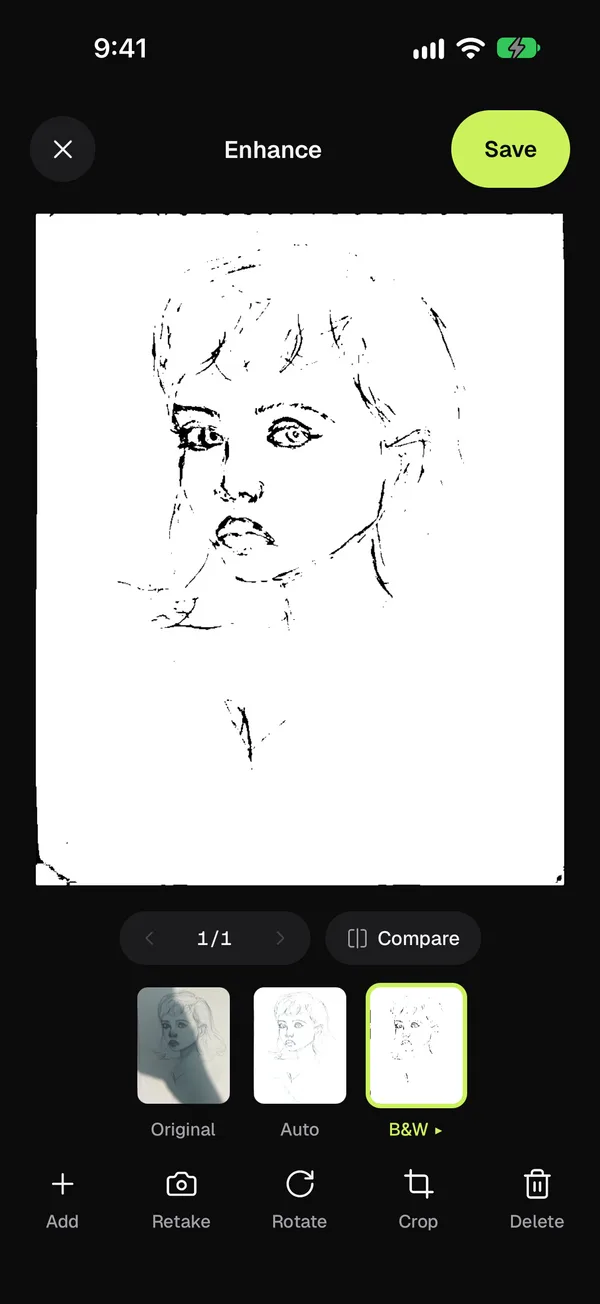
Copier does the crop and the clean-up for you: each page is cut out at its edges and straightened, and the Auto look makes the paper white and removes shadows. For text pages, the Black & white look gives the crispest text. Copier saves every look as a JPEG, so Black & white isn’t much smaller than Auto; the savings come from the white, clean paper. Copier keeps each page as a JPEG and puts those JPEGs into the PDF unchanged, so the PDF is about the size of its pages. It runs on iPhone, iPad, Android and in the browser, without uploading anything. Copier doesn’t compress PDFs you made elsewhere, though.
How to reduce PDF file size on a Mac
Preview has a built-in compressor:
- Open the PDF in Preview.
- Choose File, then Export.
- Set Quartz Filter to Reduce File Size.
- Save it under a new name, so you keep the original.
Apple’s Preview guide warns that a compressed PDF may look worse than the original. With scans, Reduce File Size often shrinks pages so far that small text blurs. Open the result and zoom in before you send it. If it’s too soft, the rescan route above is the better fix.
Make a PDF smaller on iPhone or iPad
The Shortcuts app has an Optimize File Size of PDF action. Make a shortcut with that action, run it on the PDF from the Share sheet or Files, and save the result. It works by compressing the images inside the PDF, so it does little when they’re already compressed JPEGs, which most phone scans are. For those, rescanning in black and white saves more.
On Windows and other computers
Windows has no built-in PDF compressor. Printing a PDF again through Microsoft Print to PDF doesn’t reliably make a scan smaller. Desktop PDF editors such as Adobe Acrobat have an option to reduce or optimize a PDF’s size. Many free online “compress PDF” sites exist as well.
A word about online compressors
Online tools work by uploading your file to their server, compressing it there and sending it back. For a menu or a flyer that’s fine. For a passport, a tax return, a medical letter or a contract, think about whether you want a copy on someone else’s computer. Use a tool on your own device, or rescan. Scanning documents online without uploading explains how browser-based tools can work locally.
Quick fixes by situation
- An email bounces because the PDF is too big: rescan in black and white, or split it into two emails. Emailing a scanned document covers attachment limits.
- An upload portal says “max 2 MB”: check how many pages and which look you used; a few black and white pages at 200 dpi usually fit.
- You only have the PDF: use Preview on a Mac or a desktop PDF editor, and check the text afterward.
- The PDF has to stay sharp for printing: keep 300 dpi and cut color instead of resolution.
Questions
Why is my scanned PDF so big?
Each page of a scanned PDF is a photo. A color page at 300 dpi is about 25 MB before compression, so a few pages from a phone camera can easily add up to many megabytes, especially in color and at high resolution.
How do I make a PDF smaller on a Mac?
Open it in Preview, choose File, then Export, set Quartz Filter to Reduce File Size and save it under a new name. Check the result, because the filter can make scanned text blurry.
How do I make a PDF smaller on iPhone?
The Shortcuts app has an Optimize File Size of PDF action that compresses the images in a PDF. It helps less with scans that are already compressed, so rescanning in black and white often shrinks the file more.
Is it safe to compress a PDF online?
Online compressors upload your PDF to their servers to process it. That's fine for a flyer, but for IDs, contracts, medical or financial papers, use a tool on your own device or rescan the document smaller.
What size should a scanned PDF be for email?
Many email services limit attachments to about 20 to 25 MB in total. A text document scanned in black and white at 150 to 300 dpi is usually far below that, often well under 1 MB for a few pages.