 COPIER
How to Rotate a Scanned Document or PDF
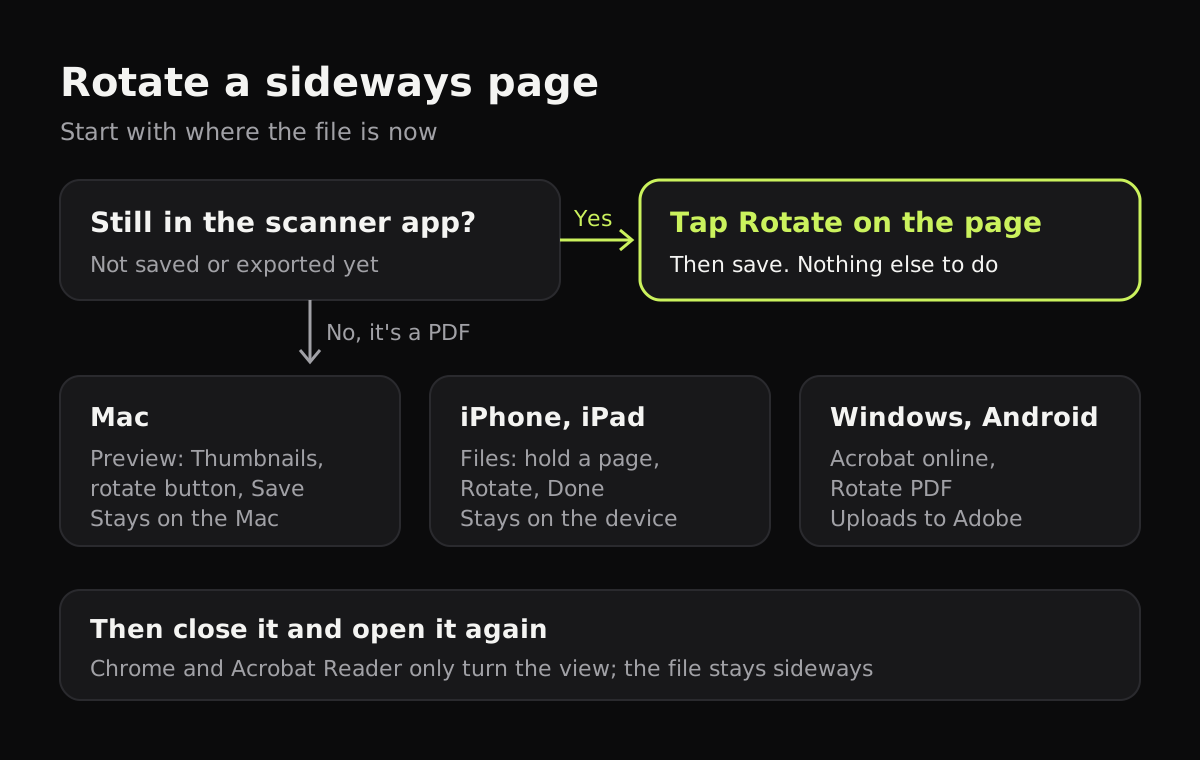
The easiest way to rotate a scanned document is to do it before you save it: every scanner app, including the ones built into iPhone and Android, has a rotate button on the editing screen. If the scan is already a PDF, you can rotate a PDF for free in Preview on a Mac, in the Files app on an iPhone or iPad, or in Acrobat’s online tool on Windows and Android. The one thing to watch is whether the tool saves the rotation or only turns it on screen.
Rotate the scan before you save it
A sideways page is usually a page scanned in the wrong orientation: a landscape chart, a receipt photographed lengthwise, a form you held the other way up. Fixing it at the scanning stage costs one tap.
- In Copier, each page on the Enhance screen has a Rotate button next to Add, Retake, Crop and Delete. Rotate is per page, so turn only the ones that need it.
- In the Notes scanner on iPhone, tap a page thumbnail after scanning and use the rotate button at the bottom.
- In Google Drive’s scanner on Android, tap Crop & Rotate before you tap Done.
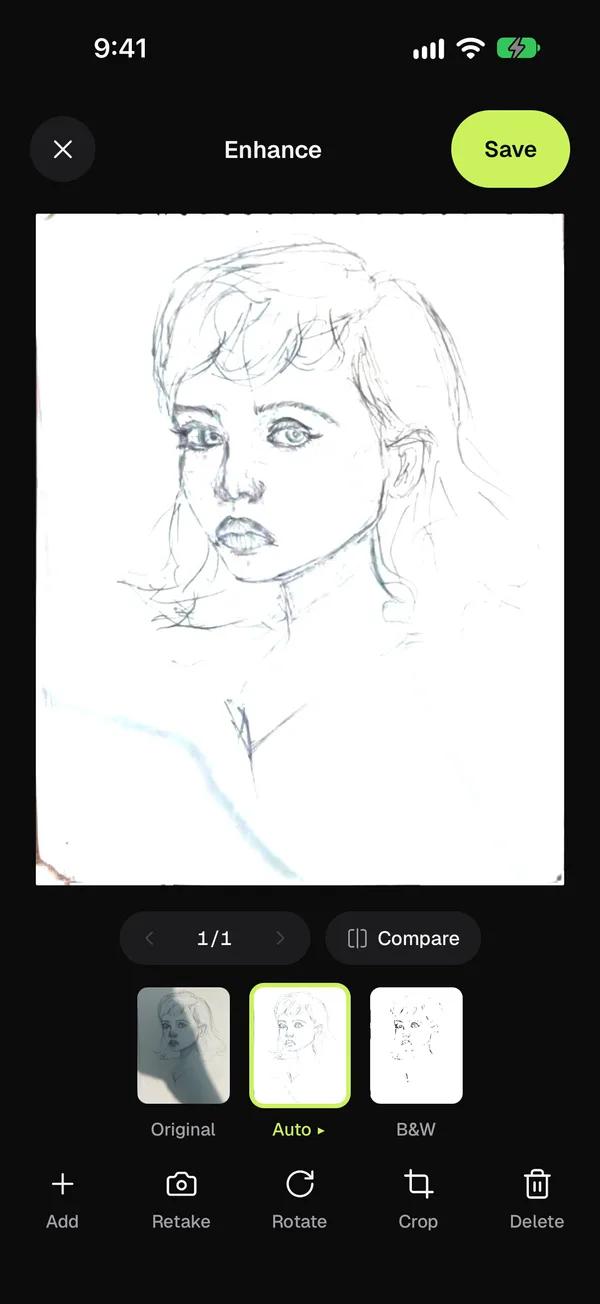
When you share from Copier as a PDF, each page goes on an A4 sheet, and wide pages get a landscape sheet, so a rotated chart prints the right way round.
How to rotate a PDF: every method compared
These are the free options on each kind of device. The column to check is the fourth: a rotation that isn’t saved disappears the next time you open the file.
| Device | Tool | How | Saves into the file? | Uploads the file? |
|---|---|---|---|---|
| Mac | Preview | View > Thumbnails, select pages, rotate button, File > Save | Yes | No |
| iPhone, iPad | Files | Show thumbnails, touch and hold a page, Rotate Left or Right, Done | Yes | No |
| Windows | Edge | Rotate button in the PDF toolbar, then Save | Check by reopening | No |
| Any browser | Acrobat online, Rotate PDF | Upload, select pages, turn, download | Yes | Yes, to Adobe |
| Any browser | Chrome’s PDF viewer | Rotate button in the toolbar | No, view only | No |
| Windows, Mac | Acrobat Reader | View > Rotate View | No, view only | No |
On a Mac: Preview
- Open the PDF in Preview.
- Choose View > Thumbnails to show the page list in the sidebar.
- Click the page you want to turn. To turn several, hold Command and click each one, or press Command-A for all of them.
- Click the rotate button in the toolbar to turn the pages left. Hold Option while you click to turn them right.
- Choose File > Save.
Apple’s Preview guide has the same steps with pictures.
On iPhone or iPad: the Files app
- Save the PDF to Files if it isn’t already there (from Mail, tap the attachment, then Share > Save to Files).
- Open it and show the page thumbnails.
- Touch and hold the page you want to turn and choose Rotate Left or Rotate Right.
- Tap Done. Files saves the change into the PDF.
On Windows and Android
Edge opens PDFs by default on Windows 11 and has a rotate button in its toolbar. Whether Save writes that turn into the file has varied between versions, so close the PDF after saving and open it again. If it’s back to sideways, use another tool.
Acrobat’s Rotate PDF tool works in any browser, including on Android and Chromebooks. You upload the file, pick the pages, turn them and download the result. Adobe lists limits of 500 pages per file and 100 MB in total, and says uploaded files are deleted from its servers unless you sign in to keep them. It’s a good fix for a menu or a flyer. For a bank statement or a medical letter, decide first if you’re happy to upload it. If not, rotate the pages in your scanner app and export again.
Rotating is different from straightening
Rotating turns the whole page in quarter turns: 90, 180 or 270 degrees. It won’t fix a page that’s slightly crooked, like text that slopes by a few degrees because the paper was skewed on the scanner glass. That needs straightening or a new crop. Our guide on how to straighten a scanned document covers it, and how to make a PDF on iPhone explains how to put the fixed pages back into one file.
Tips
- Check every page before you send a multi-page scan. One sideways page in the middle of a contract is easy to miss.
- Rotate the original scan if you still have it, instead of rotating a PDF someone sent back to you. You keep the best copy of the image.
- If a portal rejects your file after rotating, the file may have grown. See how to make a scanned PDF smaller.
- In a long scan, swipe through every page in the editor before saving and turn the odd ones out. Our guide to scanning multiple pages into one PDF has more on long documents.
Questions
Why does my PDF go back to the old orientation when I reopen it?
The tool you used only rotated the view on screen and didn't change the file. Rotate it in a tool that saves the pages, such as Preview on a Mac, Files on iPhone or Acrobat's online Rotate PDF tool, then save.
Can I rotate just one page of a PDF?
Yes. In Preview or the Files app, show the page thumbnails, select only the page you want and rotate it. The other pages stay as they are.
How do I rotate a PDF for free on Windows?
Acrobat's online Rotate PDF tool is free and works in any browser, though it uploads the file to Adobe. Edge can rotate a PDF too, but check that the rotation is still there after you close and reopen it.
Is it better to rotate before or after making the PDF?
Before. Rotating each page in the scanner app before you save means the PDF comes out right the first time, and you don't need a second tool.