 COPIER
How to Make a PDF on iPhone (6 Ways)
You can make a PDF on iPhone without installing anything. For paper, use Scan Documents in Files, Notes or Preview. For photos, select them in Files and choose Create PDF. For a web page or any file you can print, open Print and pinch outward on the preview to turn it into a PDF. The steps below are for iOS 26, and the table shows where each PDF ends up.
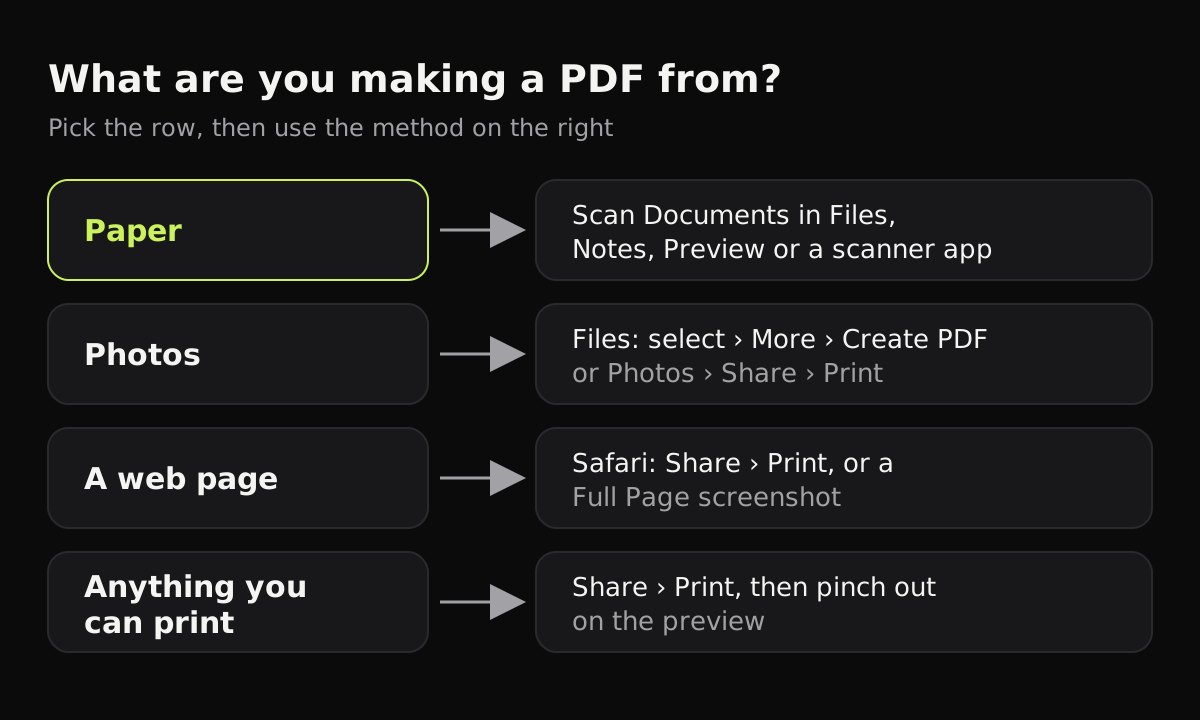
The ways to create a PDF on iPhone, compared
Each method suits a different starting point, and each puts the PDF somewhere different.
| Method | Starts from | Where the PDF goes | Free |
|---|---|---|---|
| Files: Scan Documents | Paper | The Files folder you choose | Yes |
| Files: Create PDF | Photos or images in Files | Same folder as the images | Yes |
| Print, then pinch out | Anything with a Print option: photos, notes, web pages, emails | Wherever you save it (usually Files) | Yes |
| Preview: Scan Documents | Paper | A PDF you can rename and move in Files | Yes |
| Shortcuts: Make PDF | Whatever you share to the shortcut | Wherever the shortcut saves it | Yes |
| Share to Books | Photos, web pages, documents | The Books library | Yes |
| A scanner app such as Copier | Paper or imported photos | The app’s library, then wherever you share it | JPG free; PDF with Copier Pro |
1. Scan paper to a PDF in Files
This is the method most people want: a paper document turned into a PDF.
- Open Files and go to the folder you want.
- Tap the More button (⋯), then Scan Documents.
- Hold the iPhone over the page. In Auto mode it takes the page when it sees all four edges.
- Scan the remaining pages, then tap Done.
- Choose a location and tap Save.
You get one PDF with all the pages. Notes does the same from a note’s Attachments button (the paper clip), and Preview has Scan Documents on its main screen. How to scan documents on iPhone goes into more detail.
2. Turn photos into a PDF with Create PDF
If the pages are already photos, Files can join them into one PDF.
- Save the photos to Files first: in Photos, select them, tap Share, then Save to Files.
- In Files, open that folder, tap the More button, then Select, and tap each image.
- Tap the More button at the bottom right and choose Create PDF.
For a single image, touch and hold it, then choose Quick Actions > Create PDF. Files orders the pages by file name, so rename them first if the order matters. Converting a photo to PDF on iPhone covers the Photos-only routes too.
3. Print to PDF from any app
Most apps have no “Save as PDF” button, but the print preview is already a PDF. This works anywhere you see Print: Photos, Notes, Mail, Safari, Messages attachments.
- Tap Share (or the app’s ⋯ menu) and choose Print.
- On the print preview, spread two fingers apart on the page as if zooming in. It opens full screen as a PDF.
- Tap Share and choose Save to Files, or send it straight from there.
Some versions of the print screen also show a Share button at the top, which does the same thing without the pinch. In Safari this is the easiest way to keep a web page as a PDF. A screenshot of a web page can also offer a Full Page option that saves to Files as a PDF, though people on Apple’s forums report that it doesn’t appear in every case on iOS 26.
4. Scan and sign in Preview
Preview arrived on iPhone with iOS 26. Tap Scan Documents on the main screen to scan a page into a PDF, or open an existing PDF to fill in a form with the Form Filling button and add a signature. Use it when the PDF you’re making is a form you’ll send back. How to sign a document on iPhone has the steps.
5. Make PDFs with a shortcut
If you make PDFs often, the Shortcuts app has a Make PDF action. Build a shortcut that takes the input, runs Make PDF, and then saves the file to a folder you choose. Turn on the option to show it in the share sheet, and any app’s Share button can turn photos or files into a PDF in one tap.
6. Share to Books
When you share a photo or web page to Books from the share sheet (look under More if Books isn’t in the row of apps), Books saves it as a PDF in its library. It’s handy for reading, but the PDF stays inside Books unless you share it out again, so Files is the better home for documents you need to send.
Using a scanner app for paper PDFs
For paper, a scanner app gives cleaner pages than the built-in filters, and keeps everything in one library. In Copier:
- Tap Scan. The page’s outline follows it live, and with Auto on the page is taken once you’ve held still for about a second.
- Each page is found, straightened and cleaned up on the iPhone. A tilted page comes out square and a shadow is evened out.
- Pick a look (Auto, Black & white or Original), fix any page with Crop, Rotate or Retake, and tap Save.
- Tap Share and choose PDF.
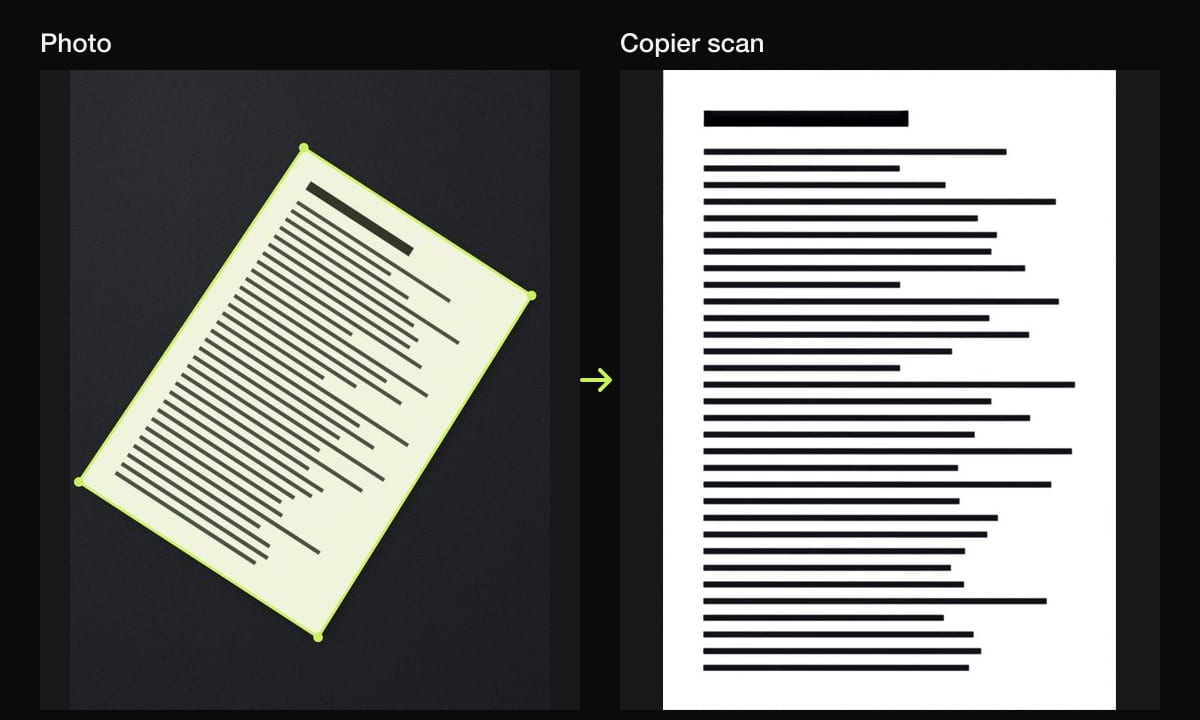
Each page goes on an A4 sheet in the PDF, turned to landscape for wide pages. Sharing as JPG is free for up to 10 documents; PDF export and unlimited documents come with a one-time Copier Pro purchase. There’s no account, and nothing is uploaded.
Which method to use
- Paper you need to email: Files or a scanner app, so you get a real multi-page PDF.
- A few photos: Create PDF in Files.
- A web page, receipt email or note: Print, then pinch out.
- A form to fill in: Preview.
- The PDF is too big to send: scan in black and white, or see how to make a scanned PDF smaller.
Questions
How do I make a PDF on my iPhone for free?
Open Files, tap the More button and choose Scan Documents for paper, or select photos in Files and choose Create PDF. Both are built into iOS and free.
How do I save something as a PDF on iPhone?
Tap Share, then Print, and pinch outward on the page preview. The preview opens as a PDF; tap Share again and choose Save to Files.
Where do PDFs I make on iPhone go?
It depends on the method. Files and Print save the PDF where you choose in Files, Notes keeps scans inside the note, and Books keeps PDFs in its own library.
Can I combine several photos into one PDF on iPhone?
Yes. In Files, select the photos, tap the More button and choose Create PDF. The pages follow the order of the file names.