 COPIER
How to Sign a Document on iPhone
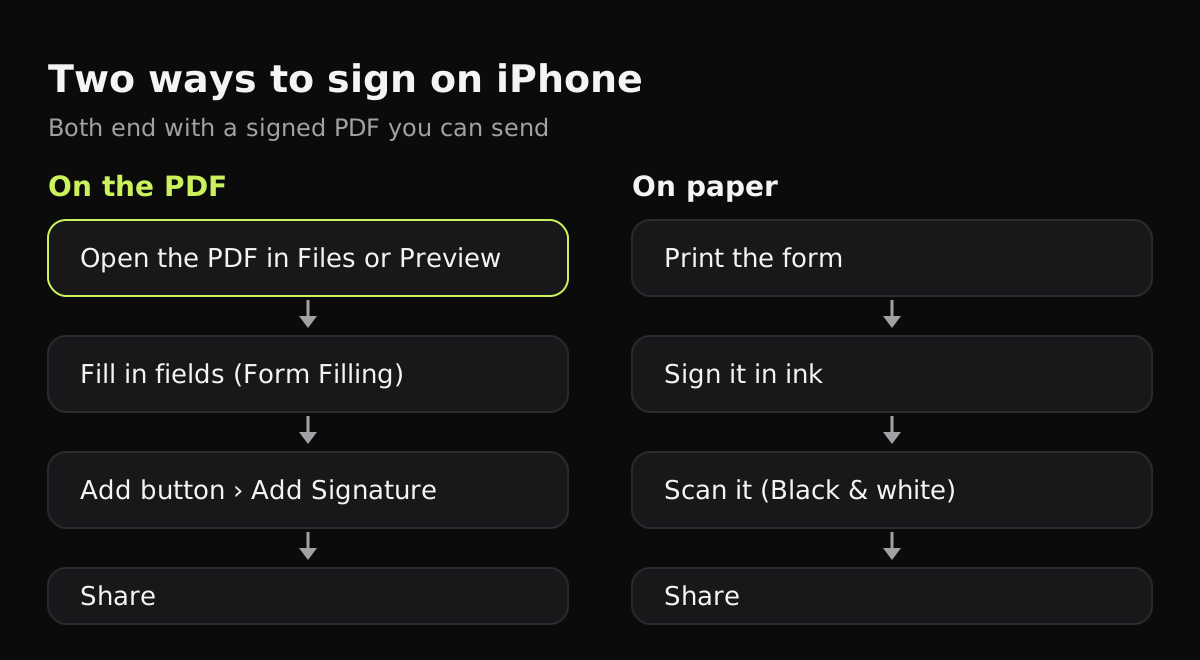
To sign a document on iPhone, open the PDF in Files or Preview, tap the Add button, choose Add Signature, sign with your finger, and drag the signature into place. The same screen lets you fill out the form’s fields, and iOS can fill in your name and address from your contact card. If the form is on paper, sign it in ink and scan it back as a PDF. Both routes are below, with the steps for iOS 26.
How to sign a PDF on iPhone with Files
This works for a PDF someone emailed or messaged you, or one already in Files.
- Open the PDF. If it’s an attachment, tap it, and if you’re asked to open it in Files, do that and tap Save.
- Tap the AutoFill button, then tap a blank field and type. Tap the next field to keep going.
- To sign, tap the Add button, then Add Signature. Sign your name with your finger and tap Done.
- Drag the signature to the signature line. Drag the dots on its outline to resize it.
- Tap Share to send it with Mail, Messages or AirDrop, then tap Done.
If the PDF has no form fields, tap the Add button and choose Add Text Form Box to type anywhere on the page.
How to fill out a PDF on iPhone with Preview
Preview is new on iPhone in iOS 26, and it’s the more complete tool for forms.
- Open Preview and open the PDF form.
- Tap the Form Filling button. Fillable fields are highlighted.
- Tap a field and type, or tap the AutoFill suggestion above the keyboard to add your details.
- To sign or add text, tap the Add button and choose a signature or a text box.
- Go back to save the file. Use the menu next to the file name to rename or move it.
AutoFill uses your My Card in Contacts, so check your card is filled in. Tap Choose other to fill in a family member’s details from your contacts instead.
Signing a document attached to an email
For an attachment in Mail, open it and look for the Markup button. Add your signature with the Add button, tap Done, and Mail opens a reply with the marked-up file attached. It’s the fastest route when someone just needs the form back.
Managing your saved signatures
iOS keeps every signature you make in Markup so you don’t have to redraw it. You can keep more than one, such as your full signature and your initials.
- Open any PDF or image with Markup and tap the Add button, then Add Signature.
- Tap Add or Remove Signature.
- Tap the Add button to create a new one, or the Delete button next to one you no longer want.
Signing with your finger on a phone is cramped. Turn the iPhone sideways for more room, or sign slowly with a stylus if you have one.
Built-in signing tools compared
Here is what each tool on the iPhone can do with a form.
| Tool | Fill in fields | AutoFill from Contacts | Add a signature | Where the signed file goes |
|---|---|---|---|---|
| Files | Yes | Yes | Yes | The same PDF in Files, with your changes |
| Preview (iOS 26) | Yes, with Form Filling | Yes | Yes | A PDF you can rename and move |
| Mail Markup | Text boxes | No | Yes | Into a reply |
| Notes and Photos Markup | Text boxes | No | Yes | In the note or photo |
| Sign on paper, then scan | By hand | No | In ink | Wherever your scanner app saves |
Signing on paper and scanning it back
Some people want a real ink signature, or the form only exists on paper. The paper route takes about two minutes.
- Print the form, or use the paper copy you were given.
- Fill it in and sign in dark ink. Blue or black ballpoint scans best; pencil is faint.
- Scan it with your iPhone. In Files, tap More (⋯) and Scan Documents, or use a scanner app.
- Choose a black and white filter so the signature and text come out crisp and the file stays small.
- Share it as a PDF.
Copier is built for this part. It finds the page, straightens it, and cleans it up on the iPhone, and its Black & white look gives dark text and a signature on white paper. Shadows from your phone are evened out, and fingers holding the page at its edge are removed. Sharing as JPG is free; PDF export comes with Copier Pro, a one-time purchase.
Copier doesn’t sign or fill in PDFs itself. To add a typed date or a second signature to a scan, open the PDF in Files or Preview afterwards and use the steps above.

For more on scanning forms well, see how to scan a signature and how to email a scanned document.
Is a signature made on iPhone legally valid?
In the US, the federal ESIGN Act of 2000 generally gives electronic signatures the same legal weight as ink for most contracts and forms. The Act lists exceptions, such as wills and court orders, and documents that must be notarized follow their own rules. When in doubt, ask whoever sent you the form what they accept. Many banks, landlords and schools take a signed scan by email.
Tips for signing on iPhone
- Zoom in before you place the signature, so it lands on the line and not across the text.
- Check every page. Forms often have a second signature or initials box near the end.
- Rename the signed copy, for example “Lease 2026 signed”, so you don’t send the blank one by mistake.
- Keep the file small for email by scanning paper forms in black and white. How to make a scanned PDF smaller has more ways.
- On a bigger screen, the same steps work on iPad with Apple Pencil; see how to scan on iPad.
Questions
How do I sign a PDF on my iPhone for free?
Open the PDF in Files or Preview, tap the Add button, choose Add Signature, sign with your finger, then drag the signature into place. It's built into iOS and free.
How do I fill out a PDF form on iPhone?
Open it in Preview and tap the Form Filling button, or open it in Files and tap the AutoFill button, then tap each field and type. AutoFill can suggest details from your contact card.
Where are my saved signatures on iPhone?
iOS saves the signatures you create in Markup. Tap the Add button, then Add Signature, and your saved ones appear in the list, where you can add or remove them.
Can I sign a Word document on iPhone?
Markup works on PDFs and images. Save or print the Word file as a PDF first, then sign the PDF, or use the Word app's own drawing tools.