 COPIER
How to Scan on iPad (iPadOS 26)
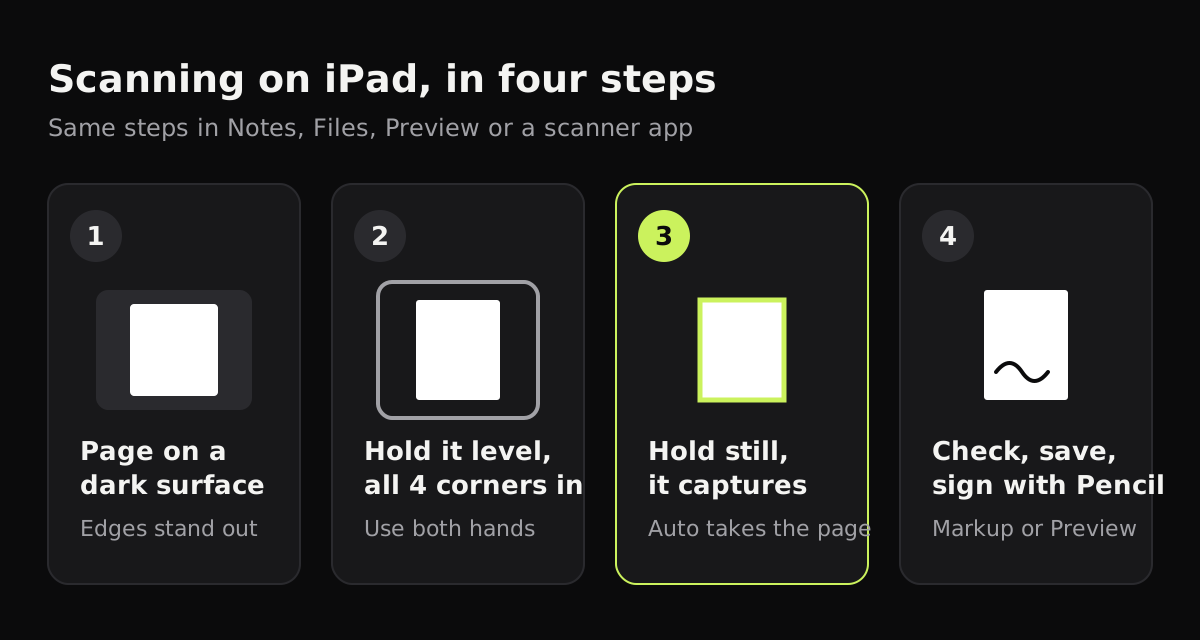
The quickest way to scan on iPad is already built in: open Files, Notes or Preview, tap Scan Documents, and hold the iPad over the page until it captures it. The iPad finds the edges, straightens the page and saves it as a PDF. It’s the same scanner as on iPhone, and the steps below are for iPadOS 26. What’s different on an iPad is mostly physical: it’s a big, heavy camera to hold flat.
How to scan documents on iPad with Files
Files is the best built-in choice when you want a PDF you can find again, because you pick the folder.
- Open Files and go to the folder you want the scan in.
- Tap the More button (⋯), then tap Scan Documents.
- Hold the iPad over the page. You can turn the Flash on or off and pick a filter before you shoot.
- Hold still. In Auto mode, the iPad takes the page when it finds all four edges. To take it yourself, switch to manual, tap the shutter or press a volume button, drag the corners to the paper, and tap Keep Scan.
- Scan the next page, or tap Done.
- Choose a location and tap Save.
The file is called something like “Scanned Document”. Touch and hold it and choose Rename to give it a name you’ll search for later.
Scanning in Notes and Preview
In Notes, open a note, tap the Attachments button (the paper clip), then tap Scan Documents. The pages are saved as one PDF inside the note. Tap the scan’s menu to rotate a page, crop it, change its filter, or rename it.
In Preview, new on iPad in iPadOS 26, tap Scan Documents in the middle of the main screen. Preview is the one to use for a form you’ll fill in or sign, since the form tools are in the same app. Scanning in Notes works the same on iPad as on iPhone, if you want the full Notes walk-through.
This table shows which app to open for which job.
| App | Where it saves | Edit after | Good for |
|---|---|---|---|
| Notes | Inside the note | Crop, rotate, filter, markup | Class handouts next to your notes |
| Files | A PDF in the folder you choose | Markup, rename, move | Filing paperwork |
| Preview | A PDF you can move in Files | Fill in forms, sign, reorder pages | Forms and contracts |
| Attached to the email | Before sending only | Sending one page now | |
| Copier | The app’s library, searchable by name | Re-crop, rotate, change the look any time | Regular scanning |
Tips for holding an iPad steady
An iPad’s camera is fine for documents. The hard part is holding a large tablet level over a page without shaking it.
- Put the page on the floor or a low table and stand over it. Holding the iPad at chest height with both hands is steadier than reaching out over a desk.
- Use a dark, plain surface. White paper on a white table makes the edges hard to find.
- Keep the light to one side. An iPad casts a bigger shadow than a phone, so scan next to a window with the light coming from the side.
- Let it take the picture. Tapping the screen of a big tablet shakes it, and Auto capture waits until you’re still.
- If you have an iPhone, it’s often quicker to scan there and AirDrop the PDF across. An iPad mini is also much easier to hold over a page than a 13-inch iPad Pro.
Using split screen and Stage Manager
iPadOS 26 lets you work with more than one app on screen. In Settings > Multitasking & Gestures, choose Windowed Apps or Stage Manager instead of Full Screen Apps. With two windows open you can scan in Files on one side, then drag the PDF straight into an email, a Pages document or a school app on the other.
The camera view takes the whole screen while you’re scanning, so it’s easiest to start the scan, finish it, and then arrange windows to send it.
Signing and marking up with Apple Pencil
Where the iPad beats a phone is what you do with the scan afterwards. Open the PDF in Preview, tap the Form Filling button to type into the fields, then tap the Add button to add a signature or a text box. In Files and Notes, the Markup button opens the drawing tools, where you can write on the page with Apple Pencil, highlight a line or add a signature. How to sign a document on iPhone has the full steps, and they’re the same on iPad.
Can you scan into the iPad from an iPhone?
Continuity Camera lets an iPhone scan straight into a Mac, but Apple only lists the Mac as the place it sends to. The iPad isn’t one of them. The workaround is quick: scan on the iPhone with Files or Notes, then AirDrop the PDF to the iPad. If you have a Mac, scanning from your iPhone to your Mac covers Continuity Camera.
Using a scanner app on iPad
A scanner app helps if you scan often and want cleaner pages than the built-in filters give. Copier runs on iPad with the same features as on iPhone:
- Tap the Scan button. The page’s outline appears around it as soon as it’s in view.
- With Auto on, it takes the page once you’ve held still for about a second. Switch to Batch to scan a stack of pages without leaving the camera.
- Each page is cut out, straightened and cleaned up on the iPad. A curled page is straightened along its curved edges, and fingers holding the page at the edge are removed.
- Pick a look: Auto for most pages, Black & white for text, Original for photos. With Apply to all pages on, one choice covers the whole document.
- Save to the library, then share as JPG, or as PDF with Copier Pro.
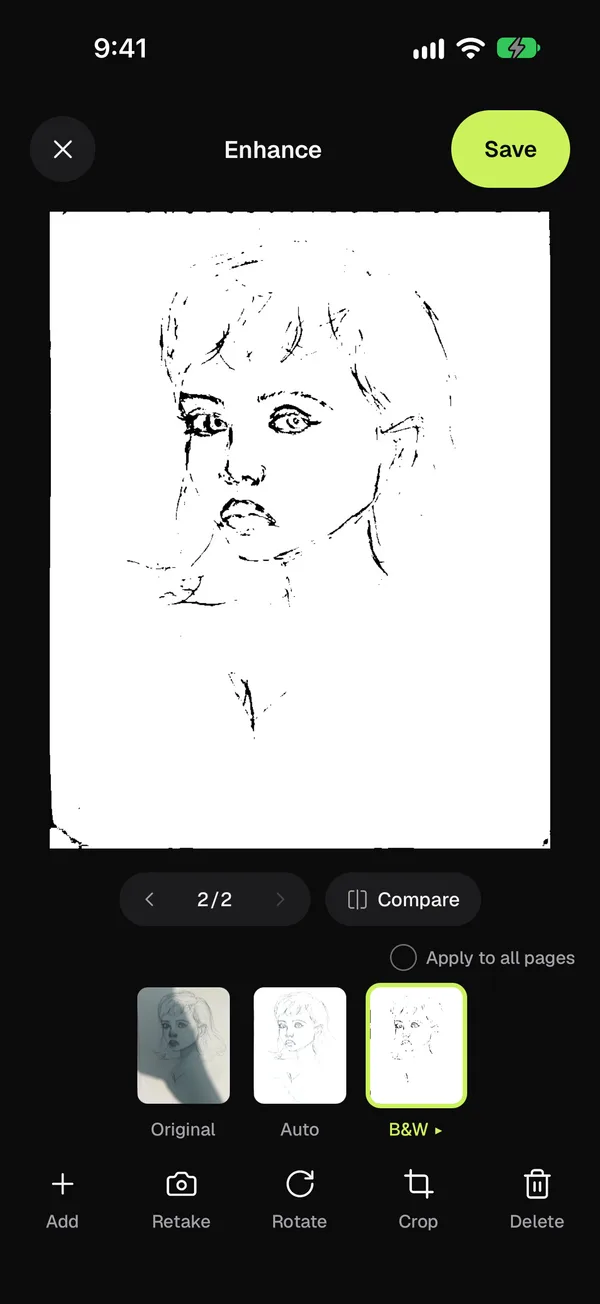
Copier has no account and uploads nothing: pages stay on the iPad until you share them. The free version scans and shares JPGs for up to 10 documents. PDF export and unlimited documents come with a one-time Pro purchase.
Which way to scan on iPad
For a page or two, use Files and save the PDF to the folder where it belongs. A form you need to fill in and sign is easiest in Preview with Apple Pencil, and lecture or meeting handouts fit best in Notes, next to what you wrote.
If you scan bills, receipts and school paperwork every week, a scanner app with one library saves time; the best scanner apps for iPhone all run on iPad too. And if shadows keep spoiling your pages, how to get clean scans covers the fixes.
Questions
Does the iPad have a scanner?
Yes. iPadOS has a document scanner built into Notes, Files, Preview and Mail. It uses the rear camera, finds the page's edges and saves the result as a PDF.
Where do scans go on iPad?
A scan made in Notes stays in that note. A scan made in Files is saved as a PDF in the folder you choose, and Preview saves its scans as PDFs you can rename and move in Files.
Can I use my iPhone to scan into my iPad?
Not directly. Continuity Camera sends iPhone scans to a Mac, not to an iPad. Scan on the iPhone and AirDrop the PDF to the iPad instead.
Can I sign a scanned document on iPad?
Yes. Open the PDF in Preview or Notes, use Markup to add a signature, and sign with your finger or Apple Pencil.