 COPIER
How to Scan in Notes on iPhone
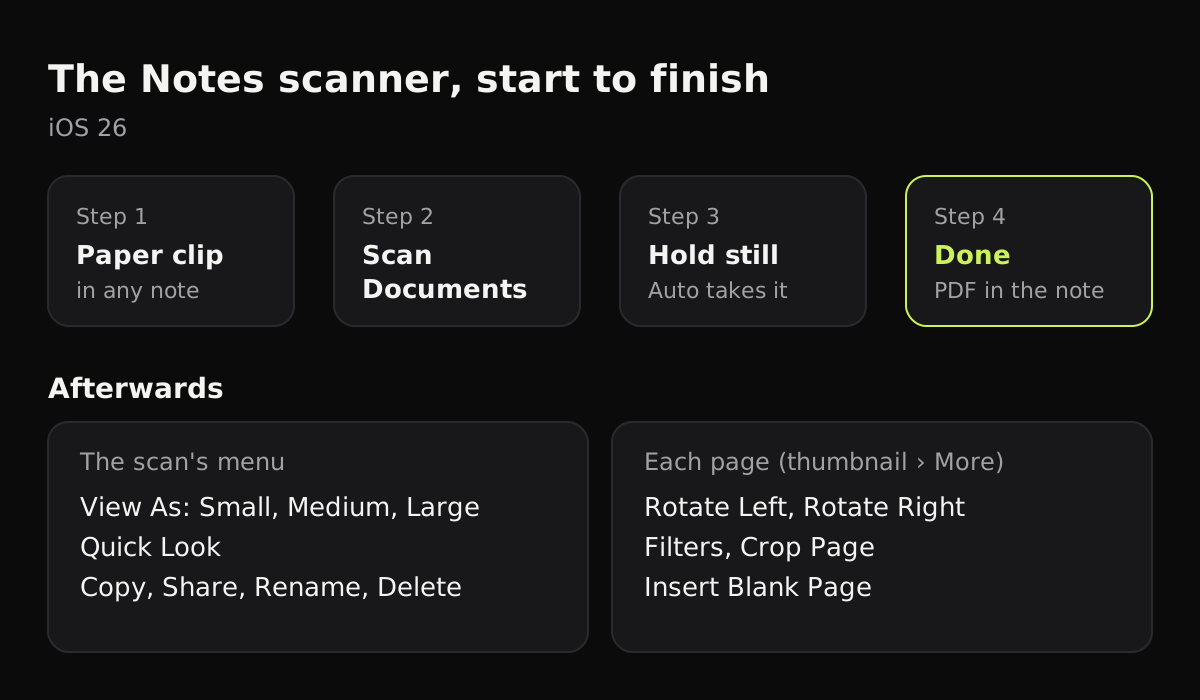
To scan in Notes on iPhone, open a note, tap the Attachments button (the paper clip), and choose Scan Documents. Hold the phone over the page, and Notes captures it as soon as it finds the edges; tap Done and the pages are saved as one PDF inside the note. The steps below are for iOS 26, followed by how to edit, rename and share the scan, and where it runs out.
How to scan in Notes, step by step
- Open Notes and start a new note, or open the one you want the scan in.
- Tap the Attachments button (the paper clip), then tap Scan Documents. You can also tap the More button (⋯) in an open note and choose Scan.
- Before shooting, set the Flash and pick a filter at the top of the screen if you want.
- Hold the iPhone over the page with all four corners in view. Keep it steady and Notes takes the page by itself.
- To shoot by hand, turn off automatic capture, tap the shutter or press a volume button, drag the corners to the paper’s corners, and tap Keep Scan (or Retake).
- Scan the next page. When you’re done, tap Done.
On iOS 17 and earlier the scanner was under the camera button in a note, which is why older guides send you there.
Choosing a filter
The Notes app scanner has four filters. You can choose one before scanning, or change it afterwards for any page.
| Filter | What it does | Use it for |
|---|---|---|
| Color | Keeps the page’s colors | Forms with color, letterheads, children’s drawings |
| Grayscale | Removes color, keeps shades of gray | Most text documents, with smaller files than Color |
| Black & White | High contrast: black text on white | Plain printed text and signatures, smallest files |
| Photo | Leaves the picture as taken | Photos, artwork, anything where the look matters |
Color is the default. For a typed letter, Grayscale is usually the best balance of a readable page and a reasonable file size. Black & White can make faint text or pencil break up.
Editing a scan after you save it
The scan sits in the note as a PDF. Tap its Menu button to:
- change the preview with View As: Small, Medium or Large
- open it full screen with Quick Look
- Copy, Share, Rename or Delete it
With the Medium or Large preview, tap a page’s thumbnail, then the More button, for page tools: Rotate Left, Rotate Right, Filters, Crop Page and Insert Blank Page. Filters and Crop Page only work on scanned pages, not on other PDFs you’ve attached. To write on the page, tap the Handwriting Tools button and use Markup, which is also where you add a signature.
How to save a Notes scan as a PDF
Notes scans are already PDFs, so there’s nothing to convert. Tap the scan’s Menu button, choose Share, and pick where it goes: Save to Files, Mail, Messages or AirDrop. Rename it first, so the person you send it to gets a file name that says what it is.
Where are Notes scans saved?
A scan lives inside the note you made it in. If your notes are in iCloud, the note and its scan sync to your iPad and Mac. If they’re in the On My iPhone account, they stay on the phone.
To find a scan again, use the search field in Notes. Apple’s guide says search covers text in scanned documents as well as typed and handwritten text, so typing a word that’s printed on the page, like “invoice” or a company name, finds the note. Inside a long note, tap the Note Actions button, choose Find in Note, and turn on Include Attachments to search inside the PDF. Where scanned documents go on iPhone covers the other apps too.
Scan Text: when you want words, not a picture
The Attachments menu also has Scan Text. Instead of a PDF, it reads printed text through the camera and inserts it into the note as typed text you can edit. Point the camera at the text, select what you want with the grab points, and tap Insert. It’s good for copying a paragraph from a book or a Wi-Fi password off a router; for keeping a whole document, use Scan Documents. How to scan text from an image covers more ways to pull text off a page.
Scanning handwritten notes
If “scan notes” means your own handwritten pages, Scan Documents works on those too. Use Grayscale rather than Black & White so lighter strokes don’t drop out, and scan in daylight. Notes can search handwriting in supported languages, so a scanned page of notes can still turn up in search. There’s more on this in how to scan handwritten notes.
Limits of the Notes app scanner
The Notes scanner does a good job for free, but some things are awkward:
- Scans are mixed in with everything else you keep in Notes, so a growing pile of paperwork gets hard to browse.
- The filters lighten or darken the whole page. A shadow from your hand, or the yellow light of a lamp, often stays.
- A curled page is corrected by its four corners, so lines near a bent edge can stay curved.
- There’s no going back to the original photo for a better crop later; Crop Page only trims what’s there.
When to use a scanner app instead
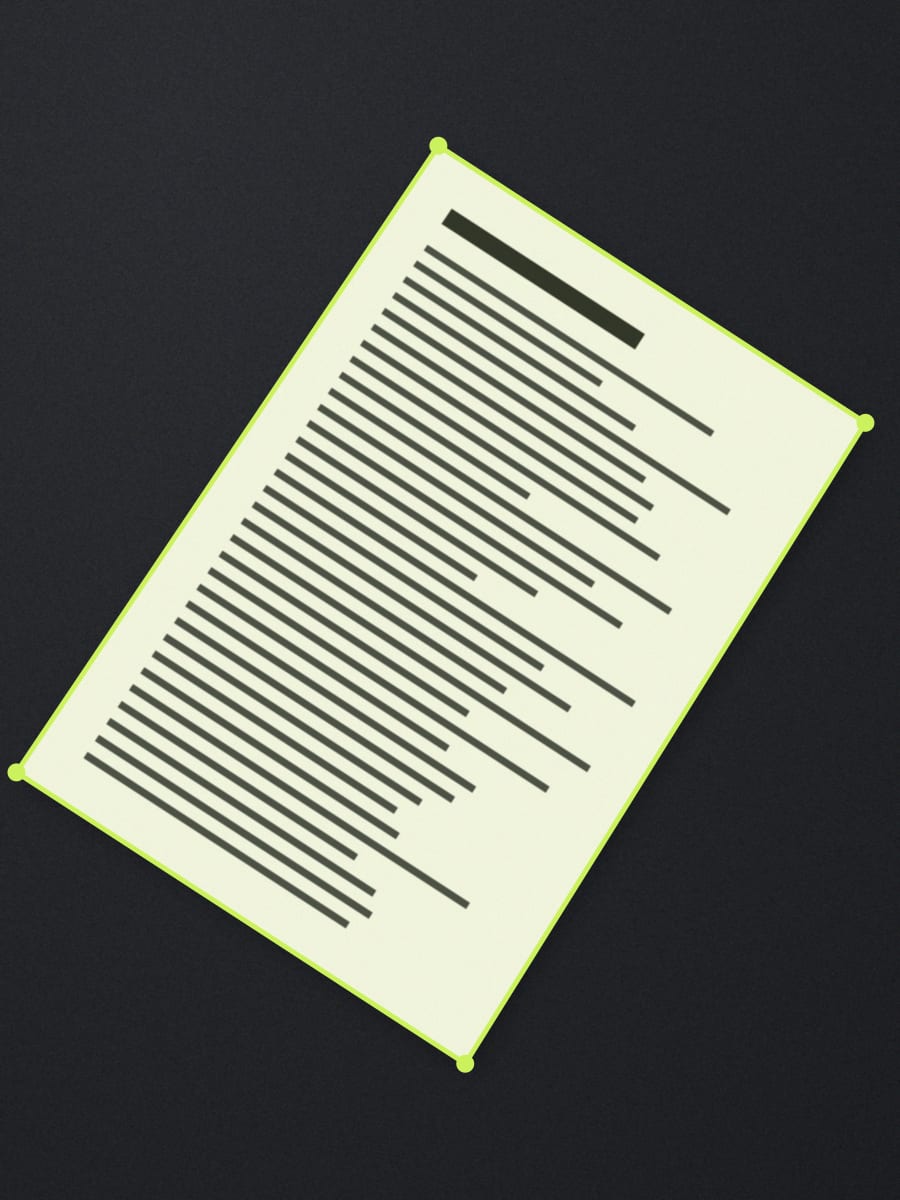
If you scan regularly, a dedicated app keeps scans in one library and does more cleanup. In Copier, the page’s outline follows it live in the camera, and each page is found, straightened along curved edges if it’s bent, and cleaned up on the phone. The Auto look evens out the light so the paper is white and shadows go, and fingers holding the page at its edge are removed. Each saved page keeps its original photo, so you can crop it again weeks later.
Copier has no account and uploads nothing. Scanning and sharing as JPG is free for up to 10 documents; PDF export and unlimited documents come with a one-time Pro purchase. Copier doesn’t read text yet, so for searchable scans, Notes is the better home. The iPhone’s built-in document scanner compares the Apple options side by side.
Tips for better Notes scans
- Wipe the lens before you start. A thumbprint makes every page soft.
- Put the page on a darker surface so Notes finds the edges quickly.
- Turn off the flash for glossy paper; it leaves a bright spot.
- Use Grayscale for text you’ll email, so the PDF stays small.
- Rename each scan straight away. A generic name means nothing in six months.
Questions
Where is the scan button in Notes on iPhone?
In iOS 26, open a note and tap the Attachments button, the paper clip, then tap Scan Documents. On iOS 17 and earlier it was under the camera button.
Where are scans saved in Notes?
Each scan is saved as a PDF inside the note you made it in. If Notes uses iCloud, the note and its scan sync to your other Apple devices.
How do I turn a Notes scan into a PDF?
It already is one. Tap the scan's menu and choose Share, then Save to Files, Mail or Messages, and the PDF goes as it is.
Can Notes read the text in a scan?
Yes, for searching. Notes search finds text in scanned documents, so you can type a word from the page to find the note. Scan Text in the Attachments menu inserts printed text into the note instead of a picture.