 COPIER
How to Scan Text From an Image on Any Device
To scan text from an image, open it in a tool that recognizes text (OCR), select the words and copy them. On an iPhone or iPad that’s Live Text in the Photos app; on Android it’s Google Lens; on a Mac it’s Preview or Photos; on Windows 11 it’s the Snipping Tool; and on any computer, Google Drive can turn a photo into an editable Google Doc. All of these are free.
The results depend mostly on the picture. Sharp, flat, evenly lit text is read almost perfectly. Text in a crooked photo taken under a lamp comes out with gaps and odd characters, so the second half of this guide is about getting the image right first.
Which tool to use on each device
Each of these is built in or free. The last column matters if the text is private: some read the image on your device, others send it to a server.
| Device | Tool | Where to find it | Reads the image on the device? |
|---|---|---|---|
| iPhone, iPad | Live Text | Photos, Camera, Safari, Files previews | Yes |
| Mac | Live Text | Preview and Photos: drag over text in an image | Yes |
| Android | Google Lens | Google Photos (Lens button), Camera, Google app | No, sent to Google |
| Windows 11 | Snipping Tool | Text actions button after a snip | Yes |
| Any computer | Google Drive | Right-click the file, Open with, Google Docs | No, uploaded to Drive |
| Chromebook, Chrome | Google Lens | Right-click an image, Search image with Google Lens | No, sent to Google |
How to copy text from a picture on iPhone
Live Text has been part of iOS since iOS 15 and works the same way on iOS 26:
- Open the photo in Photos.
- Touch and hold a word until it’s highlighted, then drag the handles to cover the text you want.
- Tap Copy. To take everything, tap Select All first.
- Switch to Notes, Mail or a document and paste.
There’s also a Live Text button in the lower-right corner of photos that contain text. Tap it and every block of text is highlighted, ready to copy. You don’t need to take a photo first: point the Camera at a page, tap the same button in the viewfinder, and copy straight from the live view. Apple’s support page covers translating the text too.
On a Mac, open the image in Preview or Photos and drag across the text with the pointer as if it were a web page.
How to copy text from an image on Android
- Open the image in Google Photos.
- Tap Lens at the bottom.
- Tap Text (or Select text), then select the words or tap Copy text.
Google Lens is also in the Camera app on most Android phones and in the Google app. Pixel phones can pick text out of whatever is on screen from the Recent apps view. Lens works by sending the image to Google, so it needs a connection.
On Windows 11
Take a snip with the Snipping Tool (Windows key + Shift + S), open it, and click Text actions in the toolbar. The tool highlights the text it found; click Copy all text, or select part of it and copy that. It works on anything you can get on screen, including a scan you’ve opened in Photos.
With Google Drive (any computer)
Upload the image or PDF to Drive, right-click it and choose Open with > Google Docs. Drive makes a new document with the image at the top and the recognized text below it. Google’s help page gives the limits: JPG, PNG, GIF or PDF files of 2 MB or less, text at least 10 pixels high, and the page the right way up. Lists, tables and columns usually don’t survive.
Why a clean scan gets better text
Every one of these tools reads text more accurately from a flat, square, evenly lit page. A phone photo of a sheet on a desk has three problems a recognizer struggles with: the lines of text are tilted, the far end of the page is smaller than the near end, and there’s a shadow somewhere. Scanning the page first fixes all three.
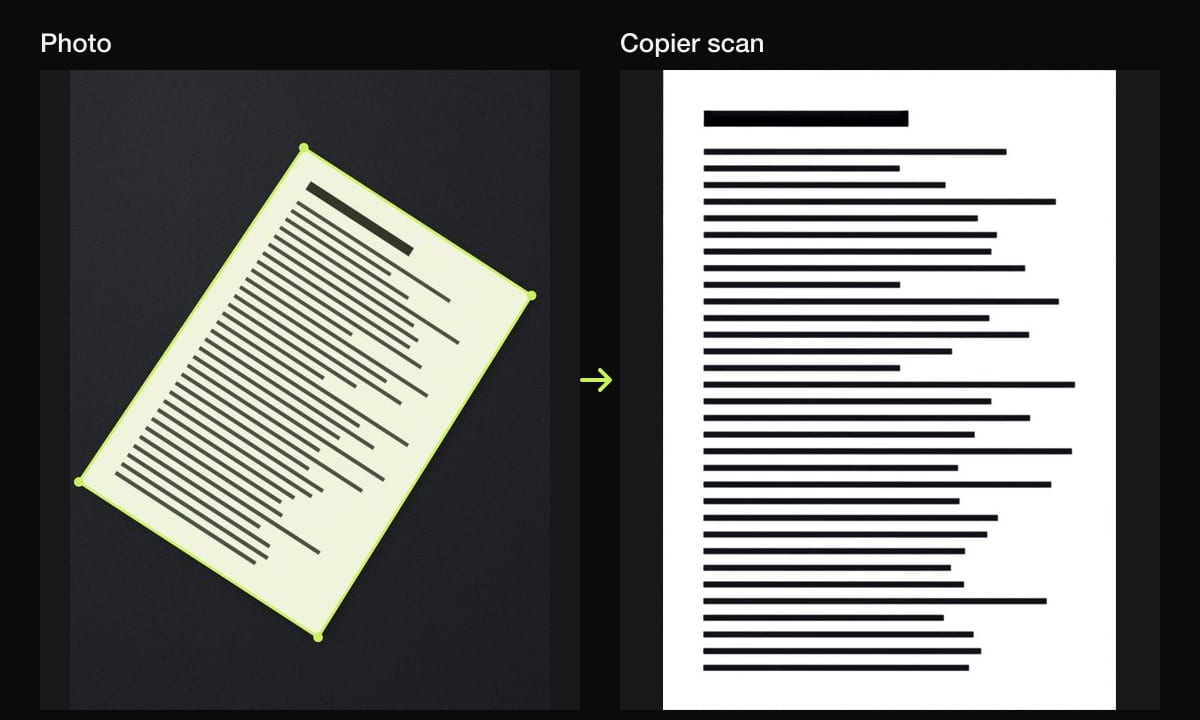
Copier does that part. It finds the page in the camera, cuts it out, straightens it (including a curled or bowed page), and evens out the light so the paper is white and the print is dark. Copier doesn’t recognize text itself yet. Instead, share the page as a JPG, save it to Photos, and use Live Text or Google Lens on the clean page. You’ll find a lot less to correct afterwards.
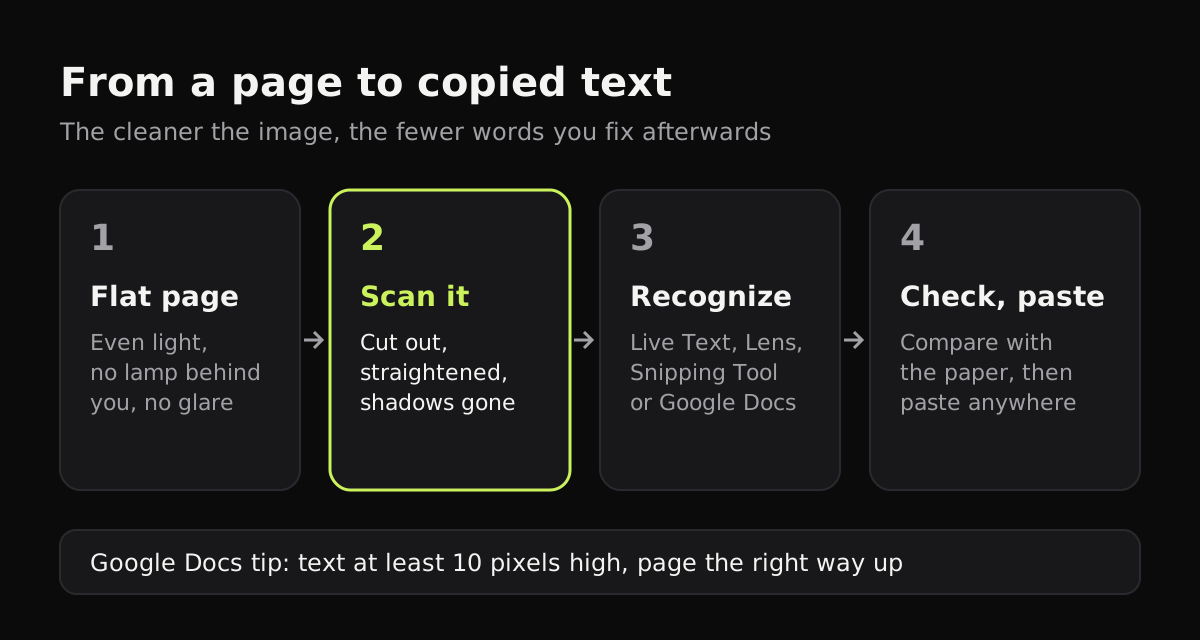
A few habits help with any tool:
- Use the Black & white look for printed text. High contrast is easiest to read, and it drops the colored background of forms and receipts.
- Get close enough that the text fills the frame. Google’s 10-pixel minimum is easy to miss on a photo of a whole page taken from far away.
- Keep the page right side up. Rotate it before you run the text recognition; some tools won’t do it for you.
- Handwriting works, but neat print works best. Expect to fix a few words in anything handwritten.
Our guides to scanning handwritten notes and getting clean scans without shadows go further on both.
When you need the text in a document
Copying a paragraph is quick. When you want a whole letter or several pages as an editable file, Google Docs (through Drive) or Word is the better route, since they keep line breaks and basic formatting. See how to scan a document into Word for that, and how to make a scanned PDF smaller if Drive refuses a file for being over 2 MB.
Which method to pick
For a phone number on a poster or a paragraph from a book, use what’s already on your phone: Live Text on an iPhone, Lens on Android. For private paperwork, prefer a tool that reads the image on the device (Live Text or the Windows Snipping Tool) over one that uploads it. For several pages you want to edit, scan them cleanly first, then open them in Google Docs or Word and proofread against the paper.
Questions
How do I copy text from a picture on iPhone?
Open the photo in Photos, touch and hold a word, drag the handles over the text you want and tap Copy. You can also tap the Live Text button in the corner of the photo to highlight all the text at once.
Can I scan text from an image for free?
Yes. Live Text on iPhone, iPad and Mac, Google Lens on Android, the Snipping Tool on Windows 11 and Google Drive's Open with Google Docs all recognize text in images at no cost.
Does Live Text work offline?
Yes. Apple runs Live Text on the device, so copying text from a photo works without a connection. Google Lens and Google Drive send the image to Google to read it.
Why can't I select the text in my photo?
The text may be too small, blurry or at a steep angle, or Live Text may be switched off on your iPhone. Retake the photo straight on in good light, or scan the page first so it's flat and sharp.