 COPIER
How to Email a Scanned Document (and Size Limits)
To email a scanned document, scan it with your phone or scanner, save it as a PDF, then tap Share and choose your email app, or attach the file in a new email with the paper clip button. Keep it under your email service’s limit: 25 MB for Gmail and Yahoo, 20 MB for Outlook.com and iCloud Mail. If it’s bigger, scan text pages in black and white or send a cloud link instead.
The steps differ a little on each device, and the size limits catch people out more than anything else.
Email attachment size limits
These are the limits for personal accounts, from each provider’s help pages. Work and school accounts can have different limits set by an administrator.
| Email service | Attachment limit | What happens with a bigger file | Source |
|---|---|---|---|
| Gmail | 25 MB | Gmail puts it in Google Drive and adds a link | |
| Outlook.com | 20 MB for the whole email, message included | Share a OneDrive (or other cloud) link instead | Microsoft |
| iCloud Mail | 20 MB per message, attachments included | Mail Drop sends files up to 5 GB as a download link | Apple, Mail Drop |
| Yahoo Mail | 25 MB for all attachments in one message | Use a cloud link | Yahoo |
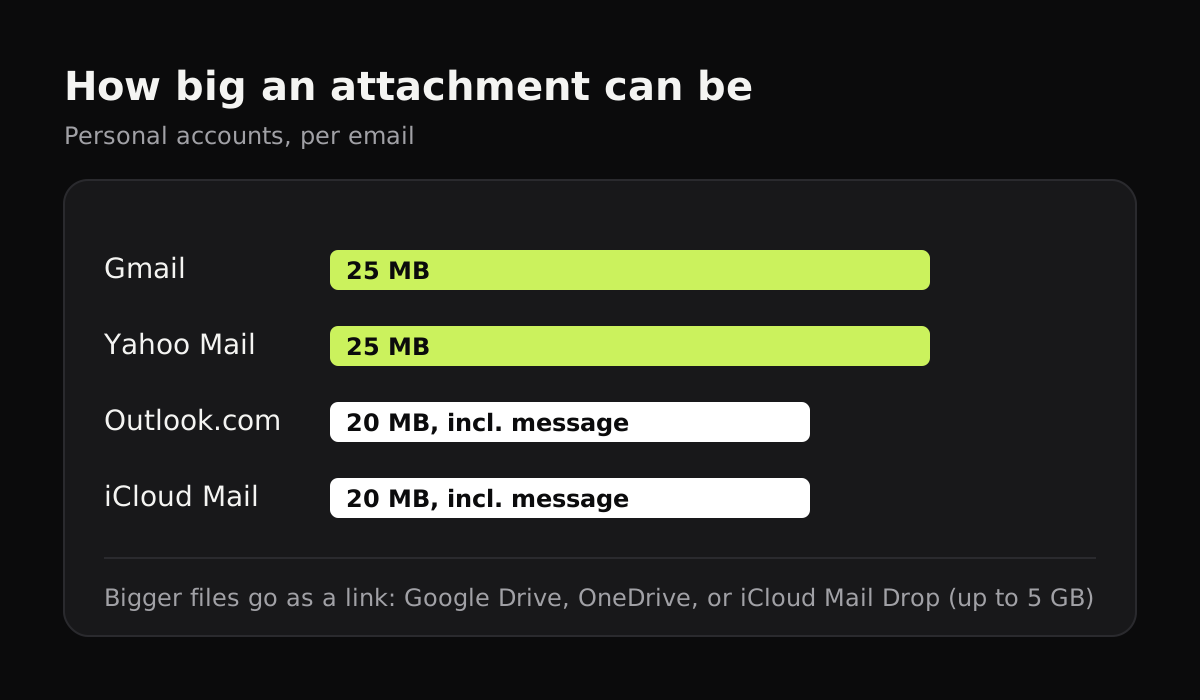
Two things make files bigger than they look. Attachments are encoded as text for sending, which adds about a third to their size, so a file that’s just under the limit may still bounce. And the person you’re sending to has a limit too; a 24 MB file from Gmail can be refused by an inbox that takes 20 MB. Keeping scans well under 20 MB leaves room for both.
Mail Drop links expire after 30 days, so don’t rely on one for anything the recipient needs to keep coming back to.
How to send a scanned document from iPhone
- Scan it in Notes (Attachments > Scan Documents) or Files (More > Scan Documents). Keep scanning until every page is in, then tap Done or Save. The scan is a PDF.
- Open the scan and tap Share.
- Choose Mail, Gmail or Outlook. A new message opens with the PDF attached.
- Add the address, a subject, and send.
If a large attachment won’t go through Apple Mail, it offers to send it with Mail Drop instead. For more, see how to scan documents on iPhone.
How to send a scanned document from Android
- Scan with Google Drive (tap Camera, scan, tap Done, and save as PDF).
- In Drive, tap the More button (three dots) next to the file and choose Send a copy to attach the file itself, or Share to send a link.
- Pick Gmail or your email app and send.
Sending a copy attaches the file; sharing sends a Drive link, which only works if the recipient has access. For a form you need someone to keep, attach it.
How to email a scan from a computer
- Scan with your scanner’s app, or Windows Scan, Image Capture or Preview, and save the file somewhere you’ll find it, like Desktop or Documents.
- In your email, click the paper clip (Attach) and choose the file. In Gmail and Outlook on the web you can also drag the file into the message.
- Check that it’s attached before you click Send.
Scan to email on a printer
Many all-in-one printers have a Scan to Email button that sends the scan straight from the printer. It has to be set up first in the printer’s settings page or its maker’s app, and some printers only send to addresses saved in their address book. If it isn’t set up, scanning to your computer or phone and emailing from there is usually quicker.
Sending a scan from Copier
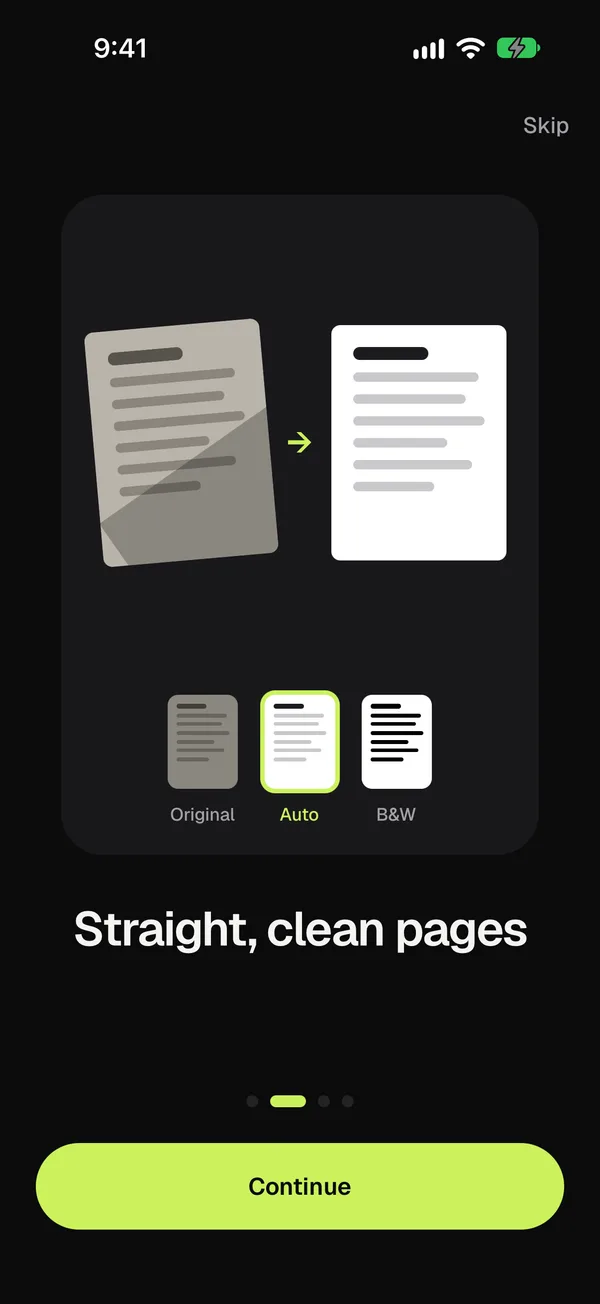
In Copier, open the document in your library, tap Share, and choose JPG or PDF. The share sheet opens, so you can pick Mail, Gmail, Outlook or anything else on your phone. Pick B&W on the Enhance screen for text documents: it gives the crispest text, and the white paper keeps the file small. Copier doesn’t upload anything itself; the file goes only to the app you share it with. Sharing as JPG is free, and PDF is part of Copier Pro.
What to do when a scan is too big to email
- Use black and white for text. A black and white page compresses far better than the same page in color.
- Don’t scan at more than you need. 300 dpi is plenty for documents; 600 dpi has four times as many pixels, and the file grows to match.
- Split it. Send a long document in two emails, “part 1 of 2” and “part 2 of 2”.
- Send a link. Upload it to iCloud Drive, Google Drive, OneDrive or Dropbox and send the link. Check the sharing settings so the recipient can open it.
- Compress the PDF. See how to make a scanned PDF smaller for free ways to do it.
Tips for emailing documents people need to act on
- Name the file for the recipient, not for you: “Smith lease signed 2026-11-04.pdf” beats “Scan 14.pdf”.
- Put every page in one PDF. Five separate photos of a five-page form get out of order. How to scan multiple pages into one PDF shows how on each device.
- Say what’s attached in the email (“signed lease, 4 pages”), so the recipient can tell if a page is missing.
- Think twice before emailing IDs, tax forms or medical records. Email isn’t encrypted end to end by default. Use the recipient’s secure upload portal if they have one. For the format question, see PDF vs JPG.
Questions
How do I email a scanned document from my phone?
Scan the document with your phone's scanner app, open the scan, tap Share and choose your email app. The scan is attached to a new email; add the address and a subject and send it.
Why is my scanned document too big to email?
Color scans at high resolution make large files, and attachments grow by about a third when they're encoded for sending. Scan text documents in black and white, or send a cloud link instead.
What is the maximum attachment size for Gmail?
25 MB for personal Gmail accounts. If a file is bigger, Gmail adds it to the email as a Google Drive link instead of an attachment.
Should I send a scanned document as PDF or JPG?
PDF for anything with more than one page, and for forms and contracts, because it keeps the pages together in order. A JPG is fine for a single page someone just needs to look at.
What does scan to email on a printer do?
Many all-in-one printers can scan a page and send it straight to an email address. It needs to be set up in the printer's settings or app first, and the file goes out through the printer's own email setup.