 COPIER
How to Scan Multiple Pages Into One PDF (Any Device)
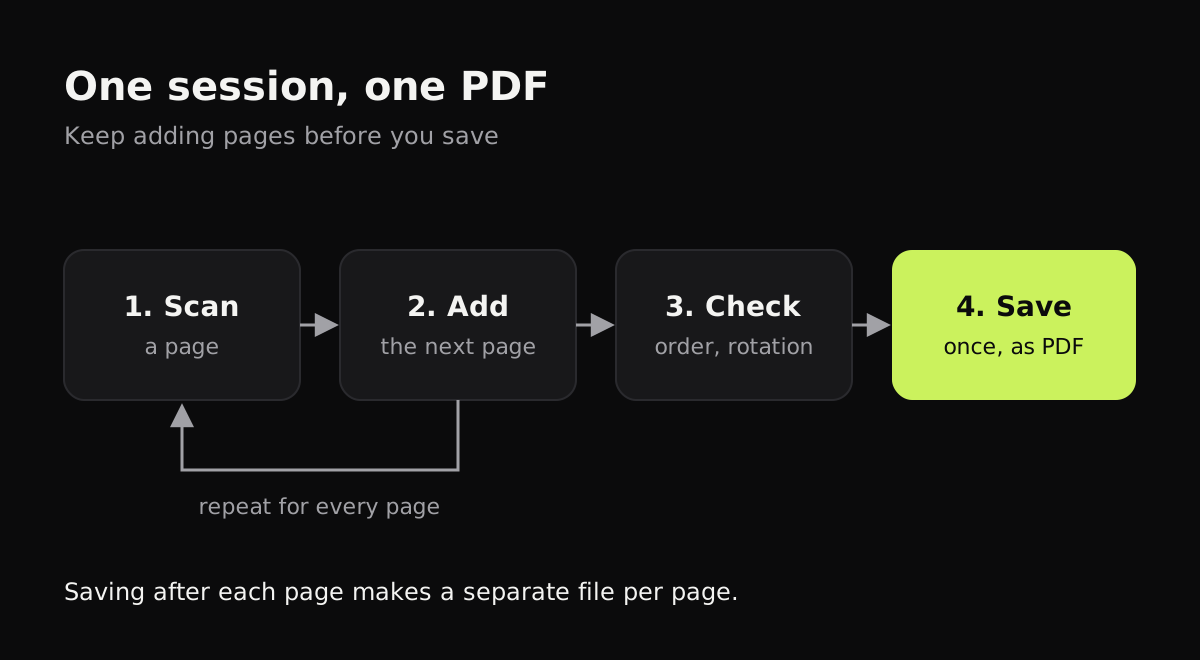
To scan multiple pages into one PDF, scan every page in the same session and save once at the end. On a phone, that means tapping Keep Scan or Add after each page instead of Save; on a scanner, it means choosing PDF with the “combine pages” option or using the document feeder. If you’ve already got several separate scans, you can still merge them into one PDF afterward.
Most “I got 12 files instead of one” problems come from saving after each page, or scanning to JPG, which holds only one page per file.
Multi-page scanning by device
This shows where the multi-page option is on each device and whether it can combine files you’ve already scanned.
| Device | Free tool | How to add pages | Combine existing files |
|---|---|---|---|
| iPhone, iPad | Notes or Files, Scan Documents | Tap Keep Scan after each page, then Done or Save | Files app: select files, More, Create PDF |
| Android | Google Drive scanner | Tap Add after each page, then Done, save as PDF | A PDF app; Drive can’t merge |
| Windows 11 | Your scanner maker’s app | Multi-page PDF setting, or load the document feeder | Print images to Microsoft Print to PDF, or a PDF app |
| Mac | Image Capture or Preview | Format PDF, tick Combine into single document | Preview: drag PDFs into the sidebar |
| Chromebook | The built-in Scan app with a scanner, or a web scanner | See how to scan on a Chromebook | A PDF tool |
| Any phone or browser | Copier | Batch mode, or Add on the Enhance screen | Not supported |
How to scan multiple pages into one PDF on iPhone
The scanner built into iOS 26 does this by default. From Apple’s steps:
- Open Notes, start a note, tap the Attachments button (the paper clip) and choose Scan Documents. Or in Files, tap the More button and choose Scan Documents.
- Hold the iPhone over the first page. In Auto mode it captures by itself; otherwise tap the shutter. Adjust the corners and tap Keep Scan.
- Put the next page down and scan it. Each page you keep is added to the same document.
- When the last page is in, tap Done. In Files, choose a folder and tap Save.
Notes saves the scan as a PDF inside the note; Files saves it as a PDF in the folder. To share from Notes, open the scan and tap Share. For more on the Notes scanner, see how to scan in Notes on iPhone.
Combining separate scans on iPhone
If you already have the pages as separate files or photos:
- Save them into one folder in the Files app.
- Tap the More button, then Select, and tap the files in the order you want them.
- Tap More at the bottom right and choose Create PDF.
How to scan multiple pages into one PDF on Android
Google Drive’s scanner works the same way, according to Google’s help page:
- Open Google Drive and tap the Camera button.
- Scan the first page, then tap Add to scan the next one. Repeat for every page.
- Tap Done, give it a name, choose PDF, pick a folder and tap Save.
Samsung phones also have a scanner in the camera; how to scan on Samsung covers it.
How to scan multiple pages into one PDF with a scanner
Windows 11
The built-in Windows Scan app saves each scan as JPEG, PNG, TIFF or Bitmap, not PDF, according to Microsoft’s scanner guide. For a multi-page PDF:
- Use the scanner maker’s own app. Most have a “multi-page PDF” or “add page” option, and they can scan a whole stack from the automatic document feeder (ADF).
- Or scan each page with Windows Scan, select all the images in File Explorer, right-click and choose Print (under Show more options if you don’t see it), pick Microsoft Print to PDF, and print. You get one PDF with every page.
Mac
- Open Image Capture and select your scanner.
- Set Format to PDF and tick Combine into single document.
- Scan each page, or load the feeder. Pages are added to the same PDF.
Preview’s File > Import from Scanner also works. To join PDFs you already have, open the first in Preview, show thumbnails in the sidebar, and drag the other PDFs in where you want them.
Scanning multiple pages with Copier
In Copier, switch the camera to Batch and it stays open after each page, so you can go through a stack without tapping between pages. With Auto capture on, each page is taken once you’ve held still for about a second. On the Enhance screen, swipe through the pages, tap Add for one you missed, and Rotate, Retake or Delete any page. Apply to all pages gives every page the same look. Then Save, and share the whole document as one PDF.

Each page goes on an A4 sheet, turned to landscape for wide pages. PDF export is part of Copier Pro, a one-time purchase; sharing pages as JPG is free. Copier can’t merge PDFs you made elsewhere, so use Files, Preview or a PDF app for that.
How to get the page order right
- Scan in reading order. Put the stack face up and take pages from the top.
- For double-sided pages, scan all the fronts, then turn the stack over and scan the backs, then reorder; or flip each sheet as you go. How to scan double-sided documents has the details.
- Check the thumbnails before saving. It’s much easier to fix the order in the scanner than afterward.
- If the PDF is too big to send, black and white pages are much smaller. See how to make a scanned PDF smaller.
Questions
How do I scan multiple pages into one PDF on iPhone?
In Notes, tap the Attachments button, choose Scan Documents, and tap Keep Scan after each page. Keep scanning until every page is done, then tap Done (or Save in the Files app), and all the pages are one PDF.
Why does my scanner save each page as a separate file?
The scanning software is set to save after every scan, or the format is JPG, which holds one page per file. Choose PDF and the option to combine pages or add pages, or use the scanner's document feeder for the whole stack.
How do I combine scanned PDFs into one?
On iPhone, select the files in the Files app, tap More and choose Create PDF. On a Mac, open one PDF in Preview and drag the others into its sidebar. On Windows, use a PDF app such as Adobe Acrobat or a PDF tool you trust.
How do I scan multiple pages into one PDF on Windows 11?
Use your scanner's own software, which usually has a multi-page PDF option and supports the document feeder. The built-in Windows Scan app saves images only, but you can print the images to Microsoft Print to PDF to combine them.