 COPIER
How to Scan on Samsung Phones (One UI 8 and 8.5)
How to scan on Samsung phones depends a little on your One UI version, but the quickest way is the Camera app: point it at the page and tap the Scan button that appears once the camera recognizes a document. The scan is saved as an image in your Gallery. On phones with One UI 8.5, the newer Document Scan mode can take several pages and save them as one PDF.
Samsung has changed where these options live a few times, so the exact labels on your phone depend on its One UI version. Below are the four built-in ways to scan documents on Samsung, where each one saves the file, and what to use when you need a proper multi-page PDF.
How to scan on a Samsung phone with the Camera
The Camera’s scanner has been on Galaxy phones for several versions of One UI. It works best for a single page you want as a picture.
- Open Camera and tap the Settings cog.
- Turn on the document scanning option. On most One UI versions it’s called Scan documents and text; on some older phones you also need Scene optimizer on.
- Go back to the camera and hold the phone over the page, with all four corners in view.
- When the camera draws an outline around the page, tap the Scan button.
- Check the crop, drag a corner if it’s off, then tap Save.
The page is saved to Gallery as an image. If you want text from it, open the scan and look for the text extraction button on the image.
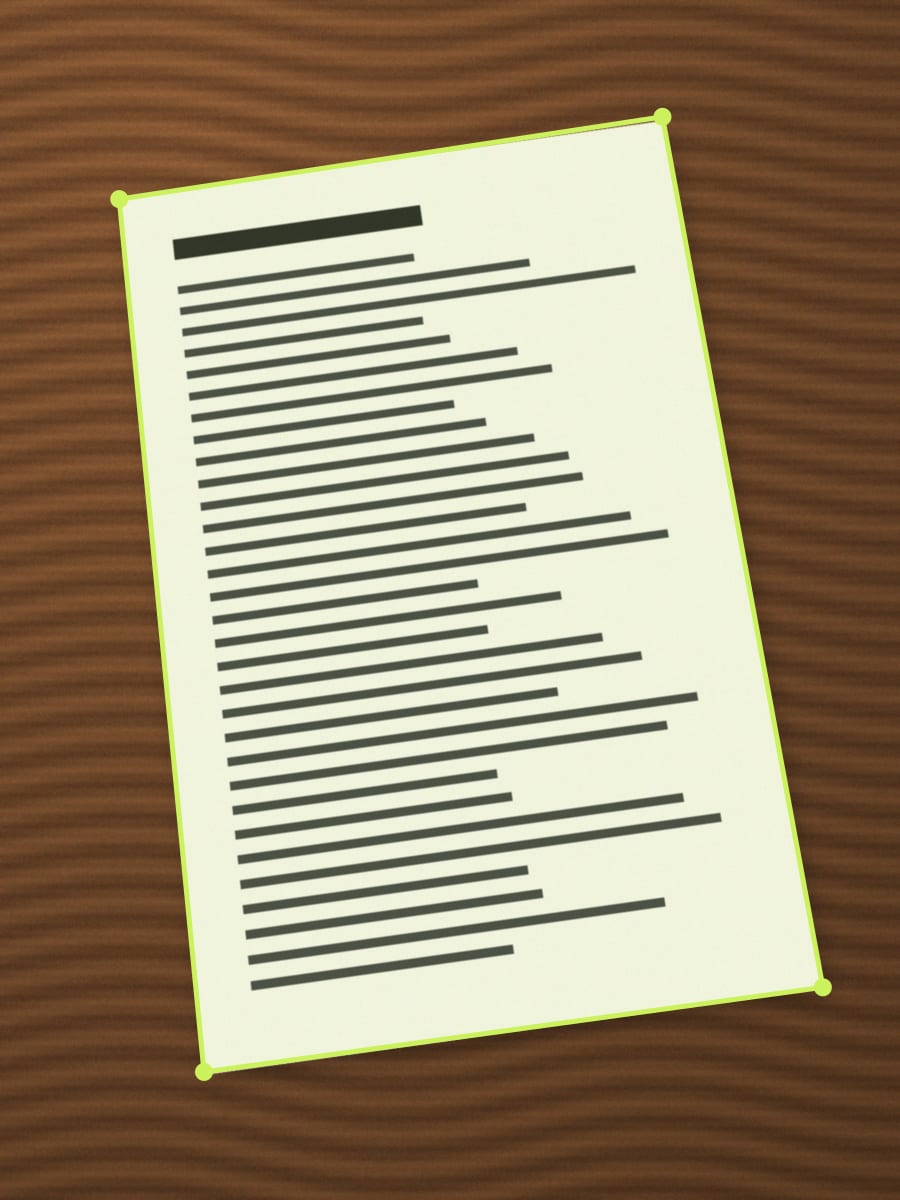
Document Scan in One UI 8.5
Samsung added a separate Document Scan mode to the camera with the Galaxy S26, and brought it to the Galaxy S25 series, S25 Edge, Z Fold7 and Z Flip7 with the One UI 8.5 update, according to SamMobile and Android Authority. It takes several pages in a row and stitches them into one PDF, which the older Scan button can’t do.
To turn it on and give it its own icon:
- Open Camera, tap the Settings cog, then Scanning.
- Turn on Document Scan.
- Tap Document Scan and turn on the option to add it to the Apps screen. Set Scan resolution to High while you’re there.
- Open Document Scan from the Apps screen, or long-press the Camera icon and pick it.
- Take each page with the shutter, then save.
Document Scan has Auto and Manual capture, four filters (Clean, Natural, Grayscale and Black & White), and can remove fingers, folded corners and moiré patterns. If your phone doesn’t have Scanning in the camera settings, it hasn’t had the feature yet; use one of the other methods.
How to scan documents on Samsung with Samsung Notes
Samsung Notes can scan pages straight into a note, which is handy when you want the scan next to your own notes, or when your phone only has the single-page Scan button.
- Open Samsung Notes and start a new note.
- Open the insert or attach menu in the toolbar and choose the scan option. The exact icon has moved between versions.
- Scan each page. Notes finds the edges for you.
- To get a PDF, open the note’s menu and save or share it as a PDF file.
Samsung’s support page notes that you can import and export documents as PDFs in Notes. A PDF exported from Notes can’t be edited again in Notes, so keep the note itself if you might add pages later.
Google Drive’s scanner
Galaxy phones come with Google Drive, and it has a good multi-page scanner. Open Drive, tap + then Scan (or the camera button), take the pages, tap Done, choose PDF or JPG and Save. There’s a full walkthrough in how to scan with Google Drive.
The catch is where it goes: the file is uploaded to your Google Drive, so you need a Google account and a connection, and a copy of the document lives in Google’s cloud.
Which Samsung scanning method to use
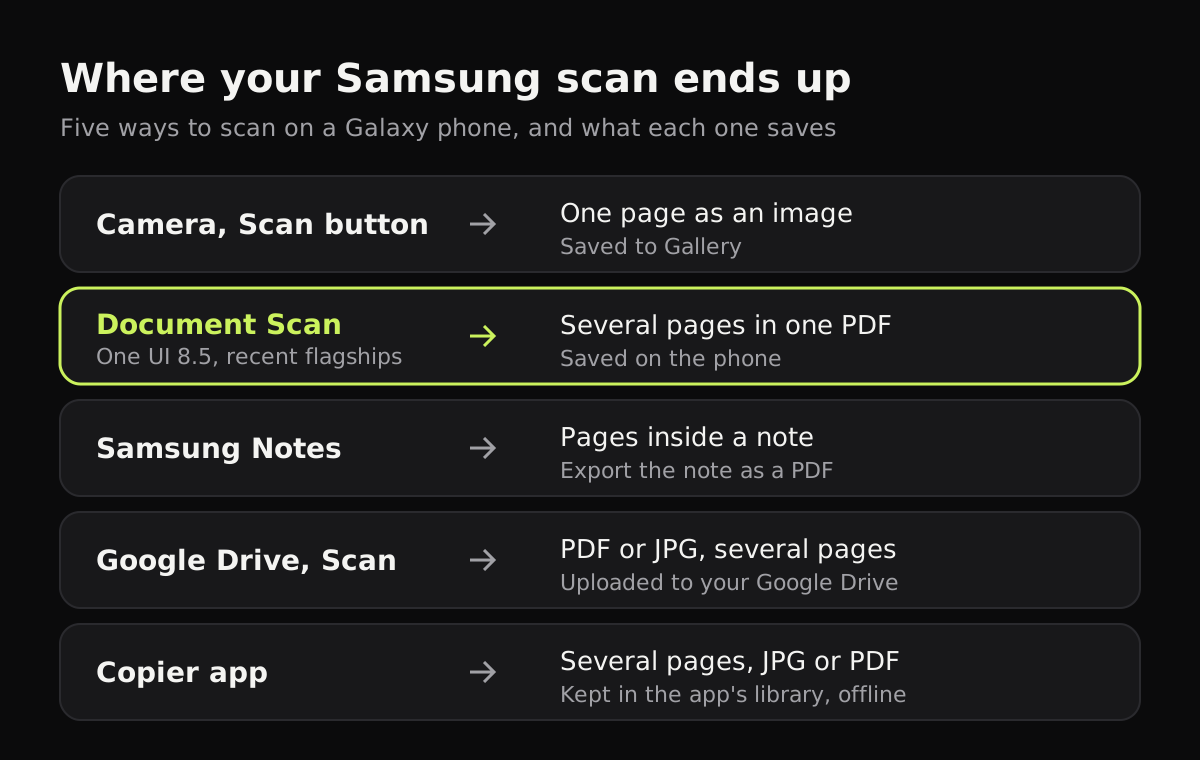
The options side by side, with where each one saves the file:
| Method | Pages | File you get | Where it’s saved | Needs an account |
|---|---|---|---|---|
| Camera Scan button | One | Image | Gallery | No |
| Document Scan (One UI 8.5) | Several | One PDF | On the phone | No |
| Samsung Notes | Several | Note, export as PDF | Samsung Notes | No |
| Google Drive scan | Several | PDF or JPG | Your Google Drive | Google account |
| Copier app | Several | JPG, or PDF with Pro | App’s library on the phone | No |
If you lose track of a scan, open My Files and look under recent files.
A scanner app for regular scanning
If you scan often, a dedicated scanner app gives you a library to keep documents in and more control over how pages look. Copier runs on Samsung phones, tablets and foldables, and does everything on the phone: no account, no uploads, and it works offline.
The camera draws the page’s outline live and, with Auto on, takes the page once you’ve held still for about a second. Batch keeps the camera open for the next page. Each page is cut out, straightened (including a curled page) and cleaned up, and you pick a look: Auto for most documents, Black & white for plain text, Original for photos. Fingers holding the page at its edge are painted out.
Sharing as JPG is free for up to 10 documents. PDF export and unlimited documents come with Copier Pro, a one-time lifetime purchase. Copier doesn’t recognize text yet, so use Samsung’s text extraction or Google Lens if you need to copy words out of a scan.
Tips for cleaner Samsung scans
- Scan with the back camera in good light. A window or ceiling light gives fewer shadows than a desk lamp, and how to get clean scans covers the rest of the usual problems.
- Put the page on a darker surface so its edges stand out from the table.
- Turn the flash off for glossy paper, which reflects it as a bright spot.
- Use Black & white for forms you’ll email: the text stays sharp and the file stays small.
- If a school or office asks for one PDF, skip the single-page Scan button and use Document Scan, Notes, Drive or a scanner app. Making a PDF on Android covers the other routes, and the best scanner apps for Android compares the apps.
Questions
Where do Samsung scans go?
A scan from the Camera's Scan button is saved as an image in the Gallery app. Document Scan on One UI 8.5 saves a PDF on the phone, Samsung Notes keeps the scan inside a note, and Google Drive uploads it to your Drive.
Why don't I see the Scan button in my Samsung camera?
The document scanning option is probably off. Open the Camera, tap the settings cog and turn on the scanning option (called Scan documents and text on most One UI versions, or under Scanning on One UI 8.5), then point the camera at a page in good light.
Can a Samsung phone scan several pages into one PDF?
Yes, on phones with Document Scan in One UI 8.5, which combines the pages into one PDF. On older phones, use Samsung Notes and export the note as a PDF, or use Google Drive or a scanner app.
Does scanning on a Samsung phone need the internet?
The Camera's scanner and Samsung Notes work on the phone. Google Drive's scanner saves to your Drive, so it needs a Google account and a connection to upload the file.