 COPIER
How to Scan on a Google Pixel (Camera, Drive, Files)
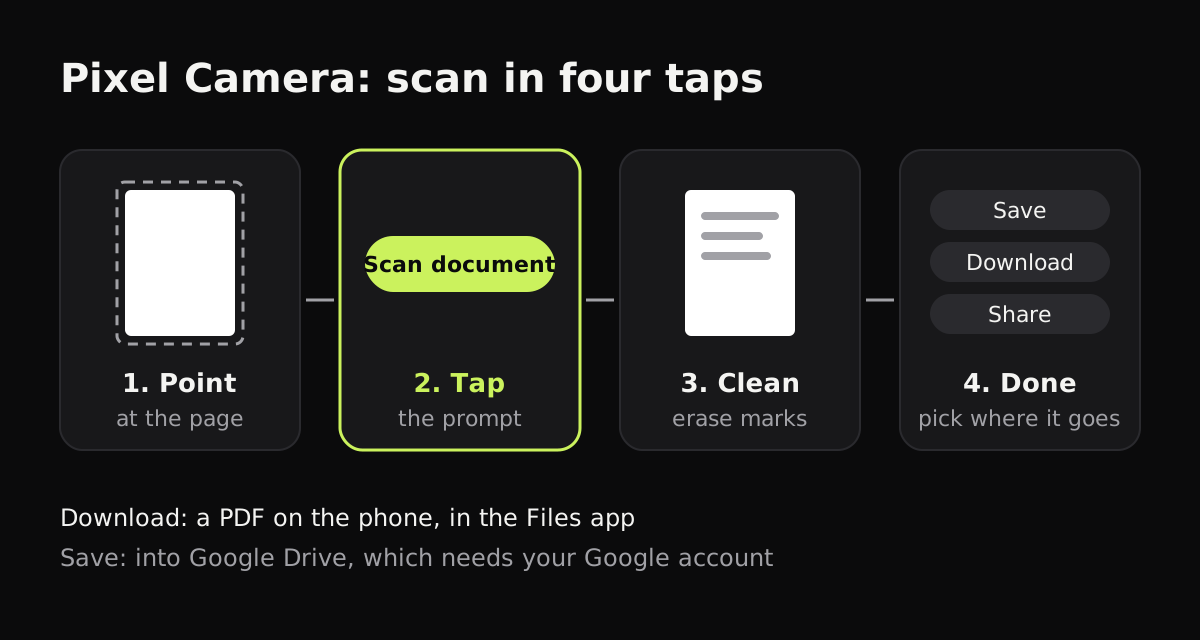
How to scan on a Google Pixel: open the Camera, point it at the page, and tap the Scan document prompt that appears. Clean up the page if you need to, tap Done, and choose Save, Download or Share. For several pages in one PDF, use the Scan button in Google Drive or Files by Google instead.
Pixel phones have three Google scanners built in, and they differ mainly in where the file ends up. Here’s how to scan documents on a Pixel with each, and how they compare.
Scan with the Pixel Camera
This is the fastest way to scan one page. The steps follow Google’s Pixel Camera help page.
- Open Camera and point it at the document.
- Wait for the Scan document prompt to appear, then tap it.
- To remove a mark or a smudge, tap Clean at the bottom, then Apply.
- Tap Done at the top right.
- Choose Save, Download or Share.
Download keeps a PDF on the phone, which you’ll find in the Files app. Save puts it in Google Drive, so it needs your Google account. Share sends it straight to another app.
The prompt only appears when the camera is sure it’s looking at a document, so give it a clear view: the whole page in the frame, good light, and a background that contrasts with the paper.
Scan with Google Drive
Drive’s scanner takes several pages into one PDF.
- Open Drive and tap the Camera button at the bottom right, or + then Scan.
- Point the camera at the page. A blue line shows the crop. Switch between Auto and Manual capture if you like.
- Adjust with Crop & Rotate, Filter or Clean, and tap Add for the next page.
- Tap Done, name the file, choose PDF or JPG, pick a Location, and tap Save.
The file is uploaded to your Google Drive and saved as a searchable PDF. How to scan with Google Drive has more detail, including what uploading means for private documents.
Scan with Files by Google
The Files app on Pixel phones has its own Scan button, with the same tools as Drive, and it keeps the PDF on the phone.
- Open Files by Google and tap Scan at the bottom right.
- Take the page, by hand or with Auto capture.
- Use Crop and rotate, Filter or Clean, and Add for more pages.
- Tap Done.
Google’s Files help page says the scan is saved as a searchable PDF, under Recents and in Documents, then Scanned. If you can’t find it, search for “pdf” in the app.
When Scan document doesn’t appear
If the Camera never offers Scan document, check these in order:
- Fill more of the frame with the page and hold the phone flat above it, not at a steep angle.
- Add light. In a dim room the camera may not recognize the page as a document.
- Update the Pixel Camera app from Google Play. The scanner is a Camera feature, and older versions may not have it.
- Use Drive or Files by Google, whose Scan buttons don’t depend on a prompt.
If what you want is the text rather than an image of the page, Google Lens can copy text from a page you point the camera at, and the scanners in Drive and Files make searchable PDFs.
Where Pixel scans are saved
Each scanner keeps its files somewhere different.
| Method | Pages | File | Where it’s saved | Account |
|---|---|---|---|---|
| Pixel Camera, Download | One | Files app, on the phone | No | |
| Pixel Camera, Save | One | Google Drive | Google account | |
| Google Drive Scan | Several | PDF or JPG | The Drive folder you pick | Google account |
| Files by Google Scan | Several | Searchable PDF | Documents, then Scanned | No |
| Copier | Several | JPG, or PDF with Pro | Copier’s library, on the phone | No |
An offline scanner for a Pixel
If you scan often, or scan things you don’t want in the cloud, a dedicated scanner app gives you a library and more control over how pages look. Copier runs on Pixel phones and tablets, and does all of its work on the phone. There’s no account, nothing is uploaded, and it works offline.
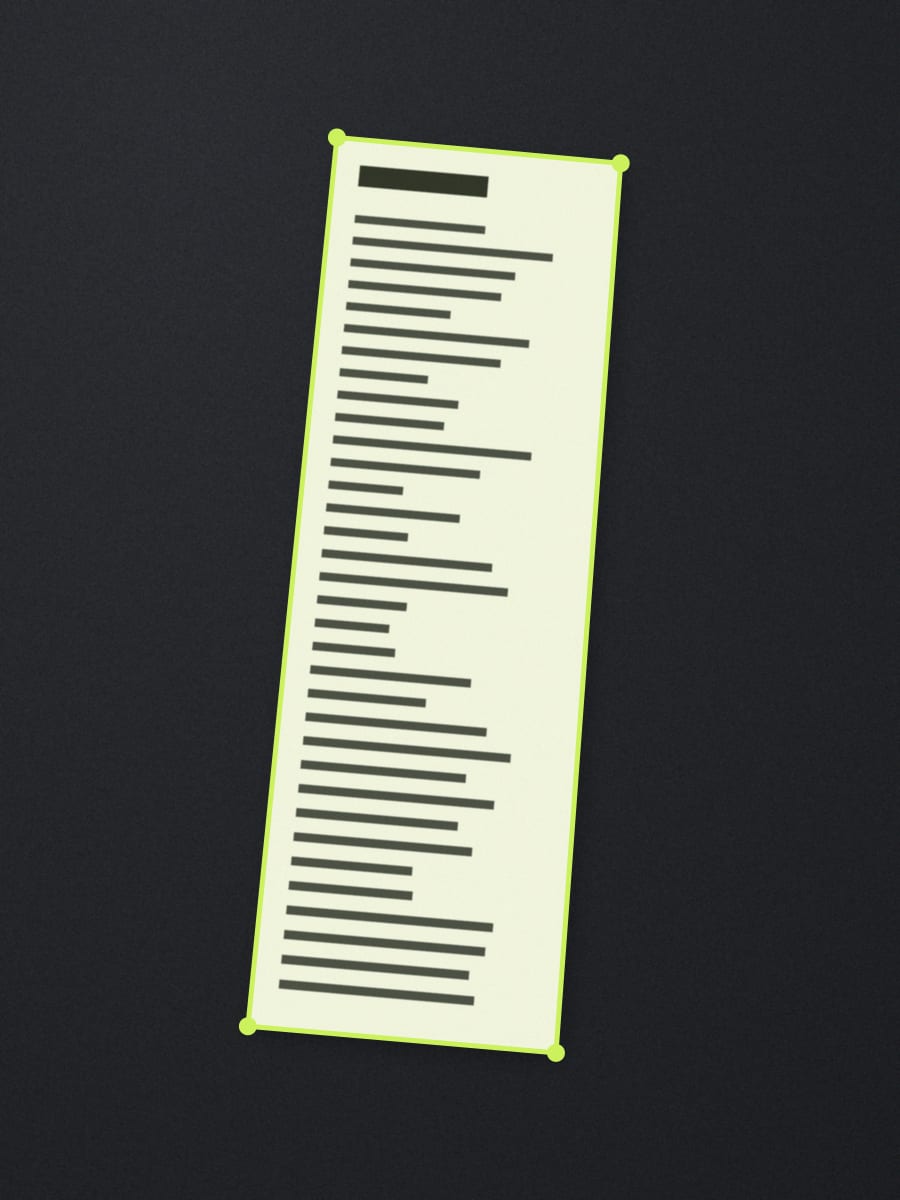
The camera outlines the page live and, with Auto on, takes it once you’ve held still for about a second, so you don’t wait for a prompt. Batch keeps the camera open for a stack of pages. Each page is cut out and straightened, curled pages included, and you choose a look: Auto makes the paper white and removes shadows, Black & white gives crisp text, and Original leaves photos as they are.
Sharing as JPG is free for up to 10 documents; PDF export and unlimited documents come with Copier Pro, a one-time lifetime purchase. Copier doesn’t recognize text yet, so for searchable PDFs use Files by Google or Drive.
Tips for scanning on a Pixel
- Lay the page on a dark, plain surface. The Camera’s prompt and every scanner’s edge detection work better with contrast.
- Avoid the flash on glossy paper and laminated cards; tilt the phone slightly instead to move reflections off the page.
- For forms and letters, pick the black and white or grayscale filter. Text is sharper and the file is smaller.
- Rename scans as you save them, with the date and what the document is. A generic scan name is hard to find a month later. Going paperless covers keeping a whole archive in order, and scanning receipts covers the long, narrow ones.
Questions
Does the Pixel camera have a document scanner?
Yes. Point the Pixel Camera at a document and wait for the Scan document prompt, then tap it. After you tap Done you can save, download or share the scan.
Where do Pixel scans go?
It depends on the app. Downloaded scans from the Camera and scans from Files by Google are PDFs on the phone, in the Files app. Scans from Google Drive are uploaded to the Drive folder you pick.
Why doesn't my Pixel camera show Scan document?
The prompt only appears when the camera clearly sees a document. Fill more of the frame with the page, use better light and a darker background, and keep the camera steady. If it still doesn't appear, scan from Google Drive or Files by Google instead.
How do I scan several pages into one PDF on a Pixel?
Use Google Drive or Files by Google. After the first page, tap Add to scan the next one, then tap Done, and all the pages are saved in one PDF.