 COPIER
How to Go Paperless at Home: A Simple Plan
To go paperless, decide which originals you have to keep, stop new paper arriving, scan what comes in from now on, and then work back through the old piles a year at a time. Name every scan the same way, file it in a handful of folders, and keep a backup before you shred anything. A phone is all you need to digitize documents; the system around the scans is what makes them findable later.
Here’s a plan that works for a household, in the order to do it.
1. Decide what to keep on paper
Paperless rarely means no paper at all. Some documents only count as the original, and a scan is a copy. Sort the piles into three groups before you start:
| Group | Examples | What to do |
|---|---|---|
| Keep the original | Birth, marriage and death certificates, passports, Social Security cards, deeds, vehicle titles, wills, powers of attorney, anything with a raised seal | Scan for reference, then store the paper safely |
| Scan, keep paper for a while | Tax returns and their receipts, contracts in force, warranties, medical bills under dispute | Scan now; keep the paper until the period ends |
| Scan and shred | Bank and card statements, utility bills, pay slips, letters, manuals, school papers | Scan, back up, shred |
For tax papers, the IRS’s own guidance is three years from filing in most cases, six years if you left out more than 25% of your income, seven years for a claim for worthless securities or bad debt, and indefinitely if you never filed. How long to keep tax documents goes through it in detail.
2. Stop new paper arriving
Switching bills, statements and payslips to electronic delivery cuts most new paper. Save those PDFs into the same folders as your scans so everything is in one place.
3. Scan in the right order
Start with what arrives this week, so the pile stops growing. Then do the documents you use: the current year’s tax folder, insurance, the car, the kids’ school. Leave the backlog for last and work through it one year at a time, newest first. Old years are the ones you’re least likely to need, so if you never finish them, little is lost.
Scanning with your phone is fast enough for this. A scanner app with a batch mode lets you go through a stack page after page. In Copier, Batch stays in the camera for the next page, and with Auto on, each page is taken once you’ve held still for about a second. Pages are straightened and cleaned up on the phone, and Apply to all pages gives the whole document one look.

For long sets of pages, see how to scan multiple pages into one PDF, and for receipts, how to scan receipts.
4. Name files so they sort themselves
The most useful habit in a paperless system is a fixed file name. Start with the date in year-month-day order, so files sort by date in any folder on any device, then say what the document is and who it’s from.
| Document | File name |
|---|---|
| Electric bill for October | 2026-10-15 bill electric-company.pdf |
| W-2 for tax year 2025 | 2026-01-31 tax W-2 employer-name.pdf |
| Car insurance renewal | 2026-03-01 insurance car renewal.pdf |
| Dentist invoice | 2026-06-12 health invoice dentist.pdf |
| Passport, reference copy | 2024-05-20 id passport jane.pdf |
Use the date on the document, not the day you scanned it. Keep the words lowercase and short. If you search for “insurance” or “2026-03” a year from now, the right file comes up.
5. Use a few folders
Five to eight top-level folders are enough for most homes: Tax, Money, Home, Car, Health, IDs, Work, School. Inside Tax, add a folder per year. Avoid deep trees of folders inside folders; with good file names, search does the rest. That’s how to organize scanned documents without spending your weekends on it.
6. Back up with the 3-2-1 rule
A paperless home is only as safe as its backups. The US Cybersecurity and Infrastructure Security Agency recommends the 3-2-1 rule: keep three copies of any important file, on two different types of storage, with one copy stored away from your home.
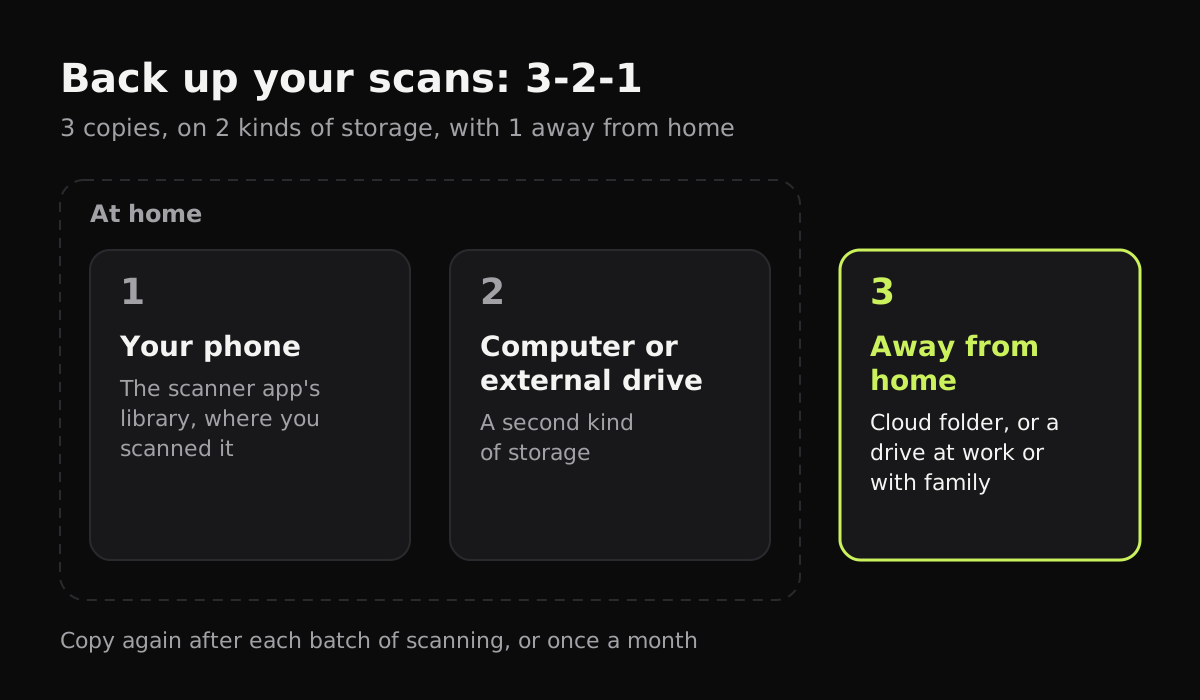
Copier keeps your documents on your phone and doesn’t sync or back them up, by design: nothing leaves the phone unless you share it. So the backup is yours to set up. Share each document as a PDF (with Copier Pro) or as JPG pages, save it to the Files app or your computer, and from there copy it to an external drive and to a cloud folder or a drive kept somewhere else, like at work or with family. Do it monthly, or after each batch of scanning.
7. Shred what you don’t need
Once a document is scanned, checked and backed up, shred anything with account numbers, your Social Security number, signatures or medical details. A cross-cut shredder makes strips that are far harder to put back together than a strip-cut one. For a big backlog, look for a community shredding day, which many towns and credit unions run.
Tips that keep it going
- Put a tray by the door for incoming paper, and scan it once a week.
- Check each scan before shredding: every page there, nothing cut off, readable. Use Black & white for text pages so they’re crisp and small.
- Keep the reference copies of IDs somewhere protected. How to scan a passport covers handling sensitive scans.
- Don’t let the backlog stop you. A household that scans what arrives from today is already mostly paperless.
Questions
What documents should I not throw away after scanning?
Keep the originals of birth, marriage and death certificates, passports, Social Security cards, property deeds, vehicle titles, wills and anything with a raised seal or original signature. A scan is a useful copy of these but doesn't replace them.
What is the best way to organize scanned documents?
Give every file a name that starts with the date (YYYY-MM-DD), then the type of document and who it's from, and keep a small set of top-level folders such as Tax, Home, Health, Money and IDs, with a folder per year where it helps.
How long should I keep tax documents?
The IRS says three years from filing in most cases, six years if you left out income worth more than 25% of what you reported, seven years for a loss from worthless securities or bad debt, and indefinitely if you didn't file or filed a fraudulent return.
How do I back up scanned documents?
Follow the 3-2-1 rule. Keep three copies, on two different kinds of storage, with one copy somewhere other than your home, for example on your phone, on an external drive and in a cloud folder.