 COPIER
How to Scan a Document: Printer, Phone or Browser
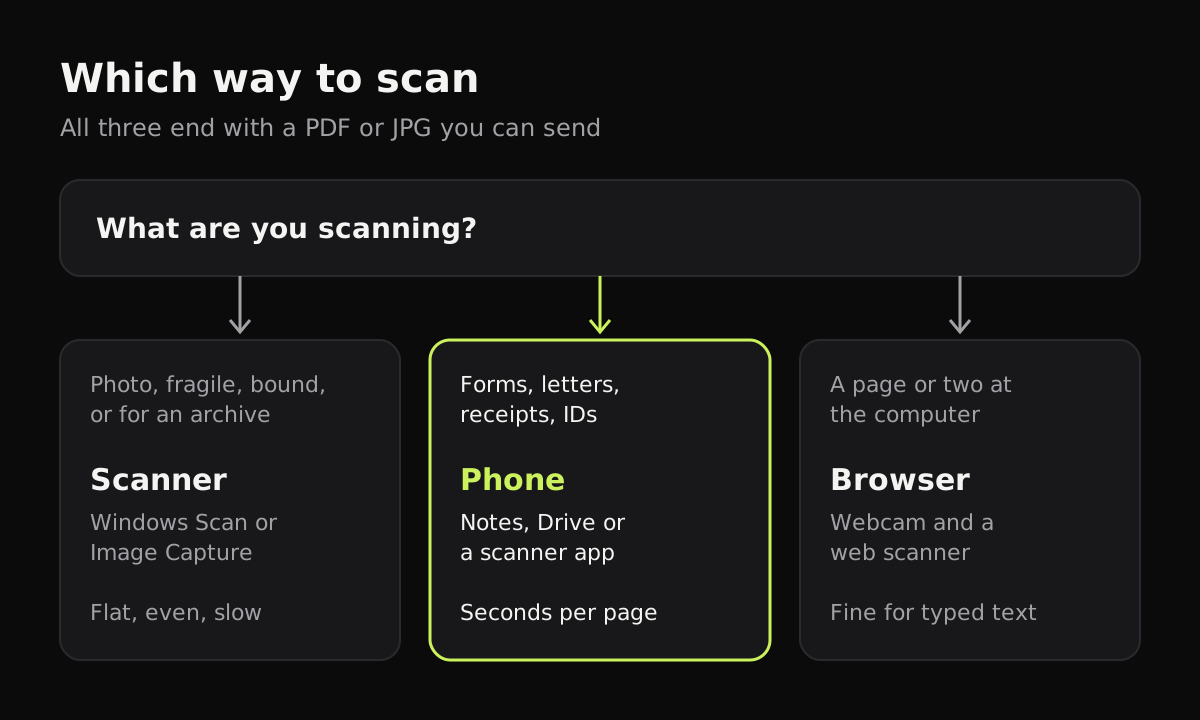
To scan a document, you need something that can take an image of the page: a scanner or all-in-one printer connected to your computer, your phone’s camera with a scanner app, or a webcam and a browser. Place the page, capture it, then save it as a PDF or JPG. For most everyday paperwork, your phone is the quickest way to scan, and the result is good enough to email, upload or print.
Below are the three ways to scan, compared, with short steps for each and links to the detailed guides.
The three ways to scan, compared
Each method suits a different job. The table sums up the trade-offs.
| Scanner or printer | Phone | Browser and webcam | |
|---|---|---|---|
| What you need | A scanner or all-in-one printer, plus a computer | Your phone | A laptop or desktop with a camera |
| Time for one page | Longer: warm-up, preview, scan pass | A few seconds | A few seconds |
| Multi-page documents | Easy with a document feeder | Easy, one page after another | Possible, one page at a time |
| Image quality | Best: flat, even light, fixed resolution | Very good with a scanner app | Fine for text, limited by the webcam |
| Best for | Photos, fragile or bound originals, archives | Forms, letters, receipts, IDs | Occasional pages when you’re at the computer |
How to scan with a printer or scanner
Most all-in-one printers can scan, as long as the printer is connected to your computer by USB or the same Wi-Fi network.
On Windows 11
- Check that Windows sees the scanner in Settings > Bluetooth & devices > Printers & scanners. Windows usually adds it automatically.
- Open the Windows Scan app (search for it in Start; if it isn’t there, install it free from the Microsoft Store).
- Put the page face down on the glass, or in the document feeder.
- Choose the scanner, the source (flatbed or feeder) and the file type, then click Preview to check the page.
- Click Scan. Unless you choose another folder, the file goes to Pictures > Scans.
Microsoft’s guide covers adding a scanner by hand if Windows doesn’t find it.
On a Mac
- Open Image Capture from Applications, or open System Settings > Printers & Scanners, select the printer and click Open Scanner.
- Put the page on the glass.
- Click Show Details to pick the file type (PDF or JPEG), the resolution and where to save it.
- Click Scan.
Many printer makers also have their own scanning app with more settings, but the built-in tools are enough for documents. For the settings themselves, 300 DPI suits almost any document; see the best DPI for scanning documents for when to go higher.
How to scan a document with your phone
Your phone is a scanner as long as you use a scanning tool rather than the plain camera. The scanner finds the page’s edges, cuts away the table, corrects the angle and makes the paper look white.
- Lay the page flat on a surface darker than the paper, in even light.
- Open a scanner: on iPhone, Notes (paper clip > Scan Documents) or Files; on Android, Google Drive (the camera button); or a scanner app.
- Hold the phone over the page with all four corners in view, and hold still. Most scanners capture by themselves.
- Check the page. Fix the corners or rotate it if needed, and add more pages.
- Save it as a PDF, or share it straight from the scanner.
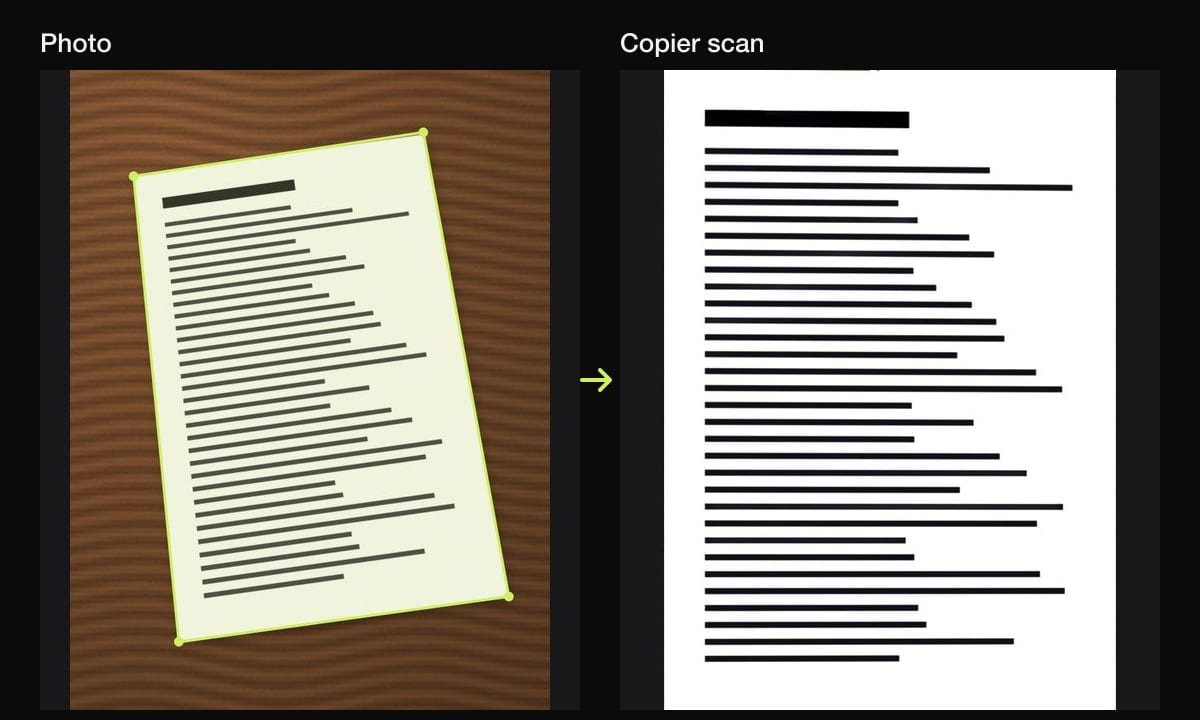
In Copier, the page’s outline appears live as you point at it, and with Auto on it takes the page once you’ve held still for about a second. Each page is straightened, including curled ones, and cleaned up on the phone. Copier is free for scanning and sharing pages as JPG, and PDF export is part of a one-time Copier Pro purchase. Nothing is uploaded and there’s no account.
The step-by-step guides for each phone: how to scan documents on iPhone, on Android, and with your phone in general.
How to scan in a browser
If you’re at a computer with no scanner, a browser-based scanner can use its webcam. Copier in your browser works this way, processing the page on your computer without uploading it. Hold the page up to the camera, or lay it flat and tilt the laptop screen down, and keep it still. A webcam has fewer pixels than a phone, so it’s best for typed text rather than small print. Scanning documents with a webcam has tips for getting a sharp page.
Tips for any method
- Use PDF for documents and anything with more than one page, JPG for a single page you’ll view as a picture.
- Scan in color only when the color matters, like stamps, signatures in blue ink or photos. Black and white keeps text documents small.
- Name the file before you send it. “2026-11-04 lease renewal.pdf” is easier to find later than “Scan 14”.
- Check every page before sending. A cut-off line or a page out of order is easier to fix now than after the form is submitted.
Questions
How do I scan a document to my computer?
Put the page on your scanner or printer's glass, then on Windows open the Windows Scan app and click Scan, or on a Mac open Image Capture, pick the scanner and click Scan. Without a scanner, scan it with your phone and send it to the computer.
How do I scan a document with my phone?
On iPhone, open Notes, tap the paper clip and choose Scan Documents. On Android, open Google Drive and tap the camera button. Hold the phone over the page, let it capture, then save as a PDF.
Is a phone scan as good as a scanner?
For letters, forms and receipts, yes. A recent phone has enough resolution and a scanner app straightens and cleans the page. A flatbed is still better for photos, fragile originals and anything you want at very high resolution.
What format should I scan a document in?
PDF for documents, especially with more than one page, and JPG for single pages you'll view or post as an image. Use color only when the color matters.