 COPIER
How to Scan a Document Without a Scanner
To scan a document without a scanner, use your phone. The scanner built into your iPhone (in Notes and Files) or your Android phone (in Google Drive) finds the page, straightens it and saves it as a PDF in a few seconds, and the result is good enough for forms, applications and email. If you don’t have a phone with you, a laptop webcam in a browser or the scanner at a public library will do the job.
You can also use your phone as a photocopier: scan the page, then print the scan. That’s handy when your printer can print but has no scanner.
Ways to scan without a scanner
Here’s how the options compare. Most people will only ever need the first row.
| Method | Cost | What you need | Quality | Best for |
|---|---|---|---|---|
| Phone’s built-in scanner | Free | iPhone, iPad or Android phone | Very good | Forms, letters, IDs, receipts |
| Scanner app | Free or paid | A phone or tablet | Very good, more control over the look | Regular scanning, long documents |
| Webcam in a browser | Free | Laptop or desktop with a camera | Fine for typed text | A page or two at your desk |
| Library or print shop | Usually a small fee | A trip there | Flatbed quality | Photos, fragile or bound originals |
How to scan with your phone
- Put the page on a surface darker than the paper, in even light. A table by a window works well.
- Open the scanner. On iPhone: Notes, then the paper clip and Scan Documents, or Files, then ⋯ and Scan Documents. On Android: Google Drive, then the camera button.
- Hold the phone over the page with all four corners in view. Hold still and it captures by itself.
- Add more pages if needed, then Save.
Use the scanner, not the camera app. A plain photo keeps the table, the shadow of your hand and the tilt; a scanner crops to the page, squares it up and makes the paper white.
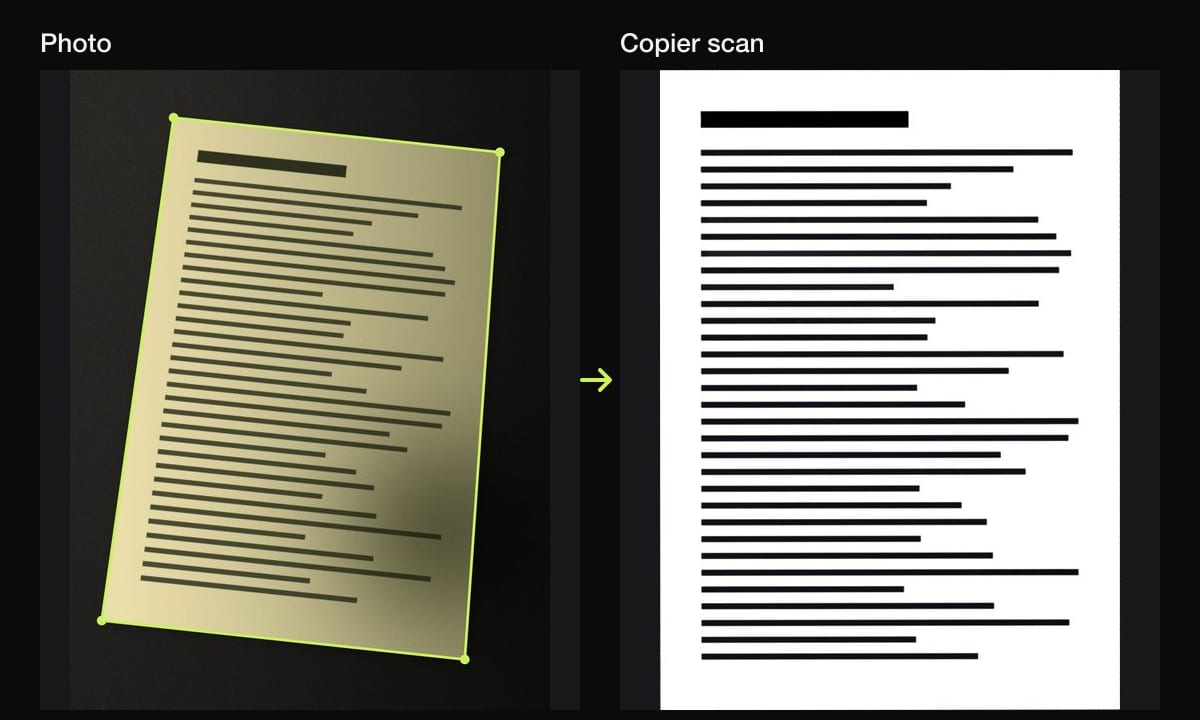
A scanner app does more with the page. In Copier, the page’s outline shows live in the camera, and with Auto on it takes the page once you’ve held still for about a second. Each page is cut out, straightened (curled pages too) and cleaned up on the phone, with three looks to choose from: Auto, Black & white and Original. Fingers holding the edge of the page are removed. There’s no account and nothing is uploaded. Sharing pages as JPG is free; PDF export is part of Copier Pro, a one-time purchase.
The detailed guides: how to scan documents on iPhone, on Android, and how to get clean scans when there are shadows or curls.
How to make a copy of a document with your phone
A photocopy is a scan followed by a print. Any printer on your Wi-Fi can do the second half.
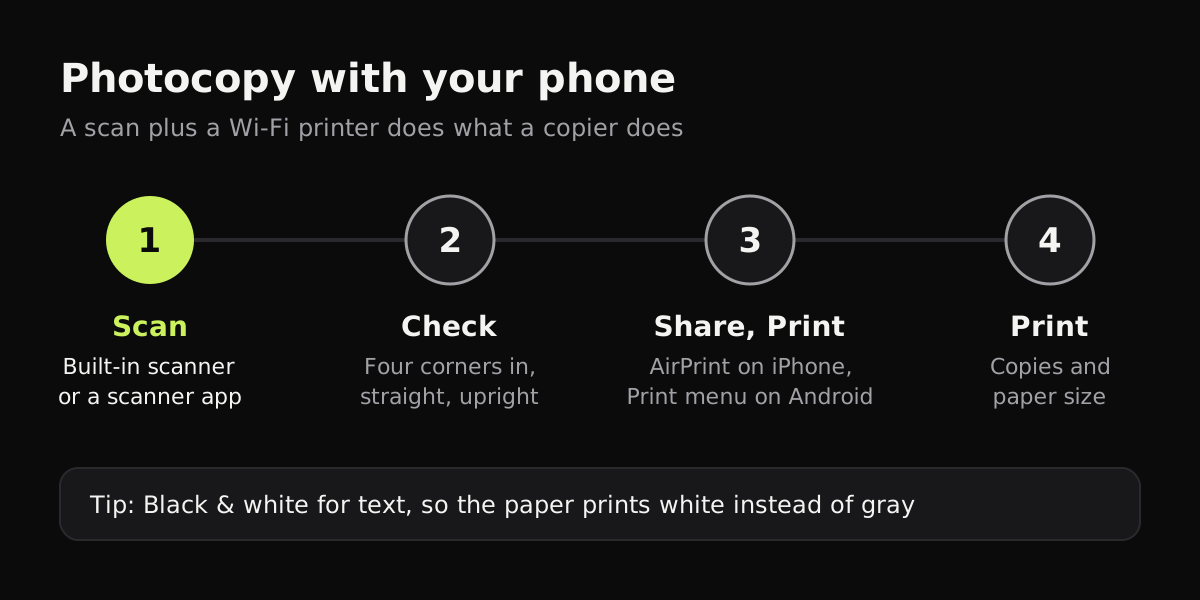
- Scan the page with your phone’s scanner or a scanner app.
- Open the scan and check it: all four corners in, page straight and the right way up.
- On iPhone, tap Share and then Print. On Android, open the scan in Google Drive or Google Photos and choose Print from the menu. (The printer needs to support AirPrint on iPhone; most Wi-Fi printers do.)
- Choose the printer, the number of copies and the paper size, and print.
For a copy that matches the original, use the Black & white look for text documents, so the paper prints white instead of gray, and print in color only for documents where the color matters. If you live in the US and your scan is on an A4 page (Copier’s PDFs use A4), let the printer scale it to fit Letter paper. A4 vs Letter explains the difference.
With a webcam in the browser
At a computer without a scanner, a browser scanner can use the webcam. Copier in your browser finds and straightens the page on your computer and doesn’t upload it. Hold the page flat facing the camera in good light and keep it still. Webcams have fewer pixels than phones, so this suits typed pages better than small print. See scanning documents with a webcam for setup tips.
At a library or print shop
Many public libraries have self-service scanners or copiers that can save a scan to a USB stick or email it to you, and print and shipping stores offer scanning for a fee. It’s the best choice for old photos, documents you can’t flatten, or anything you need scanned on a flatbed. Ask in advance about prices and whether they can scan to PDF.
Which one to use
- One form, an ID or a receipt: your phone’s built-in scanner.
- Many pages, or documents you scan every month: a scanner app with a library.
- A copy on paper: scan with your phone and print over Wi-Fi.
- Photos and fragile originals: a flatbed at the library.
Questions
How can I scan a document without a scanner for free?
Use your phone. iPhones and iPads have a free scanner in Notes and Files, and most Android phones have one in Google Drive. Hold the phone over the page, let it capture, and save the scan as a PDF.
Can I make a photocopy with my phone?
Yes. Scan the page with a scanner app, then open the scan and choose Print from the share menu to send it to any printer on your Wi-Fi. The printer makes the copy without needing its own scanner.
Is a phone scan accepted as an official copy?
Usually, for forms, applications and records sent by email or uploaded online. Some offices still want a certified copy or the original, so check the instructions for that document.
Where can I scan a document if I don't have a phone?
Many public libraries and print and shipping stores have self-service scanners that save to a USB stick or send the file by email. Call ahead for prices and hours.