 COPIER
How to Scan a Document with a Webcam or Laptop Camera
You can scan a document with a webcam on most laptops. On Windows 11, the Camera app has a Document mode on supported cameras; on a Chromebook, the Camera app has Scan; on any computer, a scanner web app can use the camera through the browser. The limit is detail: a typical 1080p webcam captures about 98 dots per inch on a Letter page, so it’s fine for a form but weak for small print.
Below are the steps for each system, a comparison of the methods, and how to get a readable page out of a camera that was built for video calls.
How to scan a document on Windows with a camera
The Windows Camera app can scan documents “for supported cameras”, according to Microsoft’s Camera app help page. If the Document button is missing, your camera doesn’t support it.
- Open Camera from the Start menu.
- Select the Document button on the right side. The shutter button changes to Take document.
- Hold the page in focus. The app draws a blue box around what it detects; keep the page inside it.
- Select Take document.
- Open the scan from the thumbnail at the bottom right. Use Crop if the edges are off, then Done.
- To make a PDF, open the … menu, choose Export, pick Microsoft Print to PDF in the Print dialog and save.
The same menu has Copy and Open folder, and a Whiteboard mode sits next to Document for scanning a board.
Scanning to a Mac
A Mac’s built-in camera has no document mode. If you have an iPhone or iPad, Continuity Camera does a much better job: the phone does the scanning and the PDF appears on the Mac.
- On the Mac, open a supported app such as Notes, Mail, Pages or Finder.
- Choose File, then Insert from iPhone or iPad, then Scan Documents. You can also Control-click where you want the scan.
- Scan the pages on your iPhone, then tap Save.
Both devices need Wi-Fi and Bluetooth on and the same Apple Account, as Apple’s Continuity Camera page explains. Scanning with an iPhone to a Mac covers it in more detail. Without an iPhone, use a scanner web app with the Mac’s camera, below.
On a Chromebook
Open Camera, choose Scan and then Document, hold the page in view and press the shutter. You can save one page as a photo, or select Multi-page to build a PDF. The full steps are in how to scan on a Chromebook.
Any laptop: scan in the browser
A scanner web app works on Windows, Mac, Linux and ChromeOS, with any webcam the browser can use. Copier in your browser asks for camera permission, outlines the page live as you hold it up, and with Auto on takes it once you’ve held still for about a second.
Each page is found, cut out and straightened, and the light is evened out so the paper comes out white. All of that happens in the browser on your computer. Nothing is uploaded, there’s no account, and once loaded it works offline. You can also import photos taken with a phone, which is the better choice for small print.
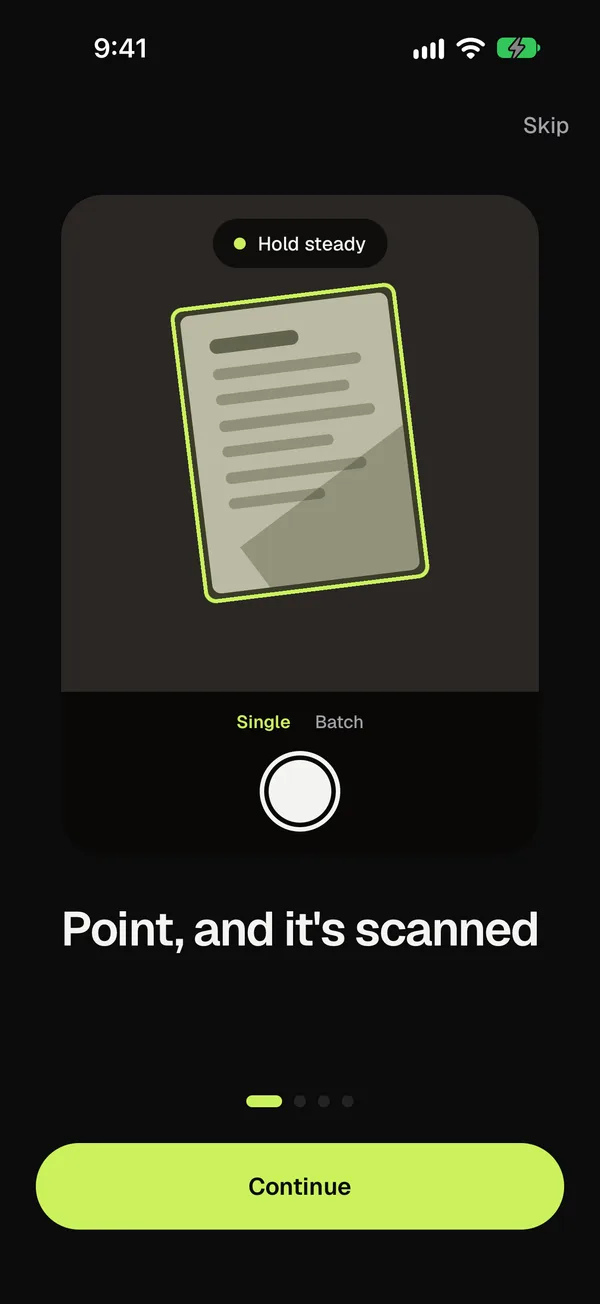
Pages can be shared as JPG for free, up to 10 documents, or as one PDF with Copier Pro, which is a one-time lifetime purchase.
Laptop scanning methods compared
What each method needs, and what you end up with:
| Method | System | Needs | Multi-page PDF | Saved to |
|---|---|---|---|---|
| Camera app, Document | Windows 10 and 11 | A camera that supports it | No, one scan at a time; export each to PDF | Camera roll folder |
| Continuity Camera | macOS | An iPhone or iPad | Yes | The document or folder you chose |
| Camera app, Scan | ChromeOS | Built-in or USB camera | Yes, Multi-page | My files, Camera |
| Copier in the browser | Any | A camera and a modern browser | Yes, with Copier Pro | The app, in the browser |
How sharp can a webcam scan be?
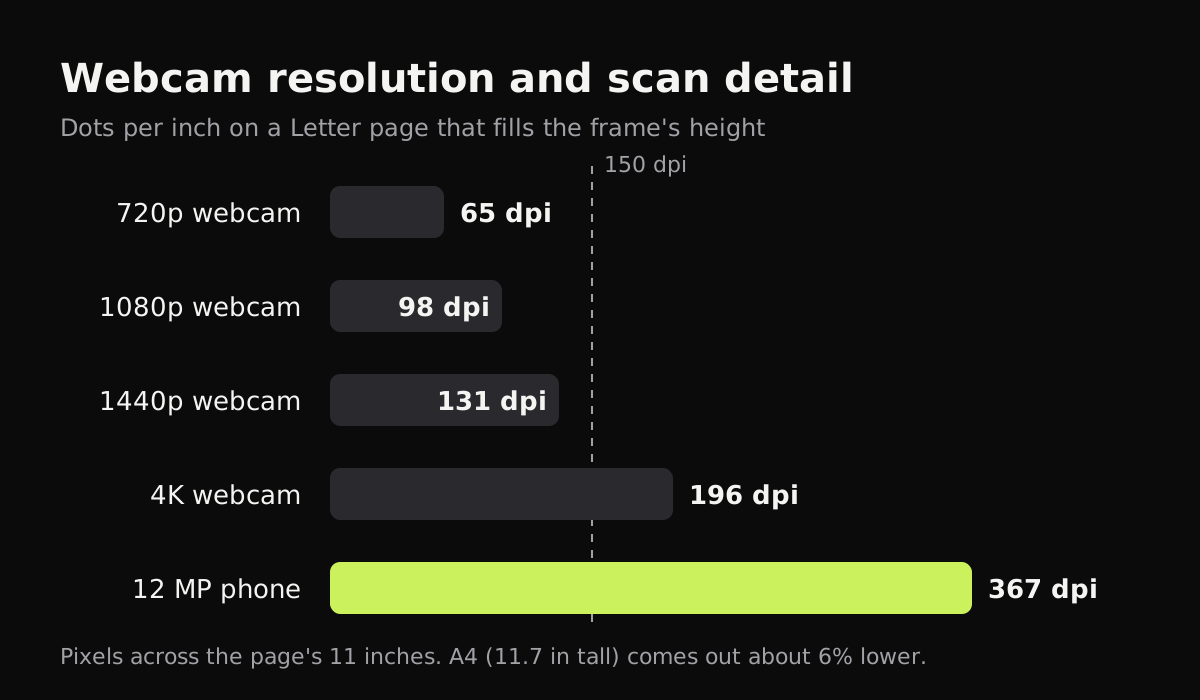
The camera’s resolution sets a hard limit. If you hold a Letter page upright so it fills the height of the frame, every pixel of the frame’s height is spread over 11 inches of paper. The numbers:
| Camera | Frame height | Detail on a Letter page | On an A4 page |
|---|---|---|---|
| 720p webcam | 720 px | 65 dpi | 62 dpi |
| 1080p webcam | 1,080 px | 98 dpi | 92 dpi |
| 1440p webcam | 1,440 px | 131 dpi | 123 dpi |
| 4K webcam | 2,160 px | 196 dpi | 185 dpi |
| 12 MP phone camera, portrait | 4,032 px | 367 dpi | 345 dpi |
Those are best cases: in practice the page rarely fills the whole frame, and webcams smooth away detail. Ordinary printed text is usually comfortable to read from about 150 dpi, which only a 4K webcam or a phone reaches. Best DPI for scanning documents explains what each level is good for.
Tips for scanning with a laptop camera
- Fill the frame. Hold the page as close as you can while keeping all four corners in view; every bit of empty background is lost detail.
- Light the page from the front. Sit facing a window or put a lamp behind the laptop. Light from behind the page makes it gray and shows print from the other side.
- Hold it flat and still. Hold the page by its edges against a book or a clipboard so it doesn’t bend, and pause for a second before the shot.
- Turn off background blur and video effects in the camera settings or your video-call app, if they’re on. Blur meant for the room behind you can catch the page too.
- For anything with small print, signatures or fine detail, use your phone and send the result to the computer. Scanning a document without a scanner lists the ways to do that.
Questions
Can I scan a document with my laptop camera?
Yes. The Windows Camera app has a Document mode on supported cameras, Chromebooks have a Scan mode in the Camera app, and a scanner web app can use any laptop camera through the browser. Hold the page flat and well lit, filling as much of the frame as you can.
Why is my webcam scan blurry?
Most laptop webcams are 720p or 1080p, which works out to roughly 65 to 98 dots per inch on a Letter page. Hold the page closer so it fills the frame, add light so the camera doesn't blur, and use a phone camera for small print.
How do I scan a document on Windows with a camera?
Open the Camera app, select the Document button on the right, keep the page inside the blue box and select Take document. Use the ... menu, then Export, to open the Print dialog and save it as a PDF.
Can I scan to my Mac without a scanner?
With an iPhone or iPad, yes. In Notes, Mail or another supported app, choose File, then Insert from iPhone or iPad, then Scan Documents, and the scan appears on the Mac as a PDF.