 COPIER
Black and White vs Color Scan: Which to Use
For plain printed text, scan in black and white: the text is crisper and the file is much smaller. Scan in color when color carries information, such as a stamp, a seal, a signature in blue ink, highlighting, a photo or an ID, or when the form’s instructions ask for it. Grayscale sits in between and suits pencil, faded documents and old photos where shades of gray matter but color doesn’t.
Color vs grayscale vs black and white
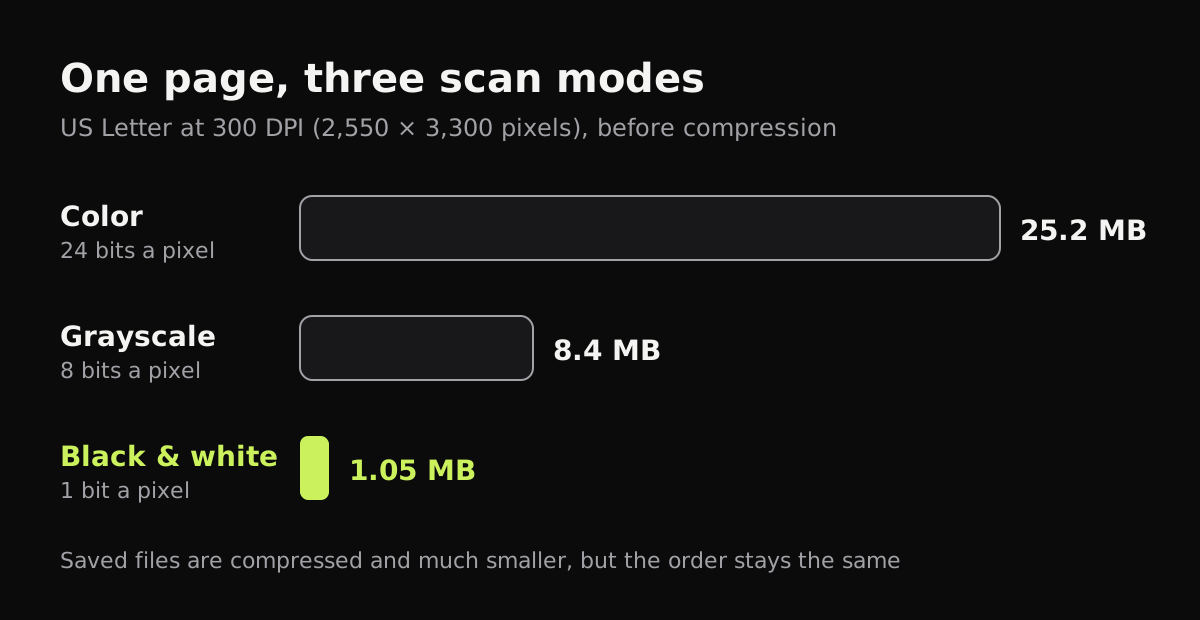
Scanners and scanner apps give these three modes different names, but they store the page in three distinct ways. The size column is for one US Letter page at 300 DPI (2,550 × 3,300 pixels), before compression.
| Mode | What each pixel stores | Letter at 300 DPI, uncompressed | Good for | Loses |
|---|---|---|---|---|
| Color | Red, green and blue (24 bits) | 25.2 MB | Photos, IDs, stamps, highlighting, charts | Nothing, but it’s the biggest |
| Grayscale | One shade of gray (8 bits) | 8.4 MB | Pencil, faded print, black-and-white photos | Color |
| Black and white | Ink or paper (1 bit) | 1.05 MB | Typed and printed text, forms | Soft shading, pencil, photos |
Real files are compressed, so a saved page is far smaller than these numbers and the gaps narrow. Color is still the largest, and black and white the smallest.
Grayscale vs black and white scan
They’re often confused because both look “not in color”. The difference shows up in anything soft. A pencil sketch, a faint carbon copy, or a document with a gray logo keeps its detail in grayscale. In black and white, each pixel becomes either ink or paper, so faint marks either turn solid or vanish. For a clean printed letter, black and white looks sharper than grayscale; for a handwritten note in pencil, grayscale is safer.
Some scanners call black and white “text”, “lineart” or “bitonal”.
When you need a color scan
Choose color when the color is part of what the document proves:
- IDs, passports and driver’s licenses, where the photo and security features need to show.
- Stamps, seals and notary marks, which are often colored.
- Signatures, when someone needs to see the original was signed in ink.
- Highlighted text, colored charts and color-coded forms.
- Anything an official process asks for in color. The US State Department’s immigrant visa scanning tips say that a document in color should be scanned in color, not black and white.
For everything else, color mostly adds file size. That matters when an upload portal caps files at a few megabytes.
Which mode for which document
| Document | Mode |
|---|---|
| Typed letter, bill, statement, contract | Black and white |
| Form you filled in with a pen | Black and white, or color if the ink color matters |
| Receipt | Black and white (faded thermal paper may need grayscale or color) |
| Passport, ID card, driver’s license | Color |
| Birth certificate or anything with a seal | Color |
| Pencil notes, sketches | Grayscale, or color |
| Photos | Color |
Where to change the setting
Every scanner has the choice, under a different name:
- On Windows, the Windows Scan app has a Color mode setting with color, grayscale and black and white.
- On a Mac, Image Capture shows the choice under Kind once you click Show Details.
- The iPhone Notes and Files scanner has filters for color, grayscale, black and white and photo. Tap the filter button while scanning or when you edit the scan; how to scan in Notes on iPhone shows where.
- Google Drive’s scanner on Android has a Filter button on the edit screen.
Black and white or color in Copier
Copier has three looks instead of scanner modes, and each is a choice about color:
- Auto keeps color but cleans the page up: it evens out the lighting so the paper is white and removes shadows and color casts. Use it for IDs, stamps and anything colorful.
- Black & white keeps only the text, for the crispest result.
- Original leaves the photo as it was, for photos.

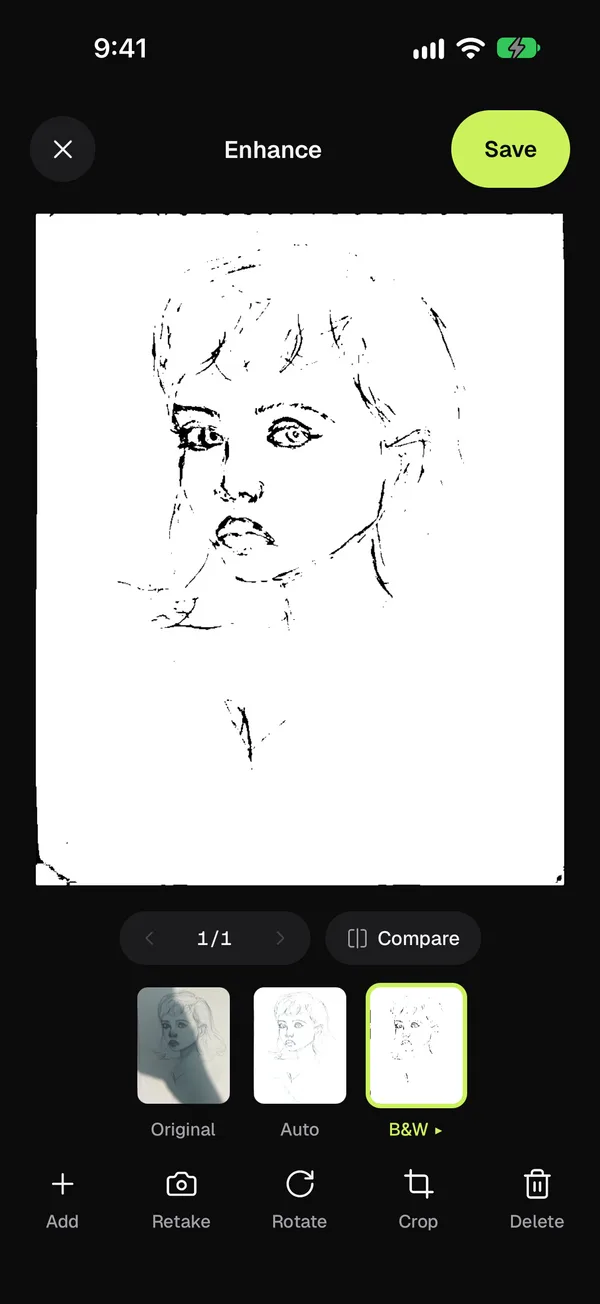
Tap the picked look again for a strength slider. With Apply to all pages on (the default), one choice covers the whole document; switch it off to give one page, say a color stamp on the last page, a different look. Hold Compare to see the page before. Copier doesn’t have a separate grayscale look; for pencil, Auto keeps the shading, as in the sketch above.
Tips
- If you’re not sure, scan in color. You can always make a gray copy later, but you can’t get color back.
- Black and white is the quickest way to make a PDF small enough to email. See how to make a scanned PDF smaller.
- Resolution and color both affect size. 300 DPI suits almost any document; see the best DPI for scanning documents.
- For IDs and passports, color and even light matter most: how to scan an ID card.
Questions
Should I scan documents in color or black and white?
Black and white for plain printed text, since it's the crispest and smallest. Color whenever color carries information, such as stamps, seals, signatures in blue ink, highlighting, photos and IDs, or when the instructions ask for color.
What is the difference between grayscale and black and white scanning?
Grayscale keeps shades of gray, so pencil, faded print and photos still look natural. Black and white keeps only two values, ink or paper, which gives sharp text and the smallest files but drops soft detail.
Do official documents need to be scanned in color?
Often, yes. The US State Department's immigrant visa scanning instructions, for example, ask you to scan any document that is in color in color. Check the instructions for the form you're filling in.
Why is my color scan so big?
A color image stores three values per pixel, so before compression it's three times the size of grayscale and 24 times the size of pure black and white. Switch to black and white for text pages, or lower the resolution to 200 DPI.