 COPIER
How to Scan an ID Card, Front and Back
To scan an ID card with your phone, lay it on a dark surface in soft light, turn the flash off, scan the front, then turn the card over and scan the back as a second page. Keep it in color and check that the photo, numbers and barcode are sharp. If someone wants both sides on one page, a copier’s ID card mode does it in one go, or you can put the two scans on one page in a free document app.
How to scan an ID card with your phone
The same steps work for a driver’s license, a national ID card, a residence permit or a health insurance card:
- Pick a dark, plain surface. A light card on a white table has no edges for the scanner to find. A dark table, a book cover or a sheet of black paper works.
- Turn the flash off. ID cards are glossy plastic, and the flash leaves a white spot, usually over the number you need.
- Use soft, even light. Near a window is ideal. If you see a reflection, tilt the phone a little until it moves off the card.
- Get close. An ID card is small, so fill most of the frame with it. Leave a little space around the edges so the scanner can see all four corners.
- Scan the front, then the back. Flip the card over in the same place and scan again, in the same document.
- Check both sides. Zoom in on the name, the numbers, the dates and the photo. On many driver’s licenses the back has a barcode; it should be sharp too.

How to scan a driver’s license
A driver’s license is scanned the same way, with two things to watch. The front often has a holographic or reflective overlay that catches light at certain angles, so if part of it flares white, try tilting the phone the other way. And the back usually carries a barcode with the same details as the front, so a form that asks for “both sides” really means it.
Keep the scan in color. A black and white copy can lose the photo’s detail, and some forms ask specifically for a color copy.
How to scan the front and back of an ID onto one page
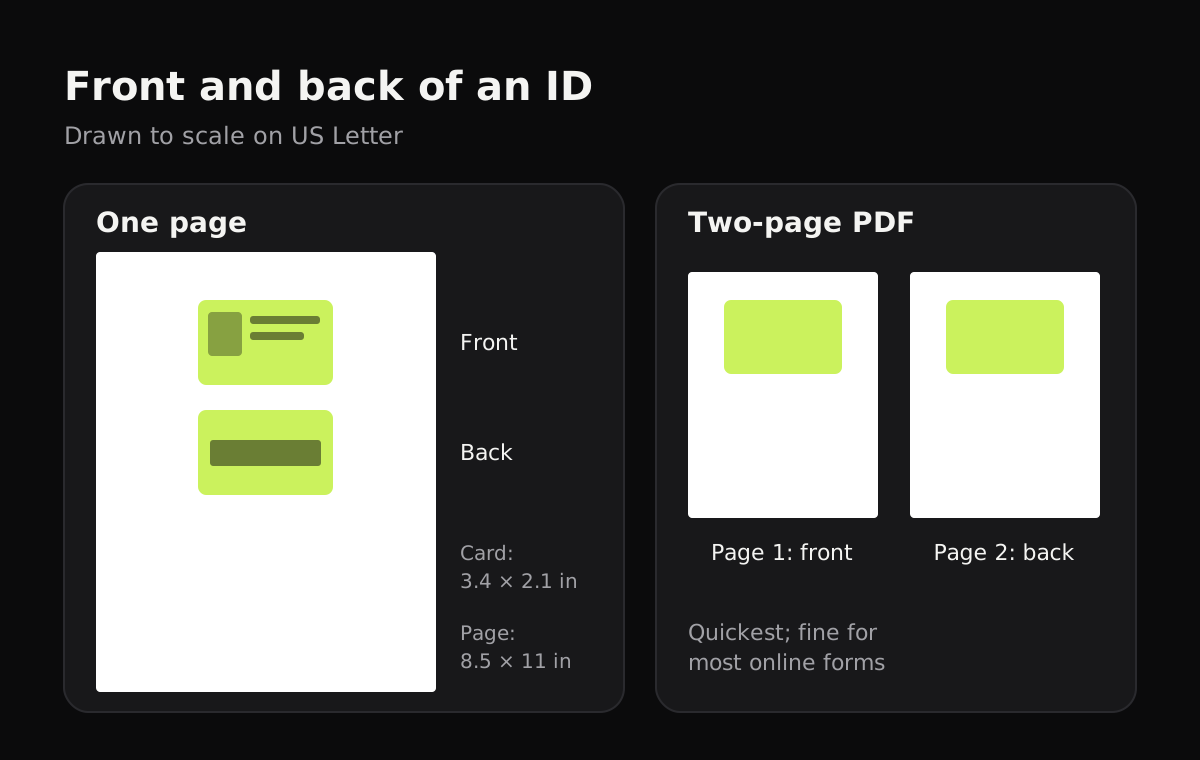
Some forms want both sides on a single page, as a photocopy would have them. There are three ways to get that.
On a copier or all-in-one printer. Many have an ID Card Copy mode (the name varies by brand). You place the card on the glass, copy the front, turn it over in the same spot, and the machine puts both sides on one sheet. Some can scan to a file the same way.
With your phone and a document app. Scan the front and the back as separate images. Then:
- Open a new document in Google Docs, Word or Pages.
- Insert the front image, then the back image below it.
- Resize both so they fit on the page, roughly at real size (an ID card is about 8.6 by 5.4 cm, or 3.4 by 2.1 inches).
- Export or download the document as a PDF.
As one file with two pages. If the form just says “one file”, a two-page PDF with the front on page 1 and the back on page 2 usually does the job, and it’s the quickest to make.
Which method to use
The right method depends on what you have to hand and what the form asks for.
| Method | Both sides on one page? | What you need | Best for |
|---|---|---|---|
| Copier’s ID card copy mode | Yes | An all-in-one printer that has the mode | Paper copies, or forms that want a photocopy-style page |
| Phone scan, two pages in one PDF | No, one side per page | A scanner app that exports PDF | Most online forms and email |
| Phone scan, then a document app | Yes | Google Docs, Word or Pages | Forms that insist on a single page |
| Phone scan, two JPG images | No | Any scanner app | Upload forms with separate front and back fields |
Protect a copy of your ID
A copy of your ID can help someone open accounts in your name, so send it only where it’s needed:
- Upload through the organization’s own form or portal when there is one, rather than by email.
- Add a note to the copy before you send it, such as “Copy for ABC Rentals only, 4 Nov 2026”, written across the image in a photo editor or Markup. It doesn’t hide anything, but it makes the copy less useful elsewhere.
- Cover what isn’t needed. If an organization only needs your name and photo, ask whether you can cover the ID number.
- Delete it from chats and downloads once it has been received.
Scanning an ID card with Copier
In Copier, point your phone at the card and the outline appears around it; with Auto on, it takes the picture once you’ve held still for about a second. Use Batch to scan the front and then the back without leaving the camera, so both land in one document in order. The ID card mode only tags the document as an ID in your library, so you can filter for it later; the capture is the same.
The Auto look keeps color and evens out the light, which is what you want for an ID. Hold Compare to see the card before the look is applied. Share the two pages as JPG for free, or as one PDF with Copier Pro. Copier doesn’t put both sides on one page or add a watermark, so use a document app or Markup for those.
Pages are found, straightened and cleaned on your phone, and nothing is uploaded, which is a good fit for documents you’d rather not leave on someone else’s server.

Tips
- Clean the card. Fingerprints on the plastic show up as smudges and add glare.
- Scan the newest card. If you’ve renewed, make sure you’re not sending the old one.
- Check the corners. If the scanner cut off a rounded corner, crop by hand so the whole card shows.
- Passports are a little different: see how to scan a passport. For two-sided paper documents, see how to scan double-sided documents.
- More on glare and shadows in how to get clean scans.
Questions
How do I scan both sides of my ID on one page?
Many all-in-one printers have an ID card copy mode that puts both sides on one sheet. With a phone, scan the front and back as two images, then place both on one page in Google Docs, Word or Pages and save it as a PDF.
Is a two-page PDF good enough instead of one page?
Usually, yes. Most people who ask for a copy of an ID just need to see both sides clearly. If the form says one page or one file, combine them on one page or into one PDF.
How do I scan a driver's license with my phone?
Put the license on a dark, plain surface, turn off the flash to avoid glare, and scan the front, then the back. Keep the scan in color and check that the photo, numbers and barcode are sharp.
Why does my ID scan have a white spot on it?
That's glare from the flash or a light above you reflecting off the card's plastic. Turn the flash off and tilt the phone slightly until the reflection moves off the card.
Should I watermark a copy of my ID?
It's a sensible habit when you email a copy. Adding a line such as "Copy for ABC Rentals only" and the date makes the copy less useful to anyone else who gets hold of it.