 COPIER
How to Scan a Signature and Add It to a PDF
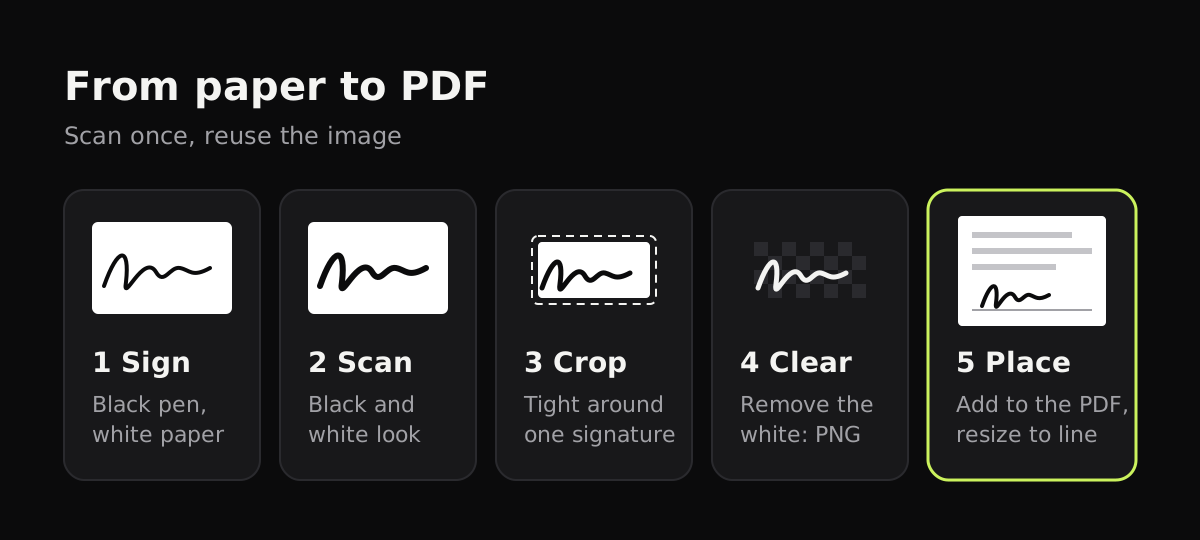
To scan a signature, sign on plain white paper with a black pen, scan it with your phone in black and white, and crop it tightly. That gives you an image of your real signature that you can add to a PDF in Preview on a Mac, Adobe Acrobat Reader’s Fill & Sign, or most other PDF editors. If the white around it shows over lines on the form, remove the background and save it as a PNG first.
How to scan a signature
- Use plain white paper, with no lines or grid. Printer paper is ideal.
- Sign with a dark pen. A black felt-tip or gel pen gives a solid line that scans well. Ballpoint works, but it can come out thin and broken.
- Sign a little larger than usual, and sign three or four times so you can pick the best one.
- Scan it in even light with the flash off. Hold your phone straight above the paper.
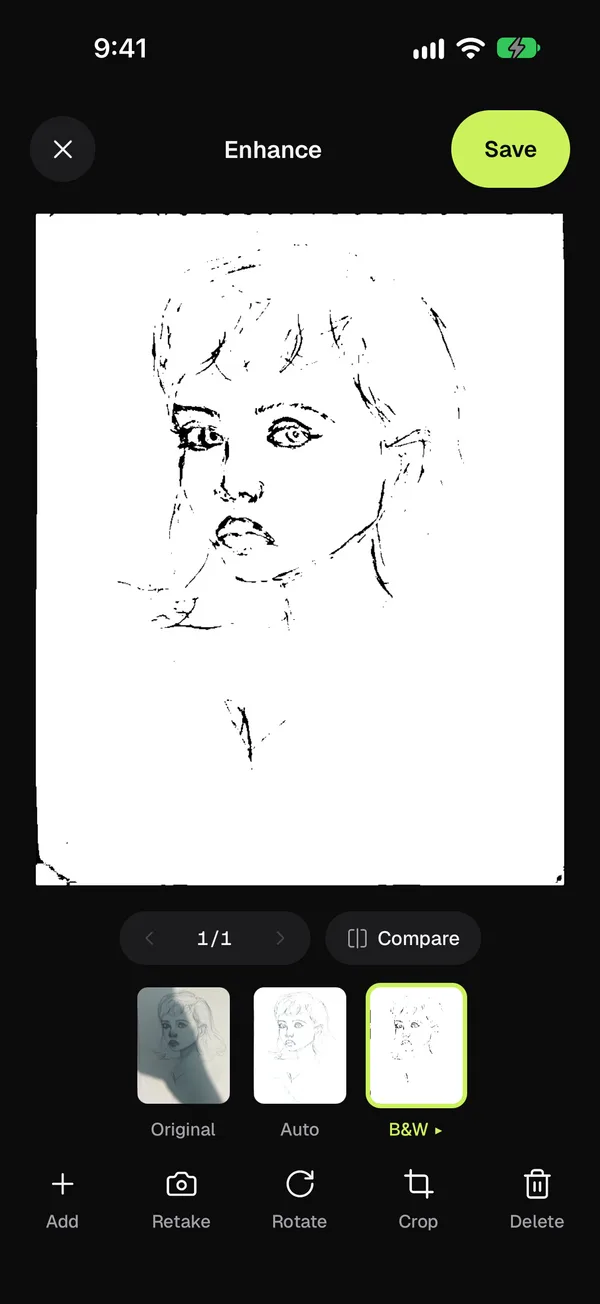
- Use a black and white look. It turns the paper pure white and the ink solid black. If parts of the line look faint, increase the strength.
- Crop tight around one signature, leaving a small margin.
- Save or share it as an image, ready to insert.
Make the background transparent
A scan of your signature has a white background. On a white form, that usually doesn’t matter. Over a line, a box or a colored area, though, the white rectangle covers what’s underneath. A PNG with a transparent background fixes that; a JPG can’t be transparent.
- On a Mac: open the image in Preview and click the Remove Background button. Preview may ask to convert the file; it saves the result as a PNG. Apple describes it in Preview’s guide.
- In Word: insert the image, then use Picture Format > Color > Set Transparent Color and click the white.
- Elsewhere: many free image editors and online background removers do the same. Remember that an online tool means uploading your signature.
How to add a signature to a PDF
Once you have the image, you can place it on a PDF with tools you probably already have.
| Tool | Works on | Can use a scanned signature? | Cost |
|---|---|---|---|
| Preview, Sign button | Mac | Yes: its Camera option reads a signature you hold up on white paper | Free, built in |
| Markup, Add Signature | iPhone, iPad | No, you draw with your finger or Apple Pencil | Free, built in |
| Adobe Acrobat Reader, Fill & Sign | Windows, Mac, phones | Yes, choose Image when you add a signature | Free |
| Word, Pages, Google Docs | Any | Yes, insert it as a picture, then export as PDF | Free or included |
In Preview on a Mac
Preview can capture your signature straight from paper, which is a scan in itself. Open the PDF, click Show Markup Toolbar, then Sign, and choose Camera. Hold your signature on white paper up to the camera, lined up with the blue line, and click Done. Then click the signature to place it, drag it to the line and resize it with the handles. Apple’s steps are here.
On iPhone or iPad
Open the PDF in Files (or Mail, Notes or Photos), tap the Markup button, then + and Add Signature. Sign with your finger, tap Done, and drag the signature into place. iOS saves it for next time. This uses a drawn signature rather than a scanned one; Apple’s guide has the details.
In Adobe Acrobat Reader
Open the PDF, choose Fill & Sign, then add a signature and pick Image. Select your scanned signature (a PNG with a transparent background looks best), apply it, and place it on the line. Menu names move a little between versions of Acrobat.
Is a scanned signature valid?
For everyday paperwork, such as a school form, a lease renewal or an internal approval, a scanned or drawn signature on a PDF is often accepted. Some documents need more: a wet ink signature on paper, a notary, or a verified e-signature service that records who signed and when. Wills, property deeds and some government forms are common examples, and the rules differ from place to place. If you’re not sure, ask whoever sent you the document.
Scanning your signature with Copier
Copier works well for the scanning step. Point your phone at the page and it finds the paper’s edges, straightens it, and cleans it up on the device. Pick Black & white for a solid signature on white, tap it again to adjust the strength, and use Crop to drag the corners in close around your signature.
Copier shares the result as a JPG (free), with a white background; it doesn’t make transparent PNGs, sign PDFs, or fill in forms. Use Preview, Acrobat Reader or Markup for those steps. Your signature is never uploaded, and there’s no account.

Tips for a signature that looks right
- Size it to the line. Make it about as tall as handwriting on that line would be. Too large looks pasted on.
- Keep the file private. Store your signature image where only you can reach it, and don’t email it around.
- Re-scan if it looks gray. A gray, speckled signature usually means faint ink or dim light; use a darker pen and more light.
- Sign the real thing when it matters. For contracts, check whether a scanned signature is accepted before you send it.
For the rest of the document, see how to sign a document on iPhone and how to email a scanned document. If you’re scanning other dark-on-white pages, black and white vs color scans explains when each look works best.
Questions
How do I scan my signature?
Sign on plain white paper with a black pen, scan it with your phone using a black and white look, and crop it tightly around the signature. Save it as an image you can insert into documents.
How do I make the background of my signature transparent?
On a Mac, open the image in Preview and click the Remove Background button, then save it as a PNG. In Word, the picture's Set Transparent Color tool does a similar job. A JPG can't be transparent.
How do I add a signature to a PDF for free?
On a Mac, use the Sign button in Preview. On iPhone or iPad, open the PDF in Files and use Markup's Add Signature. On Windows or anywhere else, the free Adobe Acrobat Reader has Fill & Sign, which can also use an image of your signature.
Is a scanned signature legally binding?
Often it's accepted for everyday forms, but it depends on the document, the place and who is asking. Some documents need a wet signature, a notary or a verified e-signature service, so check with whoever asked for it.