 COPIER
How to Scan Homework and Submit It as a PDF
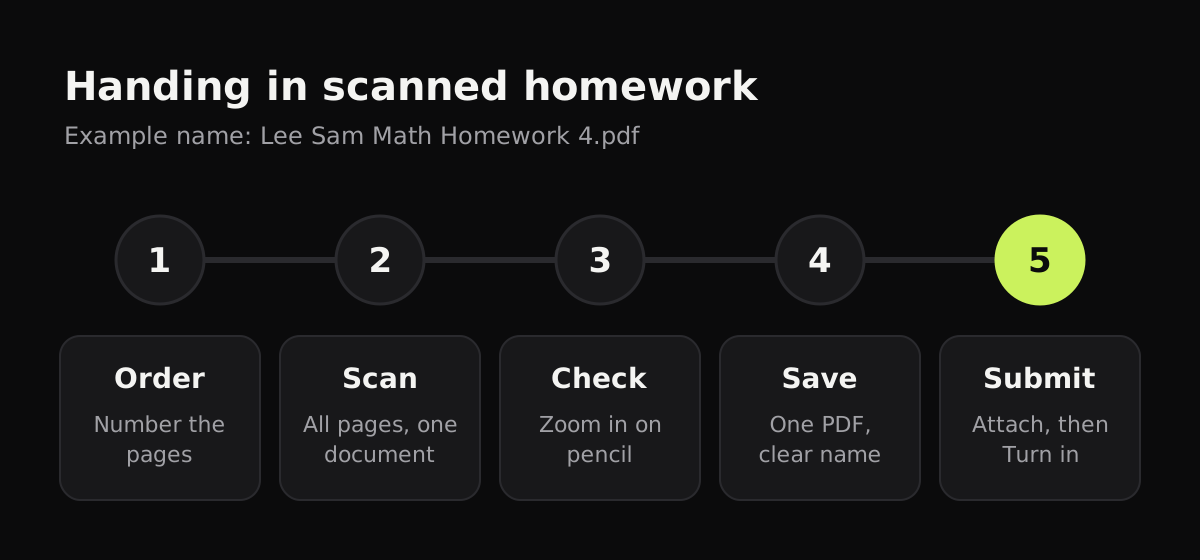
To scan homework, put the pages in order, scan them all into one document with your phone’s scanner in good light, check that every page is readable, and save it as a single PDF. Then attach that PDF to the assignment and press Turn in or Submit. Many teachers ask for one PDF because it keeps the pages together and in order, and your phone can make one for free with Notes on iPhone or Google Drive on Android.
How to scan homework with your phone
- Put the pages in order. Number them in a corner if they aren’t numbered already.
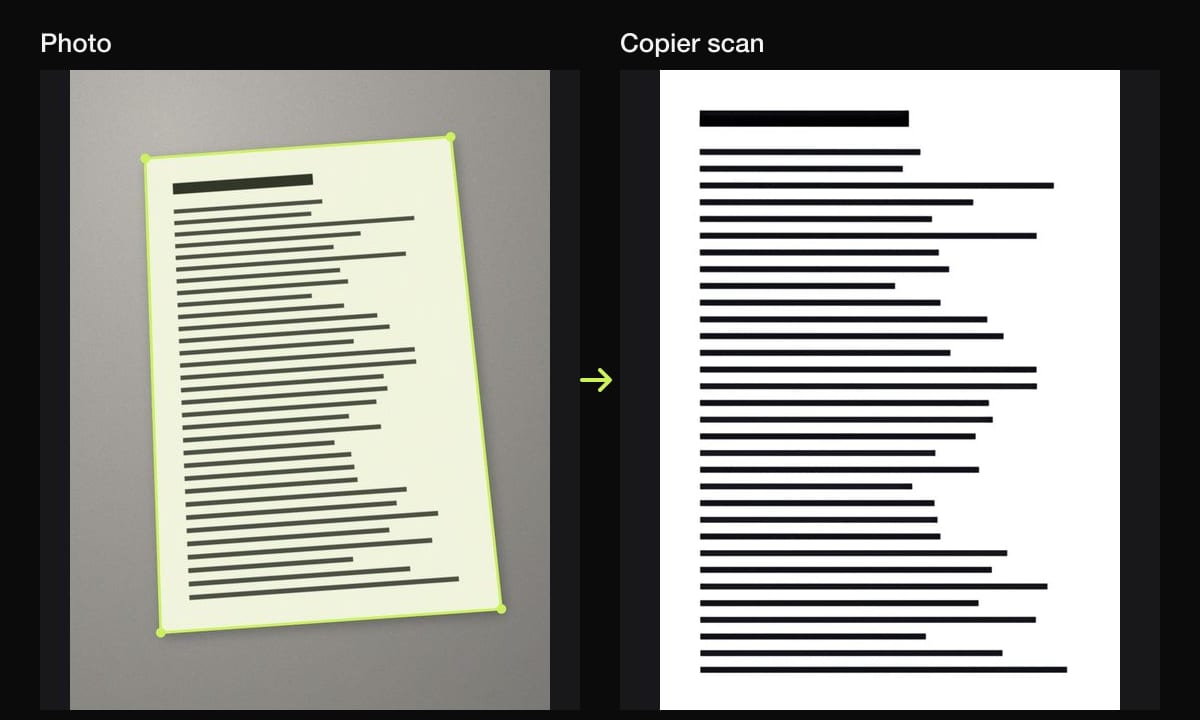
- Find good light. Daylight near a window is best. Turn the flash off: it washes out pencil and leaves a bright spot.
- Use a dark, plain surface so the scanner can see the edges of the paper. A white page on a white desk is hard to find.
- Scan every page into the same document, in order, using multi-page or batch mode.
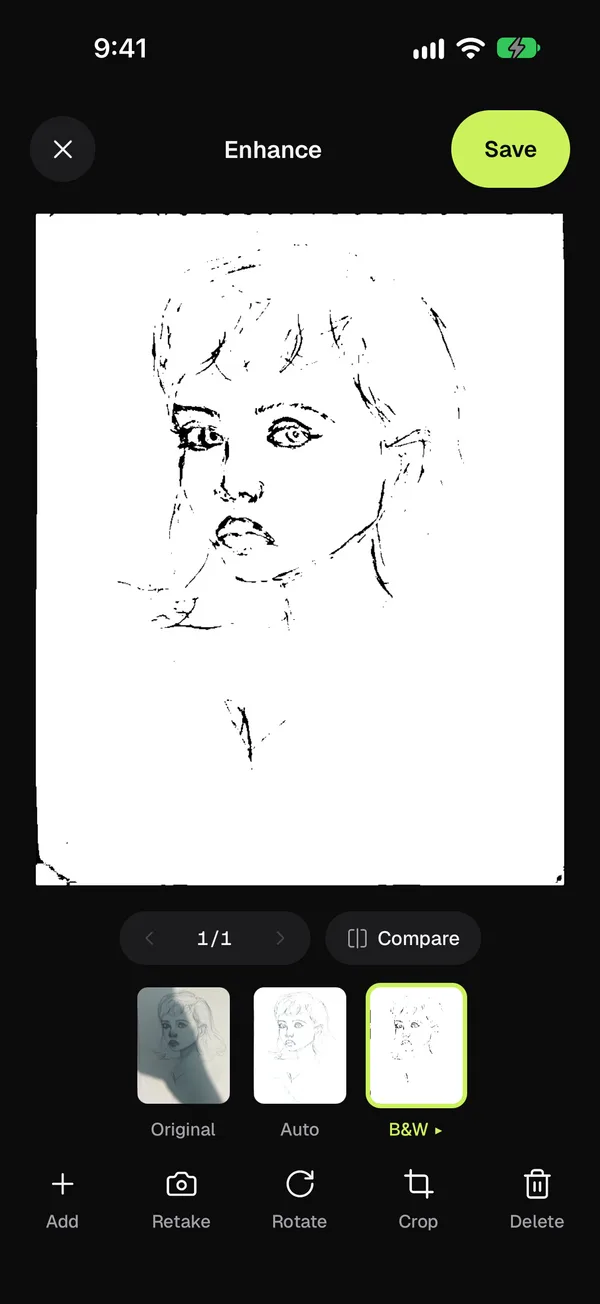
- Pick a look. Black and white for pen. For pencil, black and white with the strength turned up, or a color look if the strokes start to break up.
- Check each page. Zoom in on your working, especially light pencil, diagrams and anything near the edge of the page.
- Save it as one PDF and name it clearly: Lee Sam Math Homework 4.pdf.
How to submit homework as a PDF
Google Classroom
On a phone, open the Classroom app, tap the class, then Classwork and the assignment. On the Your work card, tap to expand it, then Add and choose Drive or File to attach your PDF. Tap Turn In and confirm. Google’s own steps are in Classroom Help. Two things to know: Classroom suggests scanning with the Google Drive app (Add > Scan), and work turned in after the due date is marked late.
Canvas
In Canvas, open the assignment, choose Start Assignment or Submit Assignment, pick the Upload option, select your PDF, and submit. Teachers can restrict the file types an assignment accepts, so if Canvas rejects your file, check the allowed types on the assignment page. If there’s no Upload option at all, the teacher has switched it off for that assignment. Instructure’s student guide walks through it.
Other school systems
Schoology, Moodle, Microsoft Teams and others work much the same: an assignment page, an upload or attach button, and a submit button. What changes is what each teacher allows. The safest choices are below, but the assignment’s own instructions win.
| System | How you attach the file | Formats | What to check |
|---|---|---|---|
| Google Classroom | Your work > Add > Drive or File, then Turn In | Usually any file; PDF is safest | The due date, and any format your teacher names |
| Canvas | Start Assignment > Upload, then submit | Whatever the teacher allows | The allowed file types on the assignment page |
| Other systems | An attach or upload button on the assignment | Varies | The assignment instructions and any file size limit |
Free ways to make the PDF
You don’t need to install anything to scan homework into a PDF:
- iPhone or iPad: in Files, tap More (⋯) and Scan Documents. The pages are saved as one PDF in that folder, ready to attach. Notes has the same scanner; see how to scan documents on iPhone.
- Android: in Google Drive, tap + and Scan. The PDF is saved in your Drive, and you can attach it from there in Classroom. See how to scan documents on Android.
- School laptop: if you have a webcam and no phone, see how to scan documents with a webcam.
Making pencil and diagrams readable
Pencil is the hardest thing to scan, because it’s gray and shiny rather than black. A few things help:
- Write a little darker when you know you’ll scan it. A softer pencil (HB or 2B) scans better than a hard one.
- Light from the side, not from above, so the graphite doesn’t shine.
- Turn up the strength of a black and white look until the lines are solid. If thin lines start to break up, try a color look instead.
- Keep graphs and colored diagrams in color. Black and white turns colors into gray or drops them altogether.
Scanning homework with Copier
Copier finds each page’s outline as you point your phone at it and, with Auto on, takes it once you’ve held still for about a second. Switch to Batch to scan a whole assignment without leaving the camera. Each page is straightened on your phone, even if the sheet curls, and fingers holding the edge of the page are removed.
Pick Black & white for crisp pen, then tap it again for a strength slider when you’re working with pencil; hold Compare to check nothing faint has disappeared. Apply to all pages gives every page the same look. Share the pages as JPG for free, or as one PDF with Copier Pro. If your teacher needs a PDF and you’re using the free version, the Notes, Files or Drive scanners above will do it. Nothing you scan is uploaded, and there’s no account to make.
Tips before you hit submit
- Open the PDF once and scroll through it, the way your teacher will see it.
- Check the file size. If the system has a limit, black and white pages are much smaller. See how to make a scanned PDF smaller.
- Don’t submit sideways pages. Rotate them first.
- Leave time. Upload a few minutes before the deadline, in case the connection is slow.
- Keep your copy until the work is marked.
For notes rather than homework, see how to scan handwritten notes.
Questions
How do I turn my homework into a PDF?
Scan the pages with your phone's scanner, all in one document and in order, then save or share it as a PDF. On iPhone, Notes and Files can do this for free; on Android, Google Drive's Scan button saves a PDF to your Drive.
How do I submit scanned homework on Google Classroom?
Open the assignment, tap Add or Add attachment on the Your work card, choose your PDF from Drive or your files, then tap Turn In. Work turned in after the due date is marked late.
Why won't Canvas accept my file?
Your teacher may have limited the file types for that assignment, for example to PDF only. The assignment page shows which types are allowed; export your scan in one of them.
How do I make pencil homework show up in a scan?
Scan in good daylight with the flash off, then use a black and white look with the strength turned up, or a color look like Auto if the strokes break up. Darker pencil, such as 2B, scans better than a hard pencil.
Should I send one PDF or separate photos?
One PDF with every page in order, unless your teacher says otherwise. It is easier to mark, and nothing gets lost or shuffled.