 COPIER
How to Scan Double-Sided Documents in Order
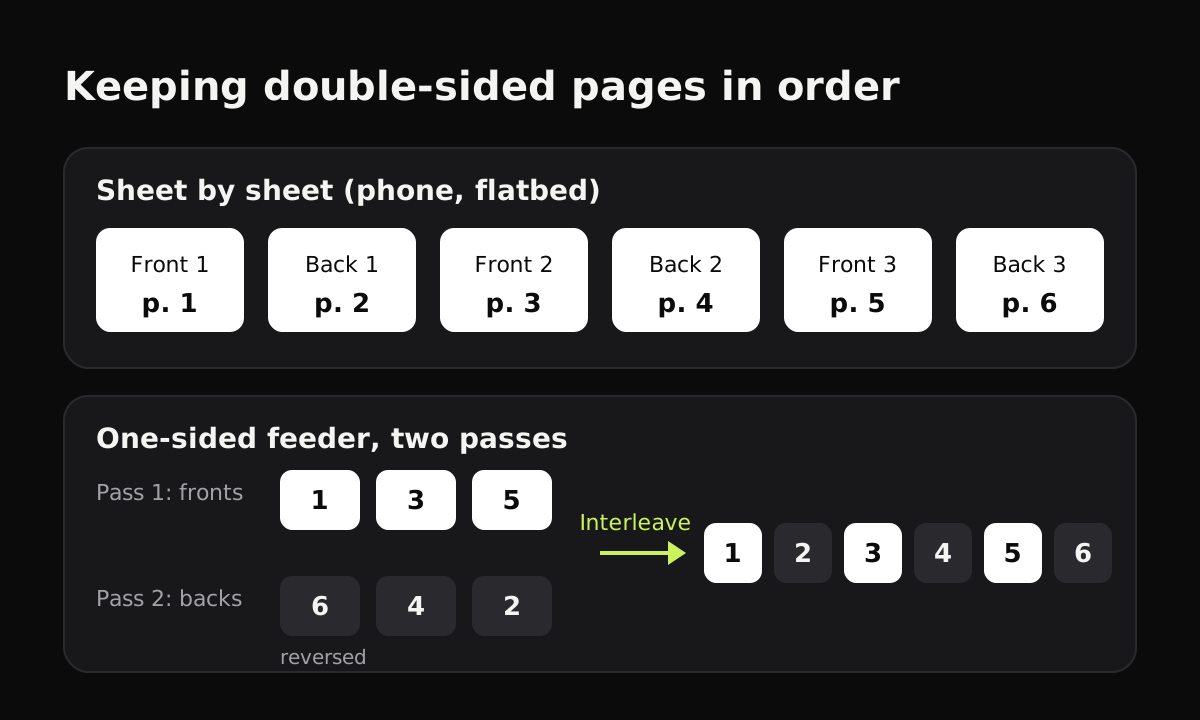
To scan double-sided documents with your phone, use a batch or multi-page scan and go sheet by sheet: front, turn it over, back, then the next sheet’s front. The pages come out in reading order, and you can skip or delete blank backs as you go. With a scanner, a duplex document feeder does both sides for you; with a one-sided feeder, you scan the fronts, flip the stack, scan the backs, and then put the pages back in order.
How to scan double-sided documents with your phone
A phone is the simplest option, because you turn each sheet by hand and the order takes care of itself:
- Stack the sheets in order, face up, beside a dark, plain surface.
- Open your scanner in batch or multi-page mode, so it stays in the camera after each page.
- Scan the front of sheet 1.
- Turn the sheet over in the same spot and scan the back.
- Move to the next sheet and repeat: front, back, front, back.
- Skip blank backs. If the back is empty, don’t scan it, or delete it afterwards.
- Check the order before saving: swipe through and make sure page 2 follows page 1.
Keep the sheet in the same spot when you turn it. If you move it each time, the scanner has to find the page all over again, and you’re more likely to tilt it or catch your hand in the frame.
Scanning both sides with a scanner
How you scan both sides with a scanner depends on what kind it is.
| Scanner | How the backs get scanned | Page order | Blank backs |
|---|---|---|---|
| Phone with a scanner app | You turn each sheet over by hand | Reading order, as you go | Skip them or delete them |
| Flatbed (glass only) | One side at a time, turned by hand | Reading order, if you go front, back, front | Skip them |
| One-sided (simplex) document feeder | Feed the stack twice: fronts, then the stack turned over | Fronts in order, backs reversed; needs interleaving | Some software can skip them |
| Duplex document feeder | Automatically, in one pass or by turning each sheet inside | Reading order | Many have a “skip blank pages” setting |
With a duplex feeder
Look for a setting called 2-sided, Duplex or Both sides in the scan options on the printer or in its app. Load the stack the way the feeder’s diagram shows and scan once. It’s the fastest way to do a thick stack. If the backs come out upside down, check the binding setting (long edge or short edge), which tells the scanner how the pages turn.
With a one-sided feeder
This is where order goes wrong. Feed the stack once and you get the fronts: pages 1, 3, 5. Turn the whole stack over and feed it again, and you get the backs, but the last sheet goes in first, so they come out as 6, 4, 2.
Some scanner software has a manual duplex option that asks you to flip the stack and then interleaves the pages for you. If yours doesn’t, put the pages in order afterwards in a PDF editor: Preview on a Mac lets you drag page thumbnails in the sidebar, and most PDF editors on Windows have a page organizer.
Dealing with blank back pages
Many double-sided documents have a few blank backs: the last page of a section, a cover sheet, a form with nothing on the reverse. Usually you’ll want to leave them out, since they make a document longer and harder to read on screen.
Keep them only if the copy has to match the original page for page, for example when a court, lender or agency asks for a complete copy and page numbers have to line up. If you’re not sure, ask whoever wants the document.
Watch for backs that look blank but aren’t. A faint page number, a footnote or a “this page intentionally left blank” line counts as content in some documents.
Scanning double-sided pages with Copier
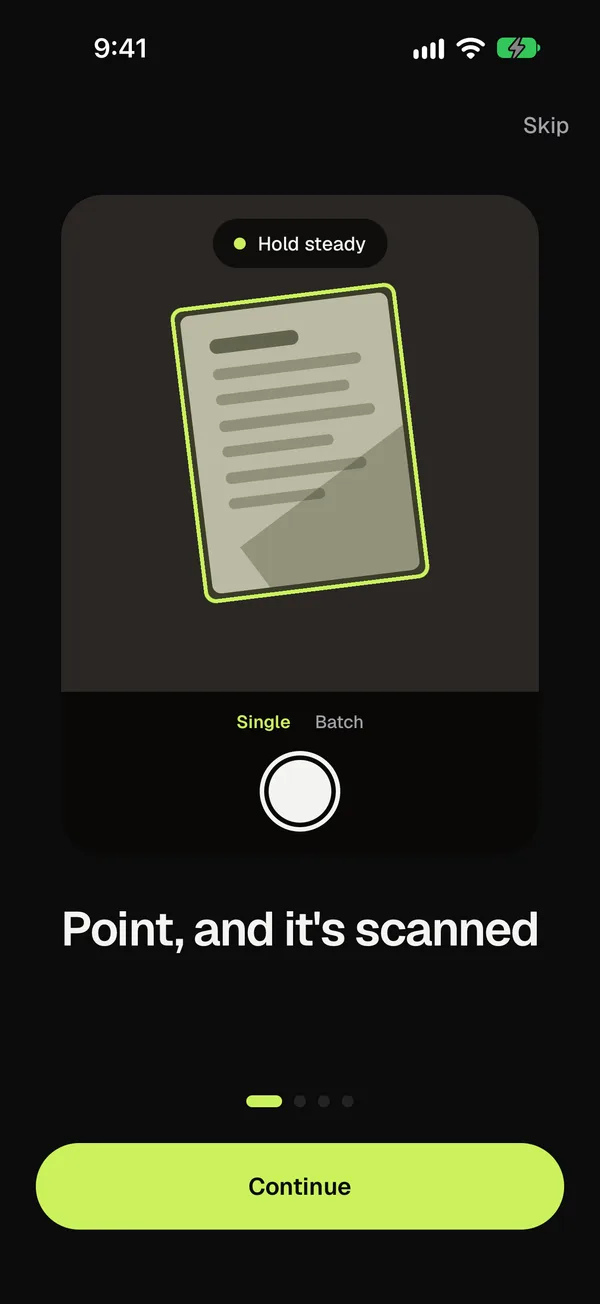
Copier works the phone way. Switch the camera to Batch so it stays open after each capture, and with Auto on it takes each side once you’ve held still for about a second. Turn the sheet over in place and it finds the page again straight away.
When you’re done, swipe through the pages. Delete any blank backs, Retake a page that came out badly, and Rotate a back that’s upside down. With Apply to all pages on, one look covers the whole document. Then save it and share it as JPG pages for free, or as one PDF with Copier Pro.
Copier can’t reorder pages after you scan them, so go sheet by sheet in order; if a page lands in the wrong place, the quickest fix is to delete it and scan it again.

Tips
- Number the sheets lightly in pencil before scanning a long stack. If you lose your place, you’ll know where you were.
- Pull staples first. Stapled sheets don’t lie flat and can’t go through a feeder.
- Check the last page. It’s the one most often missed, front or back.
- Use black and white for text-only pages to keep a long document small. If it’s still too big to email, see how to make a scanned PDF smaller.
- For the whole workflow, see how to scan multiple pages into one PDF. For ID cards, where front and back are often wanted on one page, see how to scan an ID card. If a back page comes out upside down, how to rotate a scanned document explains the fix.
Questions
How do I scan double-sided pages with my phone?
Use your scanner app's multi-page or batch mode and scan the front of the first sheet, then turn it over and scan the back, then the front of the next sheet, and so on. The pages end up in reading order in one document.
My scanner only scans one side. How do I scan both sides?
Feed the stack through once for the fronts, turn the whole stack over and feed it again for the backs. The backs come out in reverse order, so you'll need to interleave the pages, either with the scanner's manual duplex option or by reordering them in a PDF editor.
What is duplex scanning?
Duplex scanning means scanning both sides of each sheet. A duplex document feeder does it automatically, either with two sensors in one pass or by turning each sheet over inside the machine.
Should I keep blank back pages in a scan?
Usually not. Delete them so the document reads cleanly, unless the document has to match the original page for page, as some legal and official filings do.