 COPIER
How to Make a PDF on Android (Scan, Print or Convert)
How to make a PDF on Android depends on what you’re starting from. For a paper document, scan it with Google Drive, Files by Google or a scanner app and save as PDF. For a web page, email or document already on screen, use Print and choose Save as PDF, which is built into Android.
The steps below cover each case, plus how to put several photos or pages into one PDF, which is where most people get stuck.
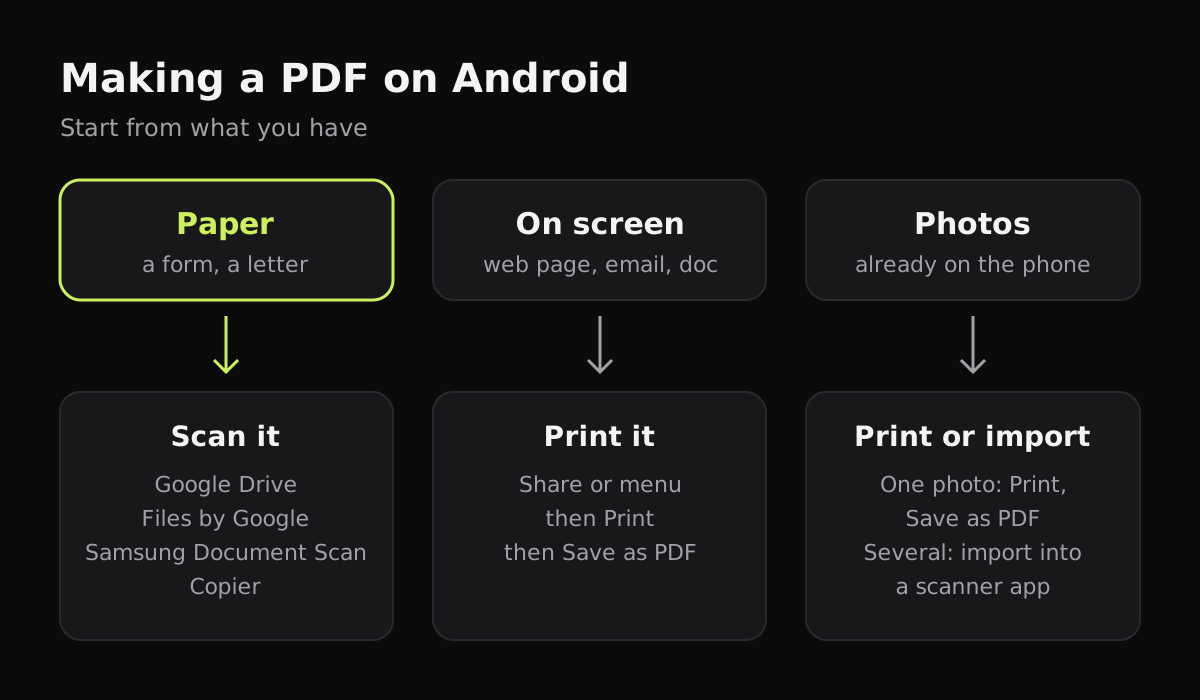
Save as PDF: anything you can print
Android has a virtual printer called Save as PDF. Any app that can print can make a PDF with it. In Chrome:
- Open the page and tap the ⋮ menu.
- Tap Share, then Print.
- At the top, tap the printer name and choose Save as PDF.
- Tap the small arrow to set the paper size, orientation and pages.
- Tap the round PDF button, pick a folder (Downloads is the usual choice) and tap Save.
The same Print option is in Google Docs, Gmail and many gallery and file apps, usually in the ⋮ menu. In Google Docs you can also go to Share & export and save the document as a PDF directly.
Save as PDF prints what’s on screen, so a long web page may lose some formatting, and it makes one PDF per item. It doesn’t help with paper.
Scan to PDF on Android
To turn paper into a PDF you need a scanner, and Android phones have a few free ones.
Google Drive
- Open Drive and tap the Camera button, or + then Scan.
- Take the page. Use Crop & Rotate, Filter or Clean if it needs it.
- Tap Add for each extra page.
- Tap Done, name the file, choose .pdf, pick a Location and tap Save.
The PDF is uploaded to your Google Drive. The full walkthrough is in how to scan with Google Drive.
Files by Google
- Open Files by Google and tap Scan at the bottom right.
- Take the page, adjust it, and tap Add for more pages.
- Tap Done.
The scan is saved as a searchable PDF on the phone, in Documents, then Scanned, according to Google’s help page. No account needed.
Samsung Galaxy phones
On One UI 8.5, the Camera’s Document Scan mode takes several pages and saves them as one PDF. On older Galaxy phones the Camera’s Scan button saves one image, so use Samsung Notes (scan into a note, then export it as PDF) or one of the apps above. How to scan on Samsung has the settings.
How to scan documents to PDF on Android with Copier
Copier is a scanner app for Android phones, tablets and foldables that keeps every page on the phone. There’s no account and nothing is uploaded.
- Tap Scan. The camera outlines the page as soon as it sees it.
- Hold still. With Auto on, the page is taken after about a second. Switch to Batch to scan a stack without leaving the camera.
- Swipe through the pages and choose a look: Auto for most documents, Black & white for text, Original for photos. Apply to all pages is on by default, so one choice covers the whole document.
- Add, retake, rotate, crop or delete pages, then tap Save.
- Open the document, tap Share and choose PDF.
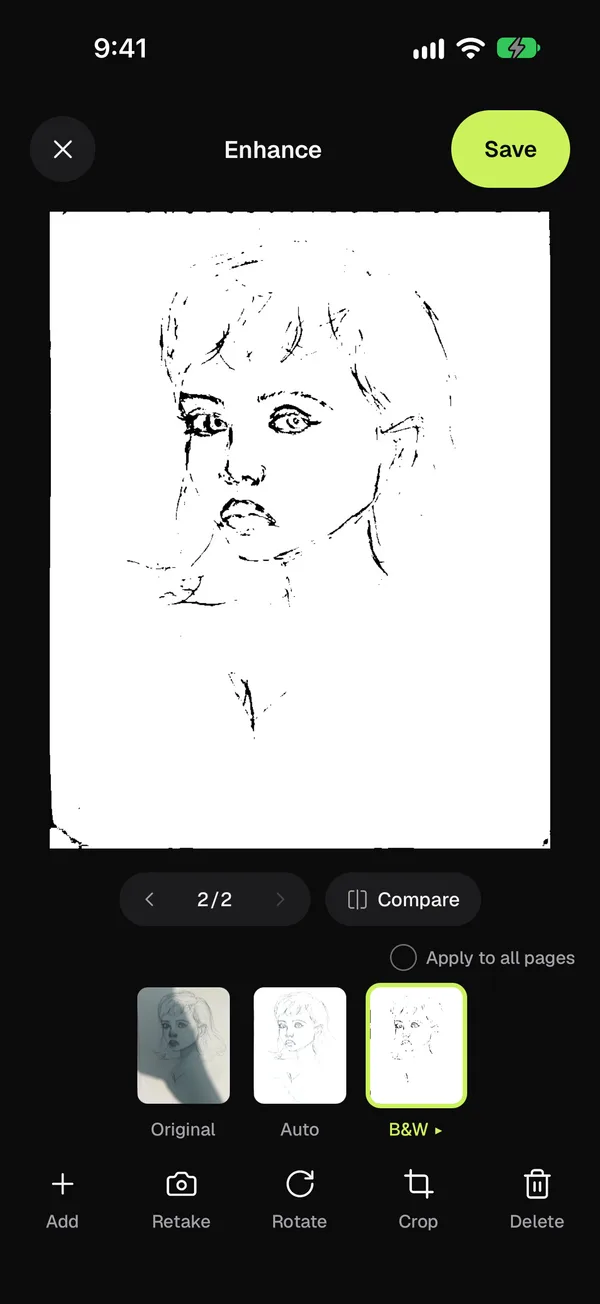
Each page goes on its own A4 sheet in the PDF, turned to landscape for wide pages. PDF export is part of Copier Pro, a one-time lifetime purchase; sharing pages as JPG is free for up to 10 documents.
Putting several photos or pages into one PDF
Save as PDF handles one item at a time, so it won’t merge five photos into one file. If you’re scanning fresh, every scanner above adds pages to the same PDF as you go. For photos you already took, import them into a scanner app that accepts photos. In Copier they’re found, straightened and cleaned up like a camera scan, and you can rotate, crop or delete pages before sharing one PDF.
PDFs you already have are a different job. Merging existing PDF files needs a PDF editor; scanner apps, Copier included, don’t do it.
Scanning multiple pages into one PDF goes through this in more detail.
Which way to make a PDF on Android
The quickest built-in method for each starting point:
| You have | Quickest way | Saved to | Account |
|---|---|---|---|
| A web page or email | Print, then Save as PDF | Folder you pick | No |
| A Google Doc | Share & export, or Print | Folder you pick | Google account |
| One paper page | Files by Google Scan | Documents, Scanned | No |
| Several paper pages | Drive or Files by Google Scan, tap Add | Drive, or Scanned folder | Drive needs Google |
| Several paper pages, offline and private | A scanner app like Copier | App’s library | No |
| Existing photos | Import into a scanner app | App’s library | Depends on the app |
A few habits make the result better:
- Scan text documents in black and white. They’re easier to read and much smaller to email. Making a scanned PDF smaller has more on file size.
- Name the file before you send it. “Scanned document 3.pdf” is hard to find later, for you and for the person you send it to.
- Check the page count before you share. A missed page is the most common mistake in a multi-page scan.
Questions
How do I save something as a PDF on Android?
Open it in an app that can print, such as Chrome, then go to Share or the menu, choose Print, set the printer to Save as PDF and tap the PDF button. Android asks where to save the file.
How do I scan a document to PDF on Android?
Open Google Drive or Files by Google, tap Scan, take each page, then tap Done and save as PDF. Drive uploads the file to your Google Drive; Files by Google keeps it on the phone.
Can I combine several photos into one PDF on Android?
Not with Save as PDF, which prints one item at a time. Import the photos into a scanner app that accepts photos and share the document as one PDF.
Where do PDFs go on Android?
Save as PDF lets you pick the folder, usually Downloads. Files by Google puts scans in a Scanned folder under Documents, and Google Drive saves to the Drive folder you choose.