 COPIER
Google Drive Scan: How to Scan Documents with Drive
Google Drive scan turns your phone’s camera into a document scanner and saves the result as a PDF in your Drive. On Android, open the Drive app, tap the Camera button (or + then Scan), take the page, tap Done and Save. The same scanner has been in Drive for iPhone and iPad since late 2023.
It’s a good choice when you want the document in Google Drive anyway: a form to share with a colleague, a receipt for a shared folder. Below are the steps for each platform, where the scan ends up, and what to use when you’d rather not upload it.
How to scan with Google Drive on Android
These steps follow Google’s own help page for the Android app.
- Open Google Drive.
- At the bottom right, tap Camera. In some versions you tap + first, then Scan.
- Point the camera at the page. A blue line shows what will be cropped.
- Take the photo. You can switch between Manual and Auto capture.
- Fix the page if you need to: Crop & Rotate changes the scan area, Filter changes the colors or makes it grayscale, and Clean erases stains and fingers.
- Tap Add to scan the next page, or Retake to try again.
- Tap Done, then type a file name or pick a suggested title.
- Choose .pdf or .jpg, tap Location to pick a folder, and tap Save.
For quicker access, add the Drive scan widget to your home screen. It opens the scanner straight away and saves into a folder you choose when you add it.
How to scan with Google Drive on iPhone and iPad
- Open the Google Drive app.
- At the bottom right, tap Add, then Scan, or tap the camera icon.
- Point the camera at the page and take the photo, by hand or with Auto capture.
- Adjust it with Crop & Rotate, Filter or Clean, and tap Add for more pages.
- Tap Done, name the file, pick a Location, and tap Save.
On an iPhone you also have Apple’s own scanner in Notes and Files, which saves on the phone. Scanning documents on iPhone covers both.
Where Google Drive saves your scan
The scan is uploaded to the Drive folder you chose under Location. Open that folder in the Drive app or at drive.google.com on a computer, and the PDF is there, named with the title you gave it. If you skipped the folder step, search Drive for the file name.
Since the file lives in Drive, it’s also on every device where you’re signed in to that Google account, which is the main reason to use this scanner.
Searching and copying text from a Drive scan
Google says it saves scans as searchable PDFs, so typing a word from the page into Drive’s search box can find the document. To copy the text out, open the PDF on drive.google.com and choose Open with and then Google Docs. Drive creates a Doc with the recognized text under the image. Check it before you rely on it, because handwriting and faint print come out with mistakes.
What uploading to Drive means for your documents
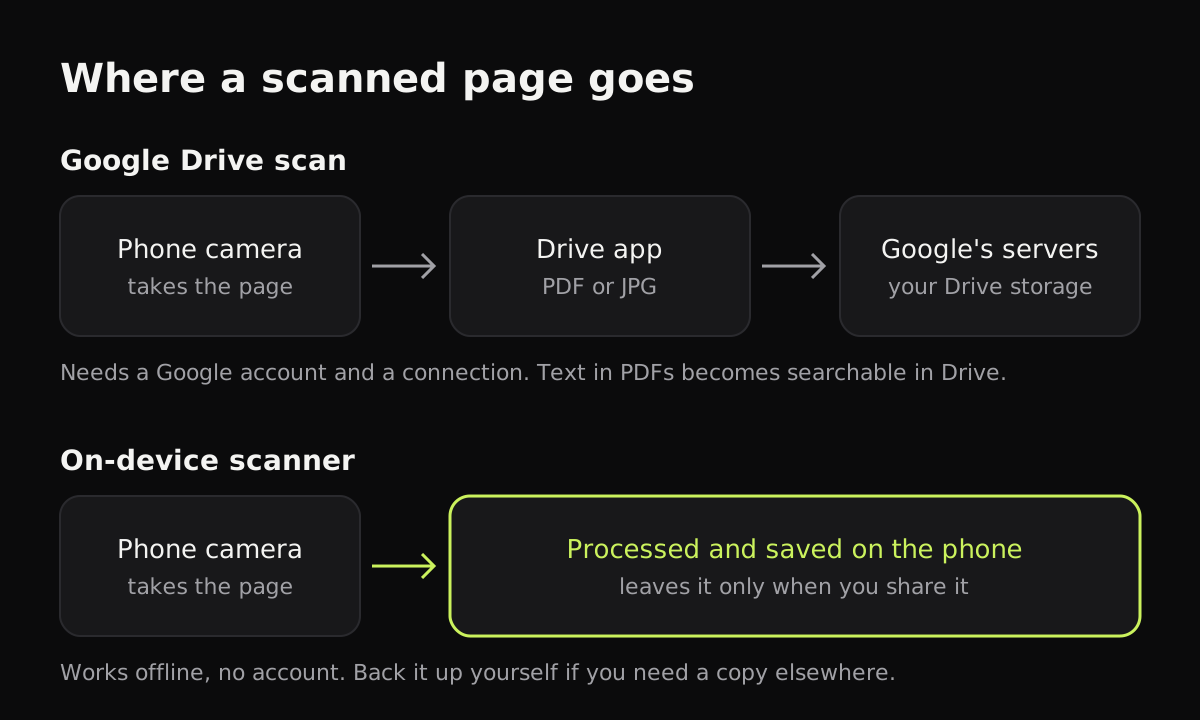
Every Google Drive scan ends up on Google’s servers. For a lot of paperwork that’s fine, and Google states on its help page that it doesn’t use your Drive content for advertising. It does mean a few practical things:
- You need a Google account, and a connection to upload.
- The document counts against your Google storage.
- Anyone with access to the folder, or to your account, can open it.
- Deleting it from your phone doesn’t delete it from Drive.
For an ID, a medical letter or a bank statement, some people would rather the scan stay on the phone and be shared only when they choose.
Google Drive scan compared with on-device scanners
This table compares Drive with scanners that save on the device itself.
| Google Drive scan | Files by Google scan | iPhone Notes / Files | Copier | |
|---|---|---|---|---|
| Platforms | Android, iPhone, iPad | Android | iPhone, iPad | iPhone, iPad, Android, web |
| Account needed | Google account | No | No | No |
| Where the file goes | Your Google Drive | Phone storage | Note or Files folder | App’s library on the device |
| Multi-page PDF | Yes | Yes | Yes | Yes, with Copier Pro |
| Searchable text | Yes | Yes | In Notes | No (no text recognition yet) |
| Uploads the scan | Yes, to Drive | No | Only if iCloud sync is on | No |
The Files by Google scanner uses the same kind of tools as Drive (crop, filter, clean, add pages) but saves a searchable PDF on the phone, in a Scanned folder under Documents, according to Google’s Files help page.
Scanning without uploading: Copier
Copier is a scanner app for iPhone, iPad and Android, plus Copier in your browser, that keeps everything on your device. There’s no account and no sign-in, and nothing is uploaded.
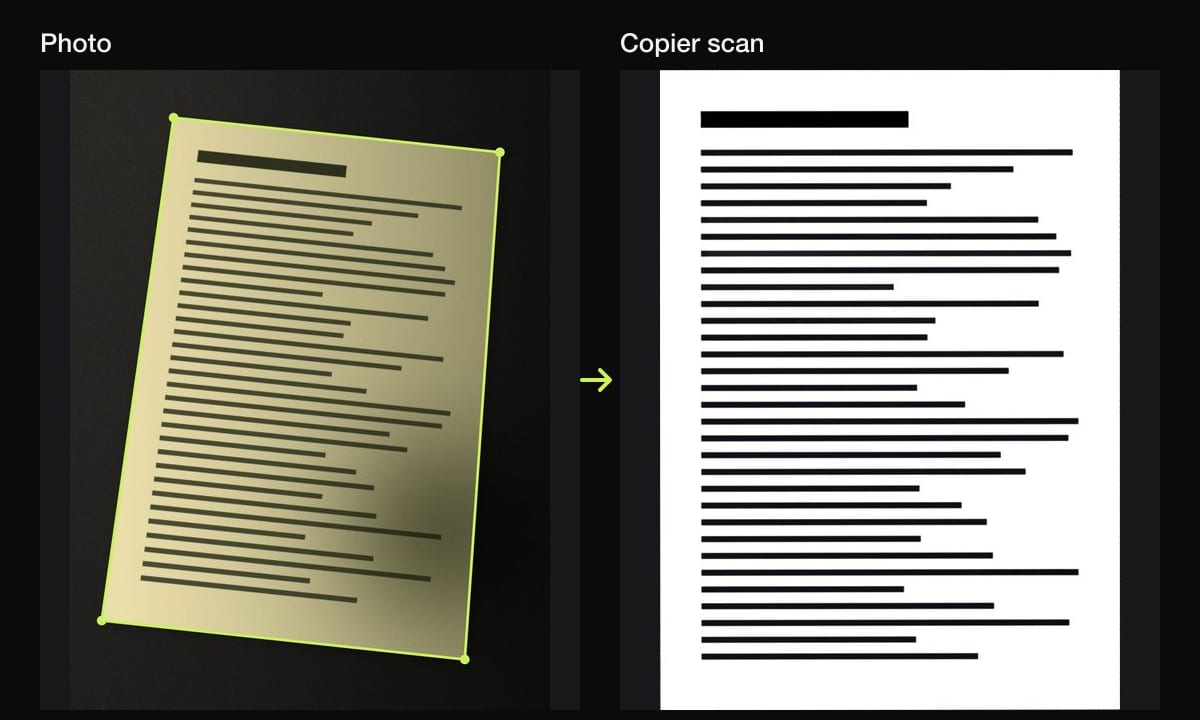
The camera outlines the page as you point at it, and with Auto on it takes the shot once you’ve held still for about a second. Each page is cut out, straightened and cleaned up on the phone: Auto evens out the light so the paper comes out white, Black & white gives crisp text and small files, and Original leaves photos alone. You can crop, rotate, retake or delete any page before saving.
Sharing pages as JPG is free for up to 10 documents. PDF export and unlimited documents come with Copier Pro, a one-time lifetime purchase. Copier doesn’t search the text inside scans yet, and it doesn’t sync, so if you want a scan in Drive later, share it to the Drive app yourself.
Which to use
- Use Google Drive scan when the document belongs in a Drive folder that other people use, or when you want to search scans by their words from any computer.
- Use Files by Google or the iPhone’s Notes scanner for a quick on-phone PDF without an account.
- Use an offline scanner app for sensitive papers and for a library of documents you control. Offline scanner apps explains what to look for, and Google Pixel scanning covers the camera shortcut on Pixel phones.
Questions
Where does Google Drive save scanned documents?
In the Drive folder you pick with Location before you tap Save. If you don't pick one, look in My Drive or search Drive for the file name.
Can Google Drive scan multiple pages into one PDF?
Yes. After the first page, tap Add to scan the next one. When you tap Done and save as PDF, every page goes into the same file.
Are Google Drive scans searchable?
Google says scans saved as PDF are searchable in Drive, so you can find a document by a word on the page. To copy the text out, open the PDF in Drive with Google Docs.
Does Google Drive scan work offline?
Drive saves scans to your Google Drive, so you need a Google account and a connection to upload them. If you want scans that never leave your phone, use an on-device scanner app.