 COPIER
Offline Scanner App: Private, No Ads, No Subscription
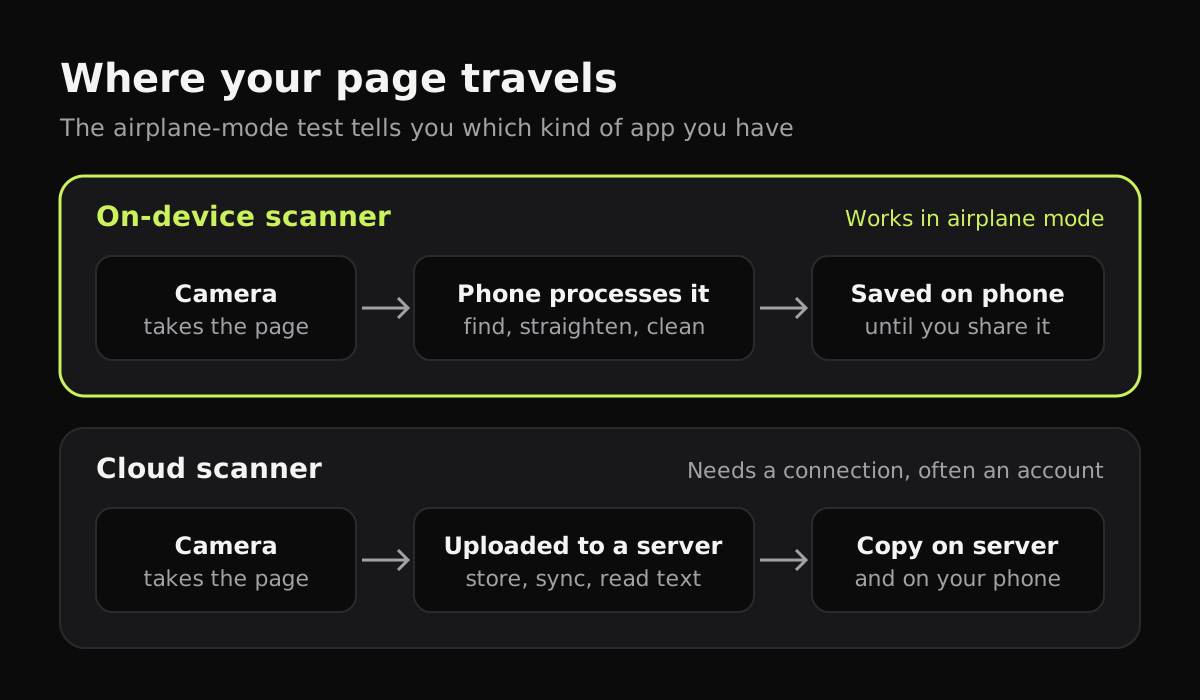
An offline scanner app does all of its work on your phone: it finds the page, straightens it, cleans it up and saves the PDF or image without sending anything to a server. That’s what makes it private. The quickest way to tell whether an app works that way is to turn on airplane mode and scan a page. If scanning, saving and exporting all still work, the processing happens on the device.
Offline doesn’t automatically mean no ads or no subscription, so this guide covers all three, and how to check each one before you trust an app with a passport or a bank statement.
What “offline” means for a scanner
A scanner app does several separate jobs. Some of them never need a connection; others only make sense with one. Apps that call themselves offline usually mean the first group.
| Job | Can it run on the phone? | When it goes online |
|---|---|---|
| Find the page in the camera | Yes | Rarely |
| Straighten and crop | Yes | Rarely |
| Clean up shadows and color | Yes | Depends on the app: check the label |
| Make a PDF | Yes | Never needed |
| Recognize text (OCR) | Yes (Live Text, Genius Scan’s paid plan) | Google Docs reads text in the cloud; some apps cap free OCR pages |
| Sync and back up | No | Always: that’s what it is |
| Share a link to a document | No | Always |
So the question to ask is which of these an app does on the phone, and whether the online ones are optional. A private document scanner keeps the first five on the phone and makes the last two opt in.
How to test any scanner app in airplane mode
- Turn on Airplane Mode (Control Center on iPhone, Quick Settings on Android). Make sure Wi-Fi is off too, since airplane mode can leave it on.
- Open the scanner and scan a two-page document.
- Save it, close the app completely, and open the document again.
- Export it as a PDF or image to Files or your gallery.
- Turn the connection back on and look in the app’s settings for anything called sync, backup, cloud or auto-upload. Turn those off if you don’t want them.
Step 5 matters because an app can scan offline and still upload the document once you’re back online. Airplane mode tells you where the processing happens. The settings and the privacy label tell you what happens next.
How to read privacy labels
Both stores ask developers to describe what their app collects. Apple shows it as App Privacy on the listing; Google Play shows a Data safety section. Both are the developer’s own declaration.
- “Data Not Collected” on the App Store is the cleanest answer you’ll see.
- “Data Used to Track You” means the app links your data with other companies’ data, usually for ads.
- “Photos or Videos” or “Other User Content” under collected data can mean your scans are sent somewhere, often for cloud features. Read the purpose next to it.
- On Google Play, “Contains ads” under the app’s name means exactly that.
Our article on whether CamScanner is safe walks through one real label line by line.
Offline scanner apps compared
From each app’s listing or developer, at the time of writing:
| App | Scans offline | Ads | Account | How you pay |
|---|---|---|---|---|
| Notes / Files scanner (iPhone, iPad) | Yes | None | No (Notes syncs with iCloud if on) | Free |
| Genius Scan | Yes, on-device processing | Check the listing | Only for Genius Cloud | Free, paid plans for OCR and sync |
| TurboScan Pro (iPhone) | Yes | Label says no data collected | No | One-time purchase |
| Google Drive scan (Android) | Saves to Drive, needs a connection to upload | None | Google account | Free |
| Copier (iPhone, iPad, Android, web) | Yes, everything | None | No | Free JPG, one-time Pro for PDF |
Copier: an offline scanner with no ads or subscription
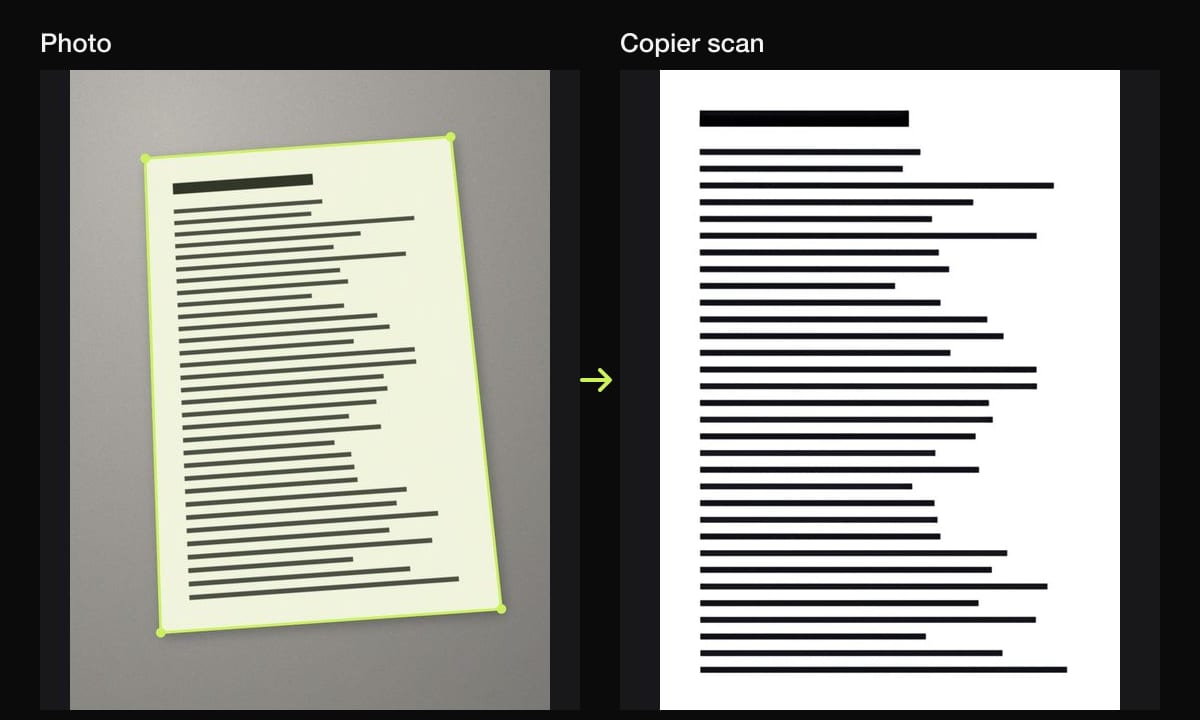
Copier was built around this. The page is found, cut out, straightened (curled pages included) and cleaned up on the device. There’s no account, no sign-in, no analytics and no ads, and nothing is uploaded, so it works in airplane mode from the first launch. Copier in your browser works offline too after the first visit, and you can install it to your home screen.
Scanning and sharing pages as JPG is free for up to 10 documents. PDF export and unlimited documents come with Copier Pro, a one-time lifetime purchase (a weekly plan also exists for short-term use). The trade-off of keeping everything local is that there’s no cloud backup and no text recognition yet, so back up the documents you care about yourself. How to go paperless has a simple backup plan.
Tips for a private setup
- Use the built-in scanner for the occasional page. It’s already on your phone and costs nothing.
- Pick one app for sensitive documents and test it in airplane mode once, rather than trying a new app for each task.
- Share by AirDrop, Quick Share or a cable when you can. Email and messaging apps upload the file, which is fine as long as you chose to.
- If you’re tired of paywalls, read why scanner apps went subscription and what a one-time purchase gets you. The best free scanner apps list covers more options.
Questions
Can I scan documents without internet?
Yes. The Notes and Files scanners on iPhone and many scanner apps find, straighten and clean the page on the phone, so they work in airplane mode. Anything that syncs, backs up or recognizes text on a server needs a connection for that part.
How do I know if a scanner app uploads my documents?
Scan and save a page in airplane mode, then read the App Store privacy label or Google Play Data safety section and check the app's settings for sync or cloud backup. An app that works offline can still upload later when you reconnect.
Is there a scanner app with no ads?
Yes. Apple's built-in scanner has none, and apps such as Copier and TurboScan Pro declare no advertising data. On Google Play, look for the absence of the Contains ads note under the app's name.
Does an offline scanner app still need an account?
It shouldn't. If an app asks you to sign in before you can scan a page, it is usually because it stores your documents on its servers.