 COPIER
Best Scanner App for iPhone (2026 Comparison)
The best scanner app for iPhone is the one that fits how often you scan and how much you care where your pages go. For the odd page, the free scanner built into Notes, Files and Preview is enough. For regular scanning, look at how each app charges (subscription or one-time), whether it needs an account, and whether it uploads your documents. This comparison covers Apple’s scanner, Copier, Adobe Scan, Genius Scan, Scanner Pro, SwiftScan and CamScanner, using each app’s current App Store listing as of November 2026.
Scanner apps for iPhone compared
This table shows what each app charges, whether it needs an account, and where your pages go.
| App | Price model | Account | Where your pages go | Text recognition (OCR) |
|---|---|---|---|---|
| Notes / Files / Preview | Free | No (iCloud optional) | On the phone, or iCloud if it’s on | Notes search reads scans; Live Text |
| Copier | Free for JPG, up to 10 documents; one-time Pro for PDF and unlimited | None | On the phone; nothing uploaded | Not yet |
| Genius Scan | Free; Plus and Ultra upgrades | Only for its optional cloud | Processed on the phone | In paid tiers |
| Adobe Scan | Free; Plus and Premium subscriptions | Adobe account | Saved to Adobe Document Cloud | Yes |
| Scanner Pro | Free download; Plus subscription | Not stated on the listing | Phone, with iCloud sync | Yes |
| SwiftScan | Free; Plus and VIP subscriptions | Not stated on the listing | Phone; cloud export | With Plus |
| CamScanner | Free with ads; Premium subscription | Sign-up offered | Phone; cloud export | Yes |
Prices change and differ by country, so check each listing for the current figures. Microsoft Lens no longer appears: Microsoft retired it and removed it from the App Store on February 9, 2026.
Apple’s built-in scanner
This is the one to use for the odd page, since it costs nothing. The scanner in Notes, Files and Preview finds the page, corrects the perspective and saves a multi-page PDF. There’s no watermark, no limit and no account. Preview, new in iOS 26, adds form filling and signatures. The weak spots are cleanup (a shadow or warm lamp light often survives the filters) and organization, since scans end up spread across notes and folders. The iPhone document scanner explains where each version lives.
Copier
Copier is made for regular scanning that stays private, without a subscription. It does all its work on the phone. The camera follows the page with a live outline and, with Auto on, takes it after you’ve held still for about a second. Each page is cut out, straightened (including along curved edges when a page is bent) and cleaned up: the Auto look evens out the light so paper is white and shadows go, Black & white gives crisp text and small files, and Original leaves photos alone. Fingers holding the page at its edge are removed. Every saved page keeps its original photo, so you can re-crop or change the look later.
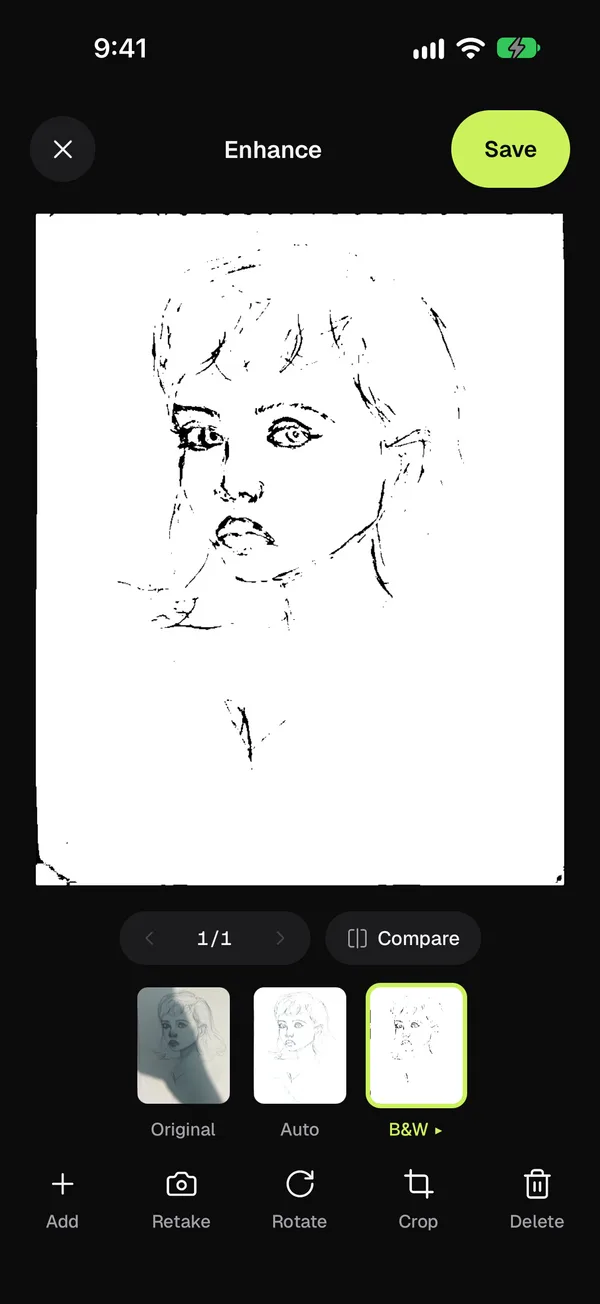
There’s no account, no analytics and no ads, and nothing is uploaded. Scanning and sharing JPGs is free for up to 10 documents; PDF export and unlimited documents come with Copier Pro, a one-time lifetime purchase (a weekly plan also exists). Copier doesn’t do OCR, signing, cloud sync or merging other PDFs yet, so if you need searchable PDFs, look at the next three.
Genius Scan
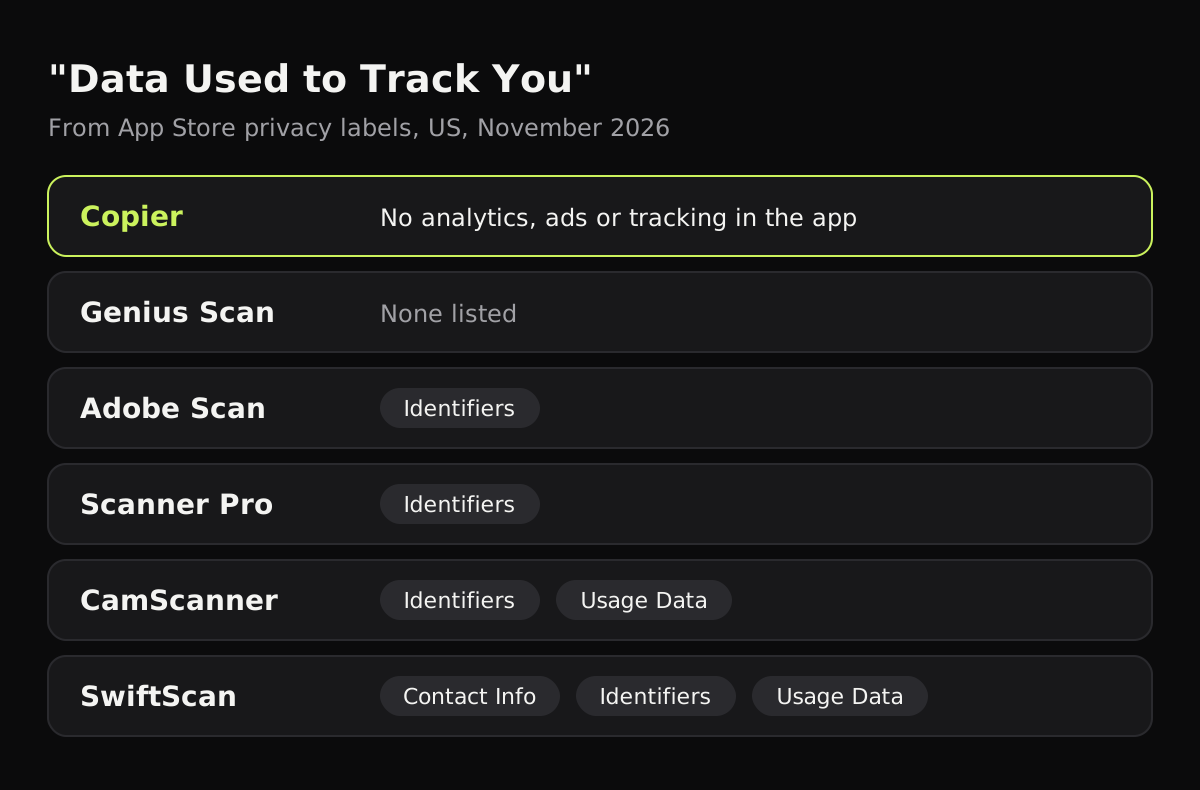
Genius Scan, from The Grizzly Labs, has been on the App Store for years and needs no account to scan. Its listing says documents are processed on the device, and core scanning, filters, batch scanning and multi-page PDFs aren’t marked as premium. Text recognition, searchable PDFs, Face ID lock, PDF passwords and its Genius Cloud sync are paid. Its privacy label lists no data used to track you.
Adobe Scan
Adobe Scan suits people who already use Adobe Acrobat. It recognizes text and works with Acrobat, and its subscriptions also cover Acrobat Reader and Acrobat on the web. You sign in with an Adobe account, and the listing says scans are automatically saved to Adobe Document Cloud. Combining scans into one file and some cleanup tools are for paid subscribers. If you’d rather your documents didn’t sit on someone else’s server, this is the one to skip.
Scanner Pro
Readdle’s Scanner Pro has built-in OCR for searchable PDFs and syncs through iCloud. The download is free, with a Scanner Pro Plus subscription for the full set of features; the listing doesn’t spell out which features are in which tier, so check before relying on one.
SwiftScan
SwiftScan makes free PDF and JPG scans, with a Plus subscription for auto-sync, encryption and OCR. The listing says the app contains advertising, and its privacy label lists contact info, identifiers and usage data as used to track you.
CamScanner
CamScanner has OCR, cloud exports and many extra tools, if ads don’t bother you. The free version shows ads, and many reviewers say free exports carry a CamScanner watermark that Premium removes. People often ask about its privacy; is CamScanner safe? goes through them, and CamScanner alternatives lists other options.
How the apps handle your data
App Store privacy labels are written by each developer, and Apple doesn’t verify them, but they’re the clearest public statement of what an app collects. Here’s what each lists under “Data Used to Track You”.
Which scanner app for iPhone should you pick?
- You scan a page now and then: use Notes, Files or Preview.
- You scan every week and don’t want an account or a subscription: Copier or Genius Scan.
- You need searchable PDFs: Genius Scan (paid tier), Scanner Pro or Adobe Scan.
- You live in Adobe Acrobat at work: Adobe Scan.
- You want to avoid subscriptions altogether: see scanner apps without a subscription, or free scanner apps for iPhone for what each free tier really includes.
Whichever app you pick, the photo you start from matters more than the app. How to get clean scans covers light, angle and shadows.
Questions
What is the best free scanner app for iPhone?
For occasional scans, the scanner built into Notes, Files and Preview is free with no limits or watermark. For regular scanning without an account, Genius Scan and Copier both have free versions that process pages on the phone.
Do I need a scanner app on iPhone at all?
Not for the odd page. iOS 26 can scan to PDF from Notes, Files, Preview and Mail. An app helps when you scan often and want better cleanup and one library for your documents.
Is Microsoft Lens still available on iPhone?
No. Microsoft retired Lens and removed it from the App Store on February 9, 2026, pointing users to the scan feature in OneDrive or the Microsoft 365 Copilot app.
Which iPhone scanner apps don't upload my documents?
Apple's built-in scanner and Copier keep pages on the phone unless you turn on iCloud or share them. Genius Scan processes pages on the device. Adobe Scan saves scans to Adobe Document Cloud.