 COPIER
Free Scanner App for iPhone: What's Actually Free
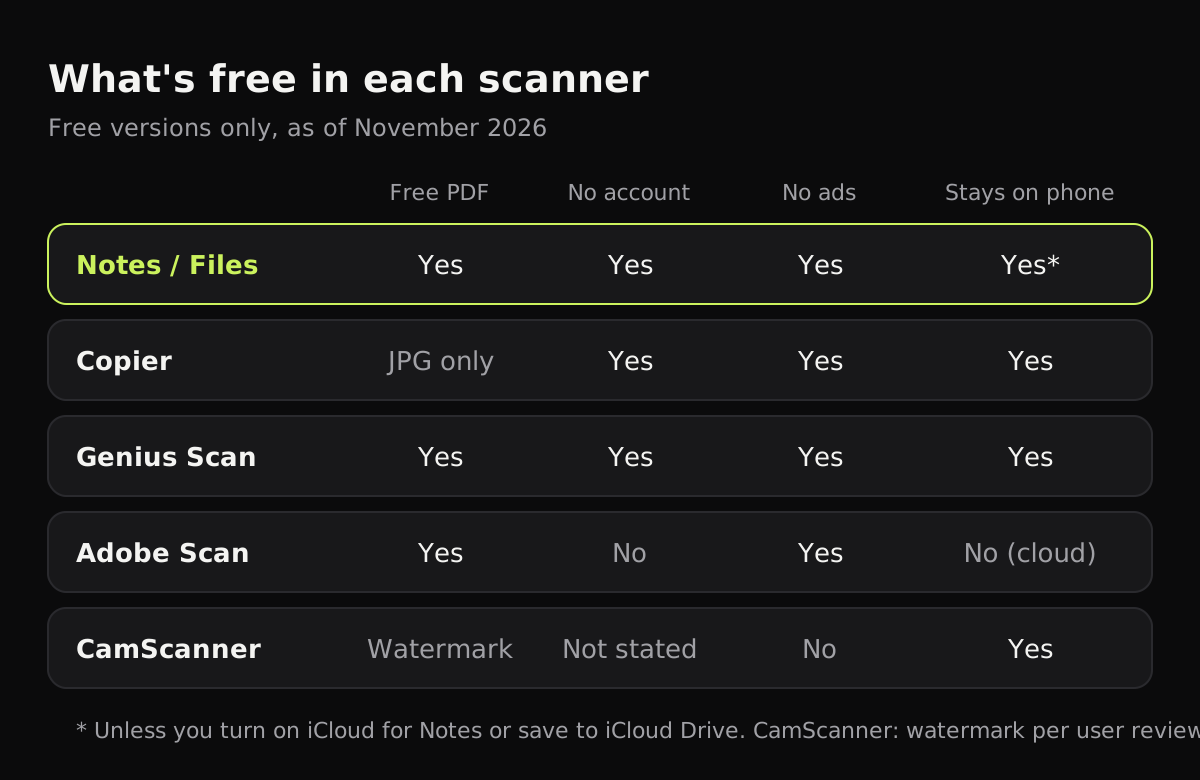
The best free scanner app for iPhone is already on your phone: the scanner built into Notes, Files and Preview makes multi-page PDFs with no watermark, no page limit, no ads and no account. Downloadable scanner apps are “free” in different ways. Some add a watermark, some show ads, some need you to sign in or save your scans to their cloud, and most keep text recognition or PDF tools for paying users. Here’s what each free tier includes as of November 2026.
What the free versions include
This table compares the free version of each app, without any purchase.
| App | Free PDF export | Watermark | Ads | Account | Free limits |
|---|---|---|---|---|---|
| Notes / Files / Preview | Yes | No | No | No (iCloud optional) | None |
| Copier | No, JPG only | Not stated | No | No | Up to 10 documents |
| Genius Scan | Yes | Not mentioned on the listing | No ads label | No (only for its cloud) | OCR and some exports are paid |
| Adobe Scan | Yes | Not mentioned on the listing | No ads label | Adobe account | OCR for a few pages; combining scans is paid |
| SwiftScan | Yes, per the listing | Not mentioned on the listing | Yes | Not stated | OCR and auto-sync are paid |
| CamScanner | Yes | Reported by many users | Yes | Sign-up offered | Watermark and ads removed with Premium |
“Ads” is the App Store’s “Contains: Advertising” label. Listings change, so check before you rely on one detail.
The free iPhone PDF scanner you already have
Apple’s scanner is the only one in this list that’s free with no catch at all. It’s in three apps:
- Files: tap the More button (⋯), then Scan Documents, and save the PDF to a folder.
- Notes: in a note, tap the Attachments button (the paper clip), then Scan Documents.
- Preview (iOS 26): tap Scan Documents on the main screen, then fill in or sign the PDF in the same app.
It finds the page, corrects the perspective, and offers four filters: Color, Grayscale, Black & White and Photo. What you don’t get is much cleanup: a shadow from your hand or the yellow of a lamp often stays, and scans spread across notes and folders. How to scan documents on iPhone has the full steps.
Free apps, and their catches
Genius Scan
Genius Scan’s listing says documents are processed on the device, and it doesn’t mark core scanning, filters, batch scanning or multi-page PDFs as premium. Text recognition, searchable PDFs, Face ID lock and its cloud sync are paid. Its privacy label lists no data used to track you. For a free download with PDF export, it gives away the most.
Adobe Scan
Adobe Scan is free to download and includes text recognition, but the listing’s in-app purchases offer to raise OCR capacity “from 5 to 100 pages”, which suggests the free tier stops at five. You sign in with an Adobe account, and scans are saved automatically to Adobe Document Cloud. That’s handy across devices, and a drawback if you’d rather your tax forms stayed on the phone.
CamScanner and SwiftScan
Both are free to start and both show ads. CamScanner’s free exports carry a watermark, according to many user reviews, and Premium removes it along with the ads. SwiftScan’s listing says it makes free PDF and JPG scans, with a Plus subscription for OCR, encryption and auto-sync. Both apps’ privacy labels list data used to track you. Is CamScanner safe? covers that app in more detail.
Microsoft Lens
Lens was a popular free choice for years, but Microsoft retired it and removed it from the App Store on February 9, 2026. Microsoft suggests the scan feature in the OneDrive app instead.
Copier’s free version
Copier is free for scanning and sharing pages as JPG, for up to 10 documents. That covers the scanner itself in full: the live page outline, auto capture, straightening (including curled pages along their curved edges), and the Auto, Black & white and Original looks. Fingers holding the page at its edge are removed, and shadows are evened out.
PDF export and unlimited documents come with Copier Pro, a single lifetime purchase, with a weekly plan as the alternative. There’s no trial that turns into a subscription, and no per-page counting.
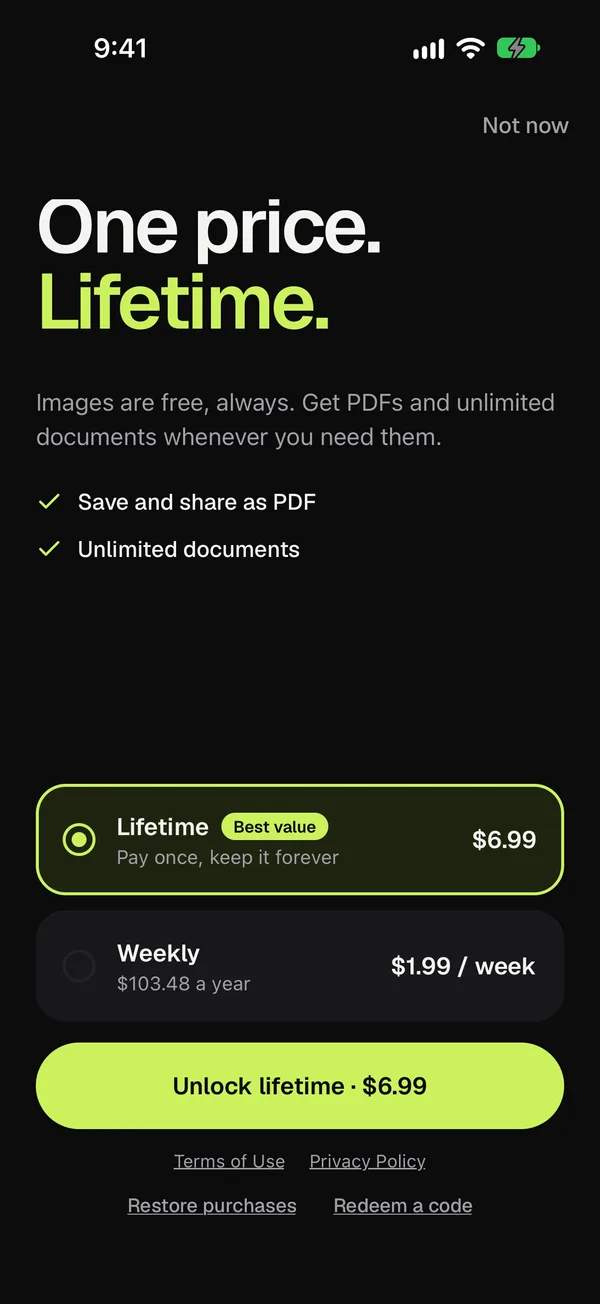
Copier has no account, ads or analytics, and nothing is uploaded. If a one-time price appeals, scanner apps without a subscription lists others.
How to tell what a free scanner really costs
Before you install one, check four places on its App Store page:
- In-App Purchases. Weekly or monthly prices mean a subscription; a single higher price may be a lifetime option.
- App Privacy. “Data Used to Track You” means data is used across other companies’ apps and websites. “Data Not Collected” is the best you’ll see.
- The “Contains” line near the age rating. “Advertising” means ads.
- Recent reviews, sorted by most recent. Watermarks and new paywalls show up there first.
Then scan one page and export it before you scan a stack. A watermark or a sign-in prompt usually appears at the first export.
Which free scanner to use
For the occasional form, use Files: it’s free in every way and saves a PDF where you choose. If you scan every week and want everything in one place, pick an app whose free tier fits: Genius Scan if you need free PDFs, Copier if JPG is enough and you’d like the pages to stay on the phone with better cleanup. Comparing paid features too? The best scanner apps for iPhone covers them, and the best free scanner apps includes Android.
Questions
Is there a completely free scanner app on iPhone?
Yes. The scanner built into Notes, Files and Preview is free with no watermark, no page limit, no ads and no account. It saves multi-page PDFs.
Which free scanner apps add a watermark?
Many users report that CamScanner's free version adds a CamScanner watermark to exported files. Apple's built-in scanner doesn't add one, and Genius Scan's listing doesn't mention one.
Do free scanner apps upload my documents?
Some do. Adobe Scan saves scans to Adobe Document Cloud. Apple's scanner keeps scans on the phone unless iCloud is on, and Copier and Genius Scan process pages on the device.
Can I scan to PDF for free on iPhone?
Yes. In Files, tap the More button and choose Scan Documents, and the pages are saved as one PDF in the folder you pick, at no cost.