 COPIER
iPhone Document Scanner: Where It Is and How to Use It
The iPhone document scanner is built into iOS and opens from four Apple apps: Notes, Files, Preview and Mail. Point the camera at a page and it finds the edges, straightens the page and saves it as a PDF, with no extra app and no cost. Below is where to find it in iOS 26, what it does well, and where it runs out.
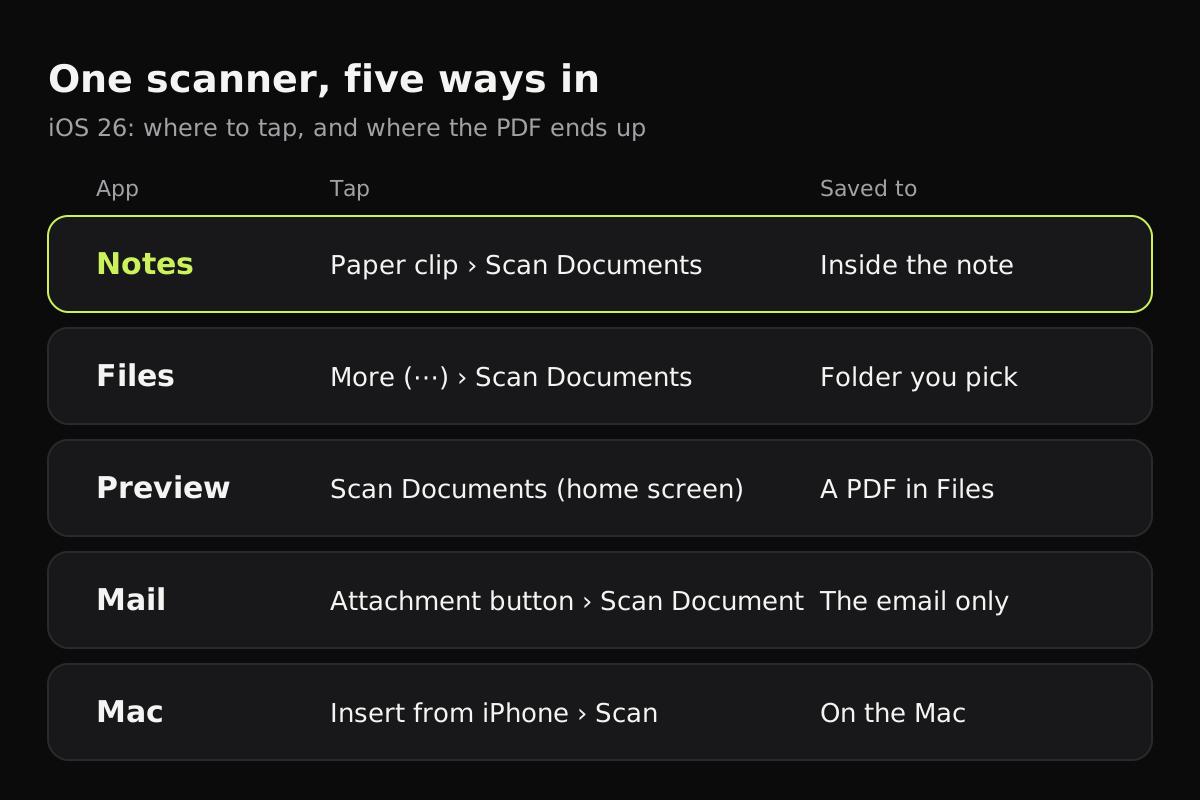
Where is the document scanner on iPhone?
There’s no separate scanner app on the Home Screen, which is why people miss it. The scanner sits inside other apps, and each one keeps the result somewhere different.
This table shows where to tap in each app and where the scan ends up.
| App | Where to tap (iOS 26) | Where the scan is saved | Best for |
|---|---|---|---|
| Notes | In a note, the Attachments button (paper clip), then Scan Documents | Inside that note, as a PDF | Quick scans you want next to notes |
| Files | More (⋯) in a folder, then Scan Documents | A PDF in the folder you choose | Filing scans with other documents |
| Preview | Scan Documents on the main screen | A PDF you can rename and move in Files | Scanning a form you’ll fill in or sign |
| Insert Attachment Actions above the keyboard, then Scan Document | Attached to that email only | Sending a page right away | |
| Mac (Continuity Camera) | On the Mac, Insert from iPhone or iPad, then Scan Documents | On the Mac, in the app or folder you clicked | Getting paper onto a Mac |
Preview is new on iPhone in iOS 26. Before that, Notes and Files were the usual way in. The Mac route is covered in how to scan from your iPhone to a Mac.
How to use the Notes app scanner
Notes is the version most people mean when they talk about the iPhone scanner. The steps are the same in Files and Preview once the camera opens.
- Open Notes and start a new note, or open an existing one.
- Tap the Attachments button (the paper clip), then tap Scan Documents.
- Hold the iPhone over the page. Before you shoot you can change Flash or Filters at the top of the screen.
- Keep still. In Auto mode, the iPhone takes the page when it finds all four edges. To shoot by hand, tap the Auto button so it switches to manual, then tap the shutter or press a volume button, drag the corners to fit, and tap Keep Scan.
- Scan the next page, or tap Done. The pages are saved as one PDF in the note.
For a full walk-through, including renaming, filters and exporting, see how to scan in Notes on iPhone.
What the built-in scanner does well
It’s free and already on your phone, and the basics are solid. Page detection is quick, the perspective is corrected so a page shot at an angle comes out square, and you can scan many pages into one PDF. There are four filters: Color, Grayscale, Black & White and Photo. After saving, you can rotate, crop or re-filter a page from the scan’s menu in Notes.
Files is the better choice when you want a real file you can find again. The PDF lands in a folder, you name it, and it syncs with iCloud Drive if you use it. Preview adds form filling and signatures on top, so a form can be scanned, filled in and signed in one app.
Where it runs out
The built-in scanner works for an occasional page. A few things make it awkward if you scan often.
Scans scatter. A scan made in Notes lives inside a note, so finding last year’s tax letter a few months on means searching through everything else you’ve written. Files is better here, as long as you remember which folder you used.
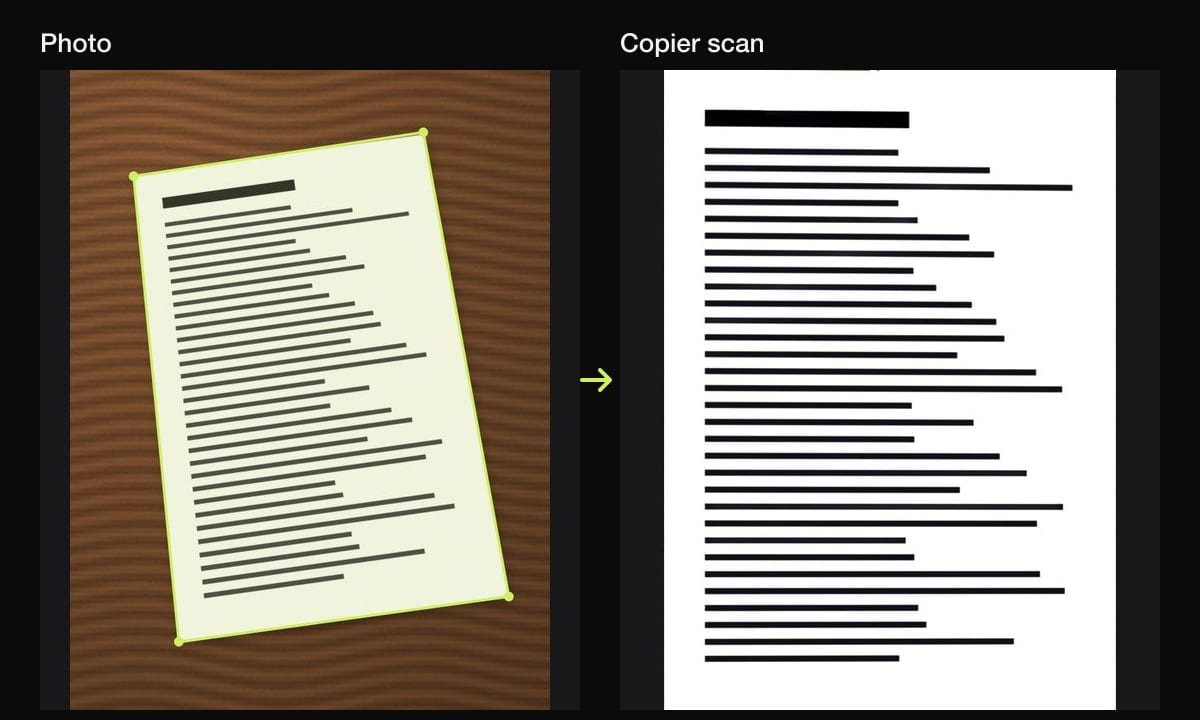
Shadows and color casts tend to stay. The filters lighten the page or turn it black and white, but a shadow from your hand or the yellow of a desk lamp often survives in Color and Grayscale. A curled page is straightened only by its four corners, so lines of text near a bent edge can stay curved.
Files get big. People on Apple’s forums report color scans of a few pages running to several megabytes, while the same pages in Black & White come out far smaller but harsher.
For a one-off, none of this matters much. It starts to matter when you scan receipts every week or keep a folder of household paperwork.
When a scanner app is worth it
A dedicated app makes sense when scanning is a habit. Here is how the built-in options compare with a scanner app such as Copier.
| Notes / Files / Preview | Copier | |
|---|---|---|
| Price | Free | Free for JPG and up to 10 documents; PDF export and unlimited documents with a one-time Pro purchase |
| Account | Apple Account for iCloud sync (optional) | None |
| Shadow and color cast removal | Partly, through filters | Auto look evens out the light so paper is white |
| Curled pages | Corners only | Straightened along the curved edges |
| Fingers at the page edge | Stay in the scan | Removed |
| Re-crop after saving | Crop and rotate | Re-crop from the original photo at any time |
| Where scans live | Notes or a Files folder | One searchable library |
| Text in scans | Searchable in Notes; Live Text | No text recognition yet |
Copier does its work on the iPhone itself. There’s no sign-in, no analytics, and nothing is uploaded, so your pages stay on the phone until you share them. It’s the same on iPad, Android and in your browser.
If you’re weighing apps, the best scanner apps for iPhone compares the main ones, including which need an account and which upload your pages.
Using the iPad document scanner
The iPad has the same scanner in the same places: Notes, Files, Preview and Mail in iPadOS 26. The buttons and filters match the iPhone. The larger screen makes checking each page easier, and you can mark up the PDF with Apple Pencil afterwards. The iPad is heavier to hold flat over a page, though; there are tips for that in how to scan on iPad.
Which one to use
- One page, right now, by email: scan straight from Mail.
- A form you need to sign: scan in Preview, then fill in and sign it there. How to sign a document on iPhone has the steps.
- Something you’ll need to find later: scan in Files and save it to a named folder.
- Regular scanning of receipts, letters and school forms: a scanner app with one library and better cleanup saves time.
- Bad light or a shadow you can’t avoid: read how to get clean scans before you start.
Questions
Does the iPhone have a built-in document scanner?
Yes. It's part of iOS and opens from Notes, Files, Preview and Mail. It finds the page, straightens it and saves it as a PDF, all for free.
Where is the scanner on iPhone?
In Notes, tap the paper clip in a note and choose Scan Documents. In Files, tap the More button and choose Scan Documents. In Preview, Scan Documents is on the main screen.
Can the iPhone Camera app scan documents?
The Camera app can read text with Live Text and open QR codes, but it doesn't save a cropped, straightened scan. Use Notes, Files or Preview for that.
Is the iPad document scanner the same as the iPhone one?
Yes. iPadOS 26 has the same scanner in Notes, Files, Preview and Mail, with the same buttons and filters.