 COPIER
How to Save a Picture as a PDF on Any Device
To save a picture as a PDF, open it and choose Print, then pick the built-in PDF printer instead of a real one: Microsoft Print to PDF on Windows, Save as PDF on Android and in Chrome, or PDF then Save as PDF on a Mac. On an iPhone, the Files app can turn a photo into a PDF with Create PDF. Every device can do it without installing anything.
Below are the photo to PDF steps for each system, then how to combine several images into one PDF, and when a scanner app does a better job.
On Windows 11
- Open the picture in Photos.
- Press Ctrl+P, or open the … menu and choose Print.
- Set the printer to Microsoft Print to PDF, and pick the paper size and orientation.
- Select Print, then choose a folder and file name.
For several pictures in one PDF, select them all in File Explorer, right-click and choose Print (under Show more options if you don’t see it), pick Microsoft Print to PDF, and choose a layout. Each picture becomes a page in one file.
If Microsoft Print to PDF isn’t in the printer list, it’s been turned off. Search Start for Turn Windows features on or off and tick it there.
On a Mac
- Open the picture in Preview.
- Choose File, then Export as PDF.
- Pick a name and folder, and select Save.
For several pictures, select them in Finder, Control-click, and choose Quick Actions, then Create PDF. The PDF appears in the same folder. Check the page order before you send it.
On iPhone and iPad
The cleanest way is the Files app:
- Save the photo to Files if it’s only in Photos: open it, tap Share, then Save to Files.
- In Files, long-press the image, then choose Quick Actions and Create PDF.
The PDF lands in the same folder with the same name. To combine several images, tap Select in the folder’s … menu, select them, long-press one and choose Quick Actions, then Create PDF.
You can also use Photos: open the photo, tap Share, then Print, and tap Share again from the print options. iOS turns the print preview into a PDF you can save to Files or send. Converting a photo to PDF on iPhone has more on both.
On Android
- Open the picture in your gallery app and look for Print in the ⋮ menu.
- Tap the printer name at the top and choose Save as PDF.
- Tap the round PDF button and pick a folder.
Not every gallery app has Print. If yours doesn’t, open the image in Chrome or Google Docs and print from there. Making a PDF on Android covers the other routes.
On a Chromebook, or in any browser
- Drag the image into a Chrome tab, or open it from the Files app with Chrome.
- Press Ctrl+P (Cmd+P on a Mac).
- Set Destination to Save as PDF, choose the paper size, and select Save.
This works the same in Chrome on Windows, Mac and Linux. Chrome makes one PDF per image this way.
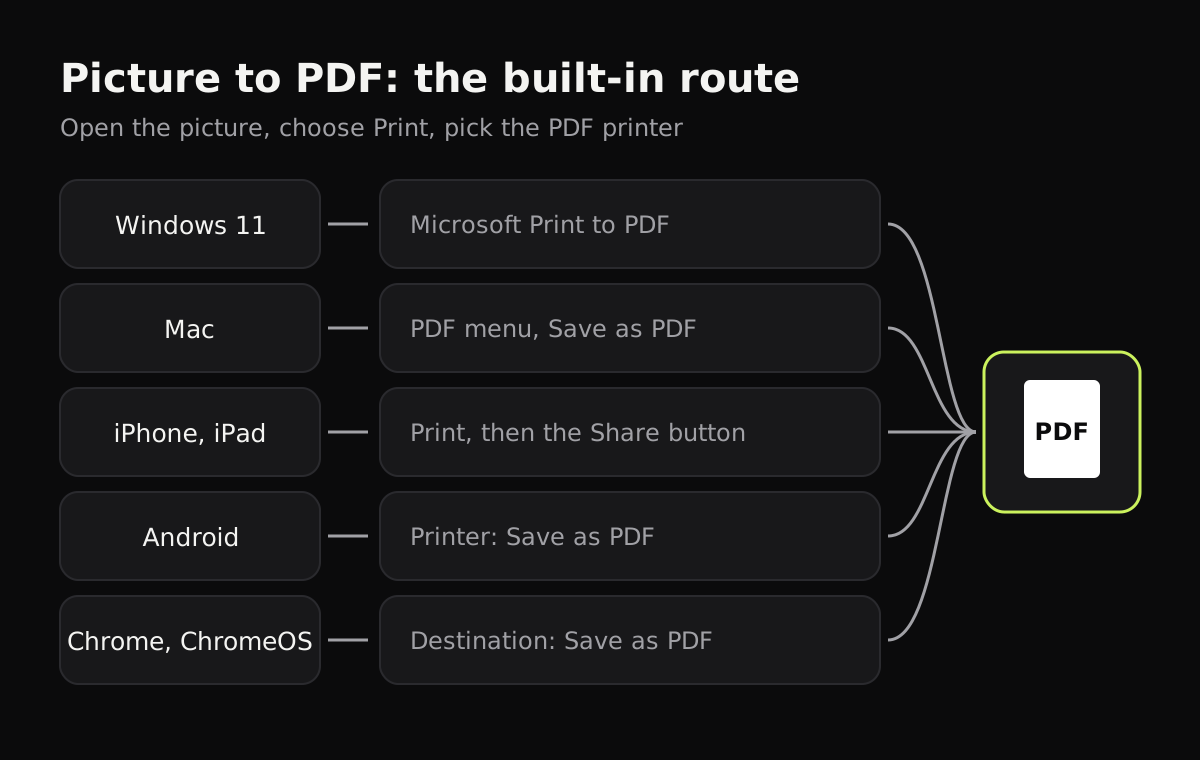
Image to PDF, compared by device
The built-in method on each device, and whether it can put several pictures in one file:
| Device | Built-in method | Steps | Several pictures in one PDF |
|---|---|---|---|
| Windows 11 | Photos, Print, Microsoft Print to PDF | 4 | Yes, print from File Explorer |
| Mac | Preview, Export as PDF | 3 | Yes, Finder Quick Actions, Create PDF |
| iPhone, iPad | Files, Quick Actions, Create PDF | 2 | Yes, select them first |
| Android | Gallery, Print, Save as PDF | 3 | Depends on the app |
| Chromebook, Chrome | Open in Chrome, Ctrl+P, Save as PDF | 3 | No |
Photos of documents: use a scanner instead
If the picture is a photo of a paper document, converting it straight to PDF keeps everything that’s wrong with the photo: the table around the page, the tilt, the shadow of your hand, the gray paper. A scanner app fixes those before making the PDF.
Copier can import photos you’ve already taken as well as scan with the camera. It finds the page in each photo, cuts it out, straightens it and evens out the light so the paper is white. On iPhone, iPad, Android and in the browser, it does this on the device, without uploading anything.
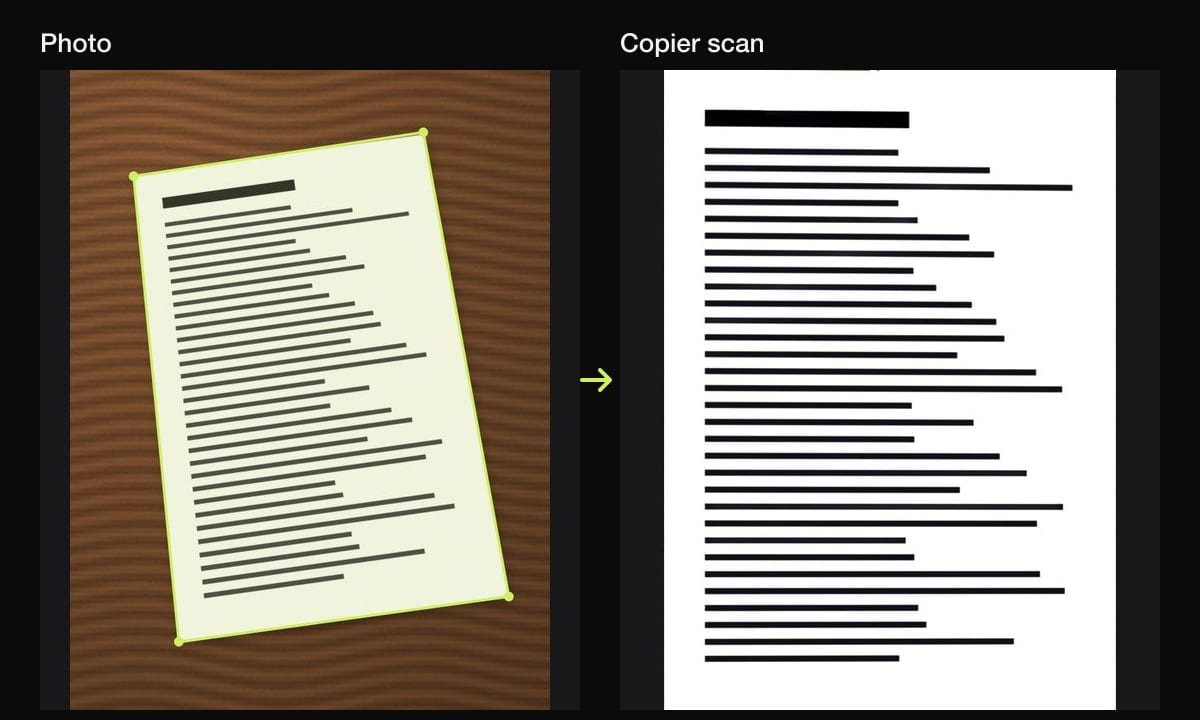
Share the pages as JPG for free (up to 10 documents), or as a PDF with Copier Pro, a one-time lifetime purchase. Each page goes on its own A4 sheet. Copier doesn’t merge PDFs you already have or add text recognition, so for those use a PDF editor.
Tips
- Pick the paper size before you print to PDF. A photo printed on Letter paper gets a white border if its shape is different; use the fit option in the print settings to choose between a border and a crop. A4 vs Letter has the exact sizes.
- Rename files with the date and what they are before you send them. “IMG_4821.pdf” means nothing to the person who opens it.
- Avoid online converters for private pictures. They work by uploading the image.
- If the PDF comes out too big to email, see how to make a scanned PDF smaller.
Questions
How do I save a picture as a PDF for free?
Open the picture and use Print, then pick the built-in PDF printer, such as Microsoft Print to PDF on Windows or Save as PDF on Android and in Chrome. On a Mac, open it in Preview and choose File, then Export as PDF.
How do I turn several photos into one PDF?
On a Mac, select them in Finder and choose Quick Actions, then Create PDF. On an iPhone, select them in the Files app and use Quick Actions, then Create PDF. On Windows, select them in File Explorer, choose Print and pick Microsoft Print to PDF.
Does converting a photo to PDF lower its quality?
Usually not by much, but printing to PDF fits the picture to the paper size you pick, which can scale it down. Pick a paper size close to the picture's shape and check the result before you send it.
Is it safe to use an online image to PDF converter?
Most online converters upload your picture to their server to make the PDF. For an ID, a contract or anything private, use the built-in tools on your device instead, which make the PDF locally.