 COPIER
How to Scan a Document Into Word (Editable Text)
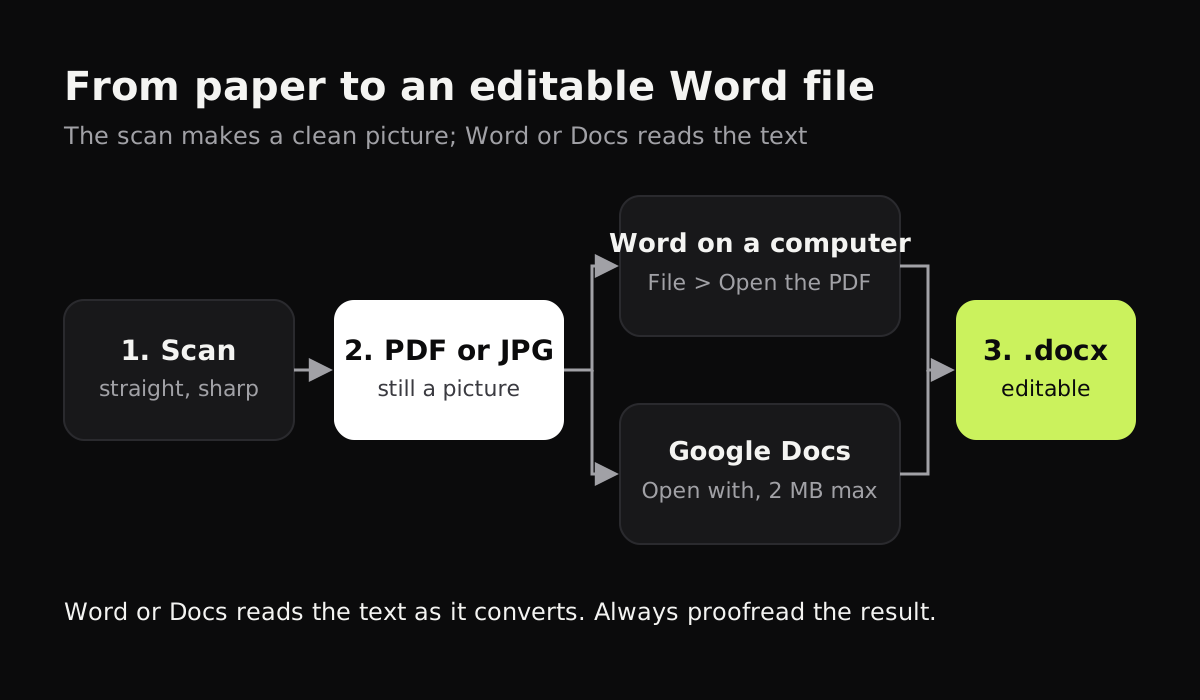
To scan a document into Word, scan it to a PDF, then open that PDF in desktop Word with File > Open. Word offers to convert it into an editable document and recognizes the text as it does. If you don’t have desktop Word, upload the scan to Google Drive, open it with Google Docs, and download the result as a Word file. Either way, the scanner makes the picture, and Word or Docs turns it into text.
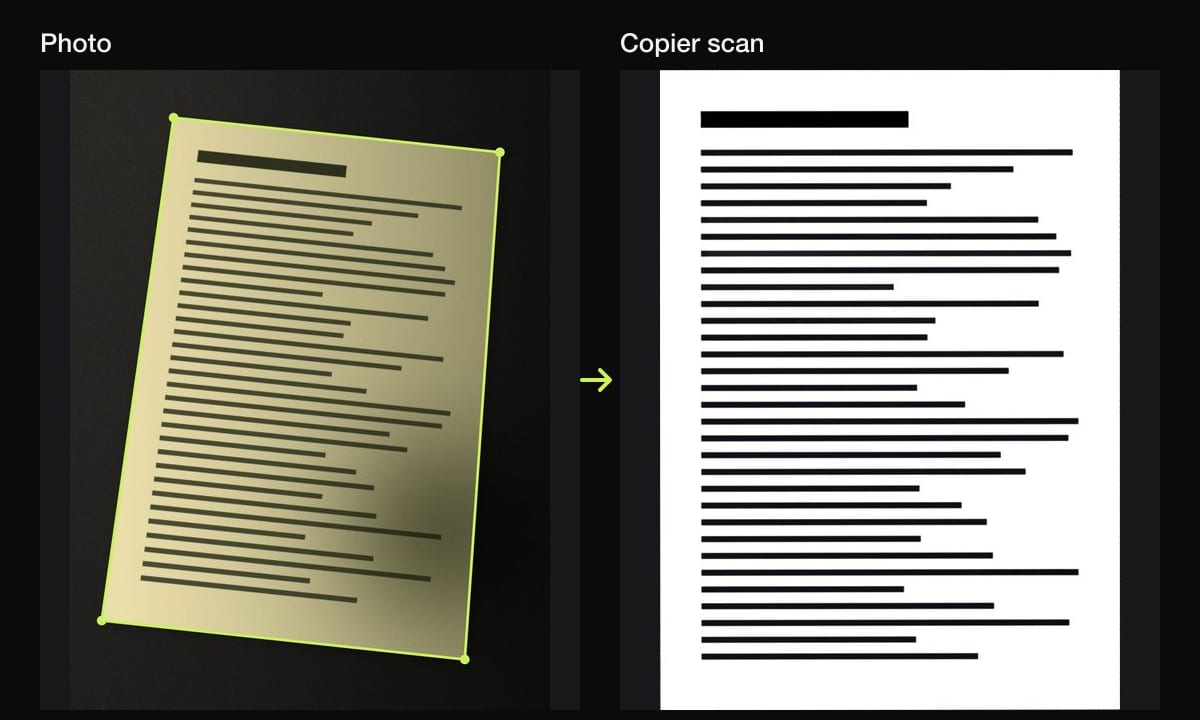
The quality of that text depends almost entirely on the scan. A straight, sharp, evenly lit page converts with few mistakes. A tilted phone photo with a shadow across it doesn’t.
Ways to get a scanned document into Word
This compares the methods by what you get at the end and what they need.
| Method | Editable text | Keeps layout | Needs | Cost |
|---|---|---|---|---|
| Open the PDF in desktop Word | Yes | Roughly; best for plain text pages | Word for Microsoft 365, 2024, 2021, 2019 or 2016 | Included with Word |
| Google Docs (Open with) | Yes | Basic: bold, italics, fonts, line breaks | A Google account; file 2 MB or smaller | Free |
| Copy text with Live Text or Google Lens, paste into Word | Yes | No, plain text only | iPhone, iPad, Mac, or the Google app | Free |
| Insert the scan as a picture | No | Exactly, as an image | Any version of Word | Free |
| Adobe Acrobat (paid) export to Word | Yes | Good | Acrobat subscription | Paid |
How to scan a document into Word with desktop Word
Microsoft describes this in Scan and edit a document:
- Scan the document and save it as a PDF, with a scanner or your phone.
- In Word, choose File > Open.
- Browse to the PDF, select it and click Open.
- Word says it will convert the PDF into an editable Word document. Click OK.
- Proofread the result against the original, then save it as a Word document.
Word makes a converted copy and leaves your PDF unchanged. According to Microsoft’s notes on opening PDFs, it works best with documents that are mostly text, such as letters, contracts and reports. Lines and pages may break in different places from the original, and some elements don’t convert well: tables with cell spacing, footnotes that span pages, endnotes, page borders and colors, and charts, which may come through as one picture.
These steps are for Word on a computer. Microsoft notes that Word for the web and the mobile apps work differently, and its browser PDF viewer can’t convert a file.
How to scan to Word for free with Google Docs
If you don’t have Word, Google Drive can do the text recognition. From Google’s help page:
- Upload the scan to Google Drive. It can be a PDF or a JPEG, PNG or GIF image, 2 MB or smaller.
- Right-click the file and choose Open with > Google Docs.
- A new document opens with the image at the top and the recognized text below it.
- Choose File > Download > Microsoft Word (.docx).
Google says the text should be at least 10 pixels high, the page right side up, and the image sharp with even lighting. Common fonts like Arial and Times New Roman work best. Bold, italics, font sizes and line breaks usually carry over; lists, tables, columns and footnotes usually don’t.
The 2 MB limit is the catch. A color phone scan is often bigger. A black and white scan of a text page is much smaller, and splitting a long document into a few pages at a time also helps.
Copying text from a scan with Live Text or Google Lens
For a page or two, it can be quicker to copy the text straight from the image:
- On iPhone, iPad or Mac, open the scan or photo, touch and hold (or click and drag) on the text, and choose Copy. That’s Live Text.
- On Android, open the image in Google Photos or the Google app and use Lens, then select the text and copy it.
- Paste into Word, then fix the formatting.
This gives you plain text with no layout. More options are in how to scan text from an image.
Getting a scan that converts well
Text recognition reads shapes. Anything that distorts the shapes of letters turns into mistakes. Before converting, make sure the scan is:
- Straight. Text lines should be level, not slanted or curved. Phone scanner apps correct the angle; a plain camera photo doesn’t.
- Sharp. Hold still, and clean the lens.
- Evenly lit, with no shadow across the page and no bright spot from the flash.
- High contrast. Black and white text on white paper is ideal, which is why a black and white look helps.
- Upright. Rotate sideways pages before converting. See how to rotate a scanned document.
Making the scan in Copier
Copier handles the scanning half. It finds the page, straightens it (along its curved edges if the page is bowed), evens out the light so the paper is white and removes shadows, all on your phone. Pick B&W on the Enhance screen for the crispest text, and share the document as a PDF to open in Word, or as JPG pages for Google Docs or Live Text. Copier doesn’t recognize text itself yet, so the conversion to editable text happens in Word or Docs.
Sharing as JPG is free for up to 10 documents; PDF export is part of Copier Pro. Pages stay on your phone until you share them.
Which method to use
- Letters, contracts, reports: open the PDF in desktop Word. It keeps the most structure.
- No Word, or a quick one-off: Google Docs, then download as .docx.
- A paragraph or two: Live Text or Google Lens, paste into Word.
- Forms you only need to look like the original: insert the scan as a picture, or keep it as a PDF. If you need to fill in or sign it, see how to sign a document on iPhone.
- Handwriting: none of these reads messy handwriting well. Expect to type most of it. How to scan handwritten notes has tips for scanning it clearly first.
Questions
Can Word convert a scanned PDF into editable text?
Yes. In desktop Word (Microsoft 365, 2024, 2021, 2019 or 2016), choose File, then Open, and pick the PDF. Word asks to convert it into an editable document and recognizes the text, which you should proofread afterward.
How do I scan a document into Word for free?
Scan it with your phone to a PDF or JPG, upload it to Google Drive, right-click it and choose Open with, then Google Docs. Docs recognizes the text, and you can download it as a Word file. The file must be 2 MB or smaller.
How do I insert a scanned document into Word as a picture?
Save the scan as a JPG or PNG and use Insert, then Pictures in Word. The page appears as an image, so the text can't be edited, but it looks exactly like the original.
Why is the converted Word document full of mistakes?
Text recognition depends on the scan. Blurry, tilted, shadowed or low-contrast pages, small or unusual fonts and handwriting all cause errors. Rescan straight and sharp, in black and white, and try again.