 COPIER
Where Do Scanned Documents Go on iPhone?
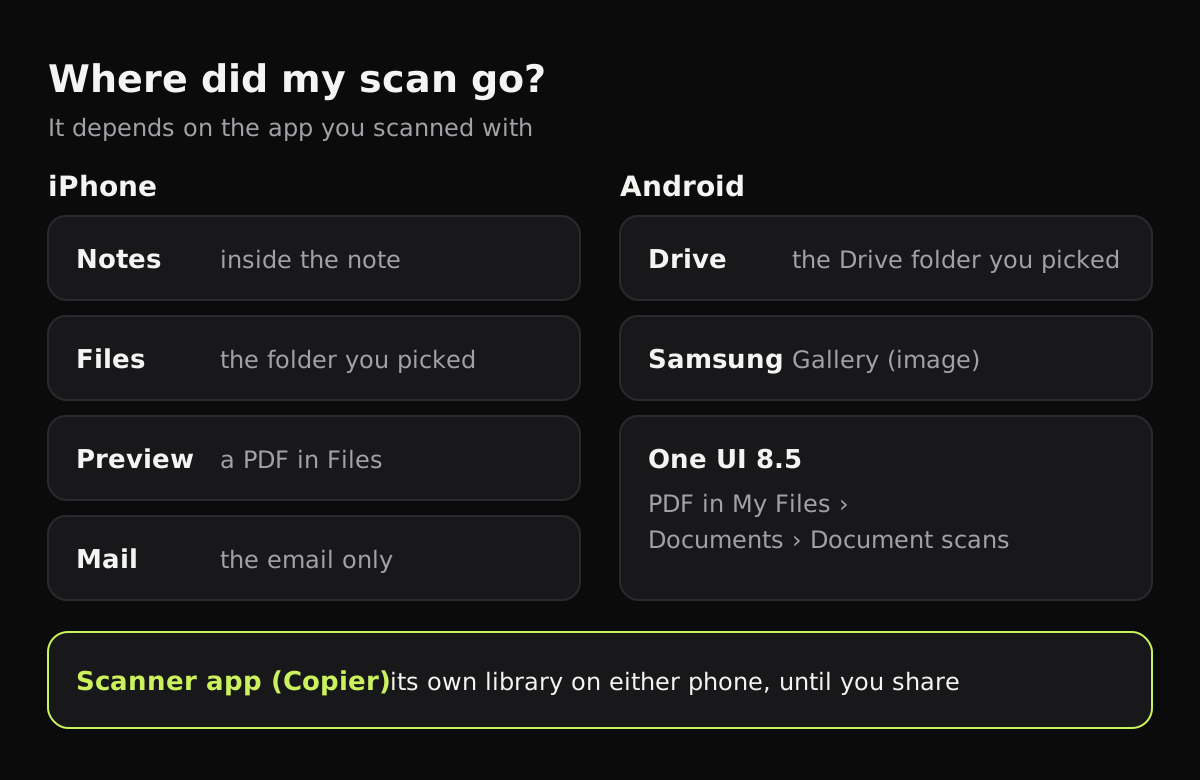
Where scanned documents go on iPhone depends on where you started the scan. A scan made in Notes stays inside that note, a scan made in Files is saved as a PDF in the folder you picked, Preview keeps its scans as PDFs you can move in Files, and a scan made in Mail exists only as an attachment to that email. None of them appear in the Photos app, which is where most people look first. Here’s how to find each one, on iOS 26 and on Android.
Where scans are saved on iPhone, app by app
This table shows each place you can scan from and where to look for the result.
| Scanned with | Saved as | Where it is | How to find it |
|---|---|---|---|
| Notes | PDF inside a note | The note you scanned into (iCloud or On My iPhone) | Search Notes for a word on the page |
| Files | The folder you chose when you tapped Save | Files › Recents, or search by name | |
| Preview (iOS 26) | Preview’s documents in Files; move it from the file name’s menu | Open Preview; recent files are on its main screen | |
| PDF attachment | The email you were writing | Mail › Sent, or the draft | |
| Mac Continuity Camera | PDF or image | On the Mac, where you clicked; not on the iPhone | The Mac folder or document |
| Copier | Pages in the app’s library | On the iPhone, inside Copier | The library on the home screen, searchable by name |
Finding a scan in Notes
A Notes scan is a PDF attachment inside the note. If you don’t remember which note, use the search field at the top of the notes list. Apple’s guide for iOS 26 says Notes search covers text in scanned documents, so type a word that’s printed on the page: a company name, “invoice”, a reference number.
If notes sync with iCloud, the scan is on your iPad and Mac too, and on iCloud.com. If you scanned into the On My iPhone account, it stays on the phone only. How to scan in Notes on iPhone covers renaming scans so they’re easier to find.
Finding a scan in Files
When you scan in Files, you choose the location before you tap Save, and the PDF goes there. If you saved without looking, open Files and tap Recents, which lists the files you opened or added lately. Or search for “Scanned”, since scans get a generic name until you rename them.
Check whether you saved to iCloud Drive or On My iPhone: they’re separate places, listed under Browse. Files in iCloud Drive also show up on your other devices and at iCloud.com.
Preview and Mail
Preview, new on iPhone in iOS 26, opens on a screen of your recent documents, so a fresh scan is usually right there. To move it somewhere specific, tap the Actions Menu button next to the file name and choose Move.
A scan made from Mail (the Scan Document option above the keyboard) is attached to the message and isn’t saved anywhere else. To keep a copy, open the sent email, touch and hold the attachment, and choose Save to Files.
Where are scanned documents saved on Android?
Android doesn’t have one built-in scanner; it depends on the app and the phone.
| Scanned with | Saved as | Where it is |
|---|---|---|
| Google Drive | PDF or JPG, you choose | The Drive folder you pick under Location before saving |
| Samsung Camera (Scan button) | Image | Gallery app |
| Samsung Document Scan, One UI 8.5 | PDF (pages merged) | My Files › Documents, in Internal storage › Documents › Document scans |
| Copier | Pages in the app’s library | Inside Copier on the phone |
Google Drive scans are saved to your Drive in the cloud, so they’re also at drive.google.com. Samsung phones save Camera scans as images in Gallery; Samsung’s own support pages say phones on One UI 8.5 or later also put multi-page scans together as a PDF in My Files. How to scan on Samsung and Google Drive scan have the steps for each.
Keeping every scan in one place
Most lost scans come from scanning with whatever app was open: one in Notes, one in Files, one in Mail. If you scan often, pick one app and stick with it.
In Copier, every scan goes into a single library on the app’s home screen. You can rename documents, search them by name, and filter them, so last spring’s school forms don’t disappear among your notes. The pages stay on the phone, in the app’s own storage, and nothing is uploaded or synced. When you need a file elsewhere, tap Share and send it as JPG (free) or PDF (Copier Pro), or save it to Files.
Because Copier doesn’t back up to a cloud, it’s worth saving important scans to Files or another backup as well. If you lose the phone, the library goes with it.
Tips so you don’t lose scans
- Rename a scan as soon as you save it. “Car insurance 2026” is easy to search; “Scanned Document 7” isn’t.
- Make one folder in Files, such as “Scans”, and always save there.
- If a scan is for someone else, send it from the scanner app straight away, then file it.
- Check where your iCloud Drive and Notes sync, so you know which scans are on the phone only.
- Going paperless for good? How to go paperless covers folders and naming that last.
Questions
Where do scanned documents go on iPhone?
It depends on the app. Notes keeps the scan inside the note, Files saves a PDF in the folder you chose, Preview saves a PDF you can move in Files, and Mail only attaches it to the email.
Why can't I find my scan in Photos?
The iPhone's document scanner saves PDFs, not photos, so scans never appear in the Photos app. Look in Notes or Files instead.
Where are scanned documents saved on Android?
Google Drive saves scans to the Drive folder you choose. On Samsung Galaxy phones, Camera scans go to Gallery as images, and on One UI 8.5 multi-page scans are also saved as PDFs in My Files, under Documents, Document scans.
How do I find a scan I made in Notes?
Search in Notes for a word that's printed on the page. Notes searches text in scanned documents, so the note with the scan comes up.