 COPIER
How to Straighten a Scanned Document
To straighten a scanned document, first work out which kind of crooked it is. A page shot at an angle needs perspective correction, a page that’s square but tilted needs a small rotation, and a curled page needs its edges straightened. Scanner apps fix all three from the page’s corners and edges. If one gets it wrong, open Crop, drag the four corners onto the paper’s corners and save: the page is squared up again from your corners.
Three kinds of crooked
They look similar at a glance but have different fixes.
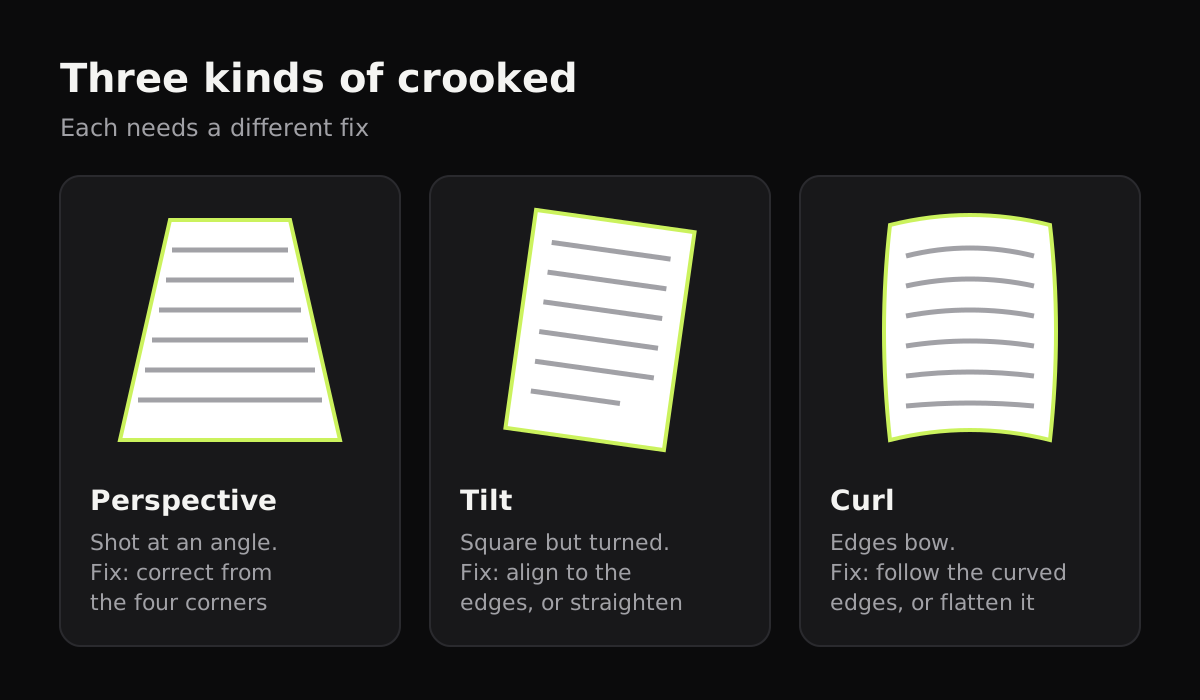
| Problem | What it looks like | Fix while scanning | Fix afterwards |
|---|---|---|---|
| Perspective | The page is a trapezoid: one end wider than the other | The scanner corrects it from the four corners | Crop again; Photos’ perspective sliders |
| Tilt (skew) | The page is square but the text slopes a few degrees | Scanners align it to the page’s edges | Photos’ straighten dial, or crop again |
| Curl | Edges bow; lines of text curve near the spine or fold | Press the page flat, or use an app that follows curved edges | Rescan; a flat crop can’t fully fix a curve |
| Sideways | The page is a quarter turn off | Rotate button before saving | Rotate the PDF page |
Sideways pages are a separate, simpler problem: see how to rotate a scanned document.
How a scanner straightens a page
When you scan with a phone, the scanner looks for the page’s four corners, cuts it out, and stretches it back into a rectangle sized to the page’s own edges. This is what turns a photo of a page on a desk into something that looks like it came off a flatbed.
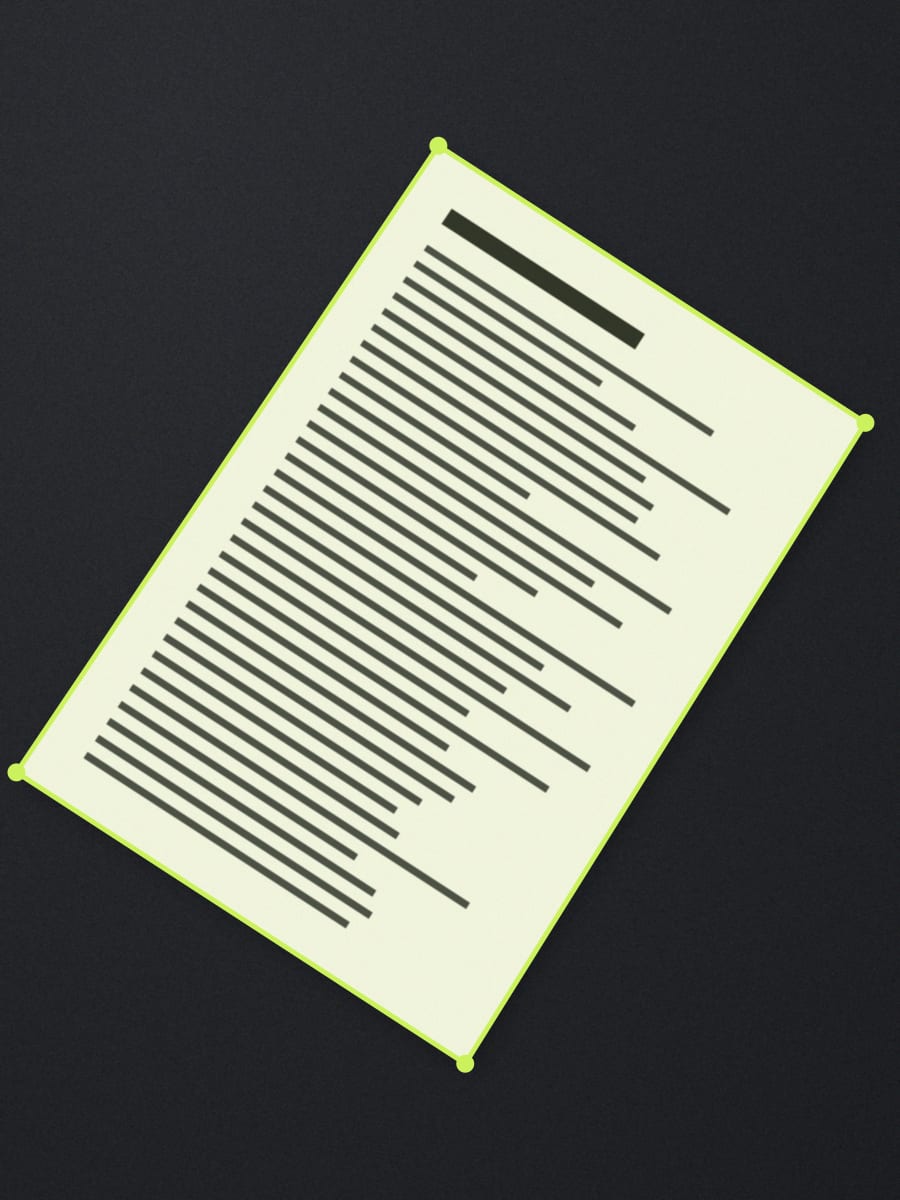
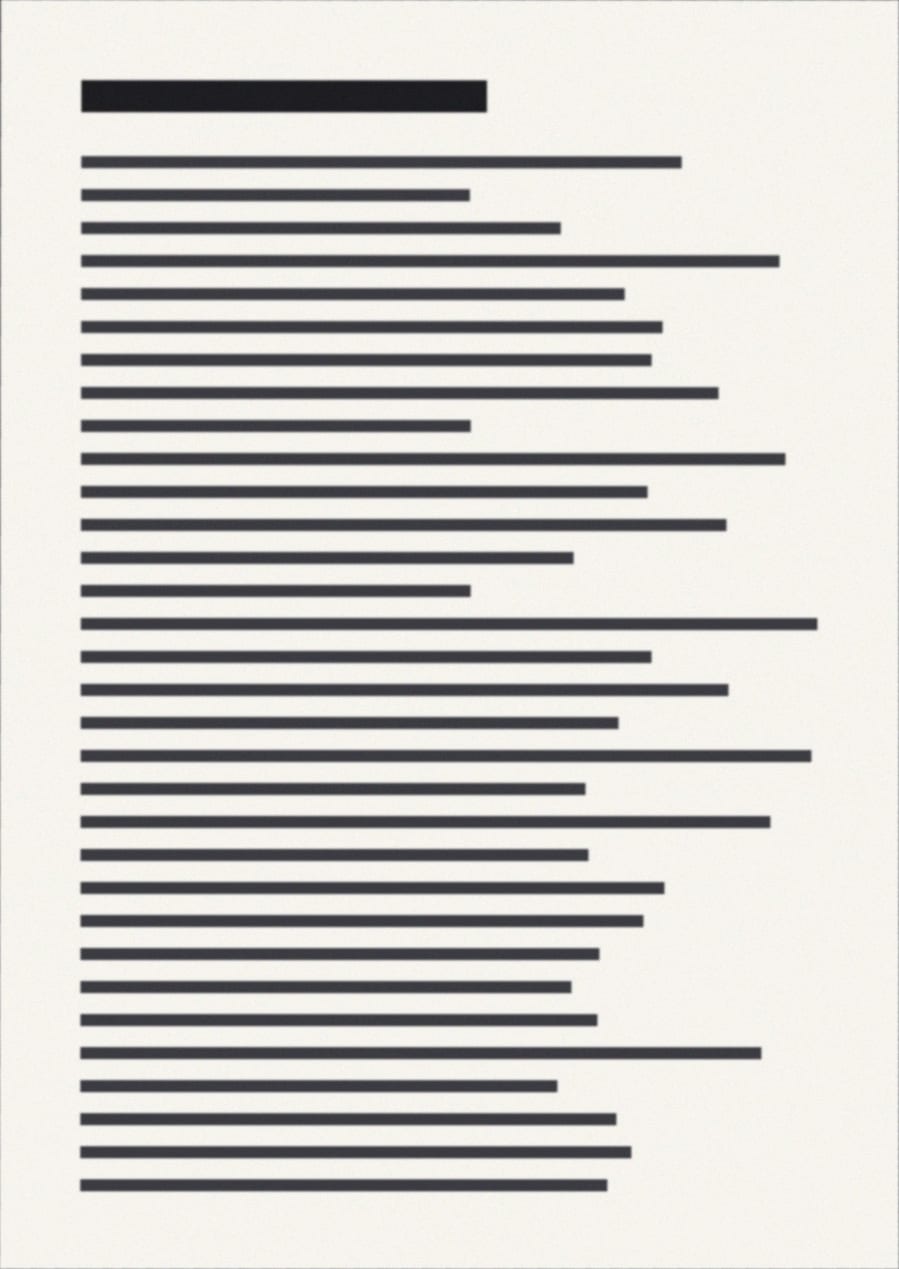
Copier goes a step further with curled pages. It follows each edge of the paper, and when an edge bows (a sheet held in the hand, a page lifting off the desk), it straightens the page along that curve instead of only between the corners, so lines of text come out straight.
How to crop a scanned document again
If a scan’s edges are wrong, it’s almost always because the page blended into the table or something nearby looked like an edge. Cropping again by hand fixes it.
- Open the page. In Copier, tap Crop on the Enhance screen before you save, or open a saved document and crop the page again from there.
- Drag each corner handle onto the matching corner of the paper.
- Save. The page is cut out and straightened again from your corners.
Copier keeps each page’s original photo, so you can crop again at any time, even weeks after saving, and the page is cut out from the original photo again. In the iPhone Notes scanner, tap the scan, then the crop button, and drag the corners the same way.
Fixing a scan that’s already an image or PDF
If you only have the finished image, you can still improve it. On an iPhone, iPad or Mac, open it in Photos, tap Edit, then the crop tool: the straighten dial fixes a small tilt, and the vertical and horizontal sliders correct some perspective. (A PDF page needs saving as an image first.) On Android, the crop tool in Google Photos has an angle dial for tilt, and on Windows the Photos app’s crop tool can straighten a tilted image too.
These work on one image at a time and can’t fix a curl. If you still have the paper, rescanning it is usually faster and cleaner.
How to clean up a scanned document
Straight but gray, yellow or shadowed? That’s the lighting, not the geometry. A scanner’s looks even it out:
- Auto in Copier keeps color, makes the paper white and removes shadows and color casts.
- Black & white keeps only the text, for the crispest result.
- Original leaves the page as photographed, for photos.
Tap the picked look again for a strength slider, and hold Compare to see the page before. Here’s the page from above, finished:
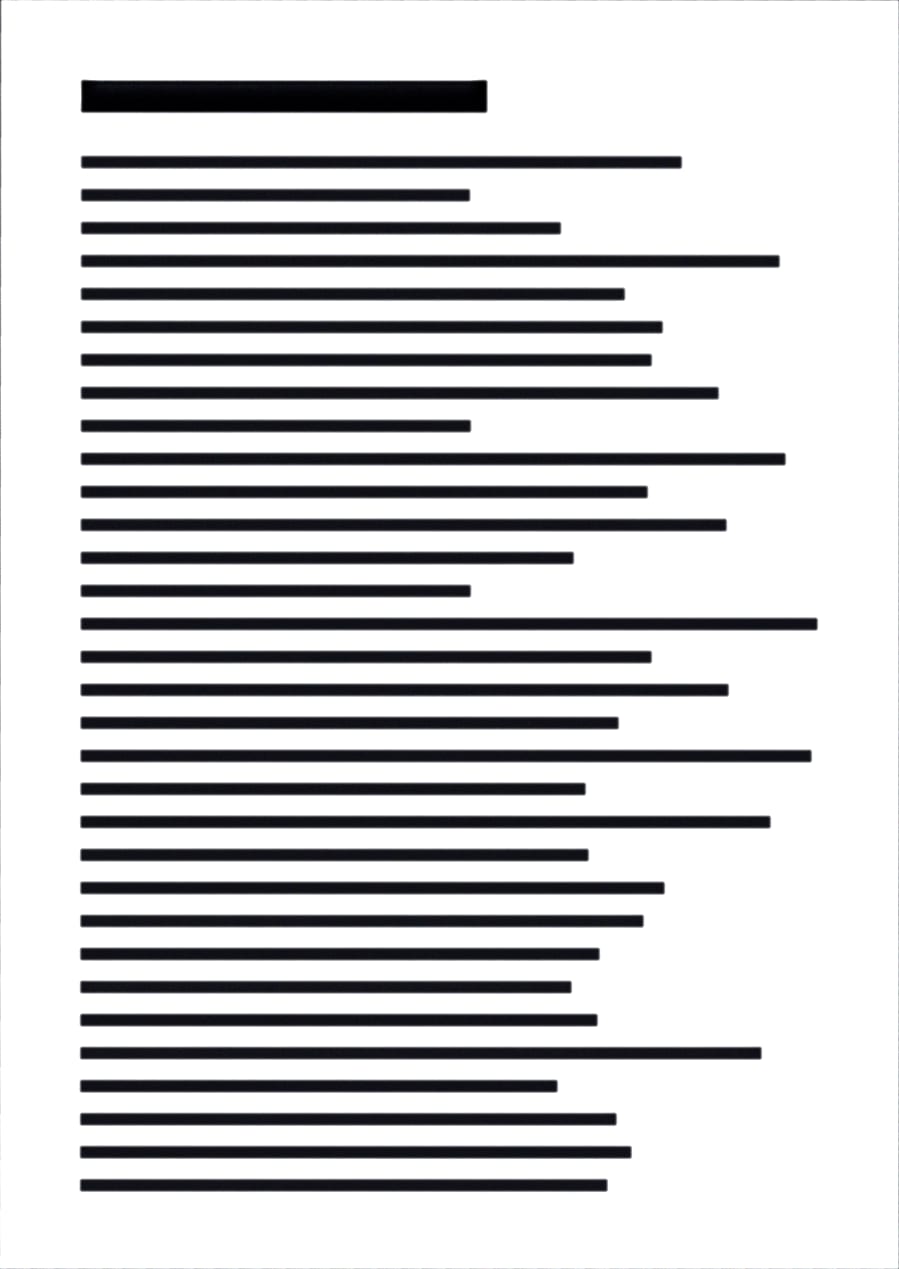
For hard shadows, glare and blur, our guide to getting clean scans has a fix for each, and black and white vs color scans helps you pick a look.
Tips for straight scans
- Put the page on a surface darker than the paper, so the scanner can see its edges.
- Keep all four corners in view, with a little space around them.
- Hold the phone roughly above the page. A slight angle is fine; it’s corrected anyway.
- Flatten curled pages with your fingertips at the very edge. Copier removes fingers at the edge of the page, but not ones covering text. For books, see how to scan books.
Questions
How do I straighten a crooked scan?
If it's a phone scan, crop it again by dragging the four corners to the paper's corners; the scanner then squares the page up. For an image that's only slightly tilted, use the straighten dial in the Photos app's crop tool on iPhone or Mac.
How do I fix a scan taken at an angle?
An angled photo needs perspective correction, which pulls the page back into a rectangle. Scanner apps do it automatically from the page's four corners. Photos on iPhone and Mac also has vertical and horizontal perspective sliders in its crop tool.
How do I crop a scanned document?
In a scanner app, open Crop and drag the corner handles to the edges of the paper. For a PDF, re-scanning or cropping the original image usually gives a cleaner result than cropping the PDF page.
How do I clean up a scanned document?
Pick a look that evens out the paper, such as Auto to keep color or Black and white for text. That removes gray paper and shadows. Rescan in even light if a shadow is very dark.