 COPIER
How to Scan With Your iPhone Camera
To scan with your iPhone camera, you have two options depending on what you want. The Camera app can read text with Live Text and open QR codes, but it doesn’t make document scans. To scan documents with the iPhone camera as a cropped, straightened PDF, open Files or Notes and tap Scan Documents, which uses the same camera with page detection on top. Both are covered below for iOS 26.
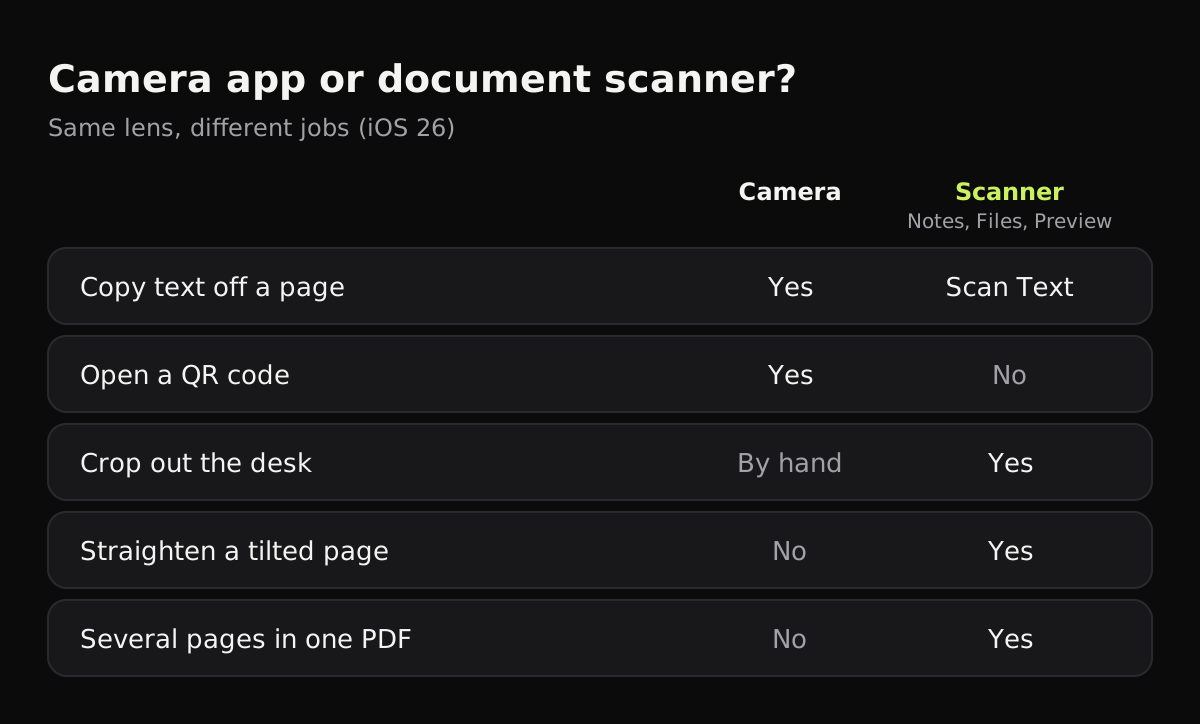
What the iPhone Camera app can scan
The Camera app recognizes a few kinds of things in the viewfinder. Here’s what each does and where the result goes.
| What you point it at | What the Camera app does | Where the result goes |
|---|---|---|
| Printed or handwritten text | Live Text: copy, translate, look up, share | The clipboard, or the app you share to |
| A phone number, address or link | Live Text offers a quick action (call, map, open) | The matching app |
| A QR code | Shows a link to open | Safari or the matching app |
| A document | Takes an ordinary photo | Photos, uncropped |
Live Text isn’t available in every language or region; Apple lists the supported ones on its feature availability page.
How to copy text with the iPhone camera
- Open Camera and point it at the text.
- Wait for a yellow frame around the text, then tap the Detect Text button.
- Touch and hold the text, or drag the grab points, to select it.
- Tap Copy, Select All, Look Up, Translate, Search Web or Share.
- Tap the Detect Text button again to go back to the camera.
To turn this off, go to Settings > Camera and turn off Show Detected Text. On iPhones with Apple Intelligence and the Camera Control, visual intelligence can also act on text in front of you.
How to scan a QR code with the iPhone camera
- Open Camera and point it at the code.
- Tap the link that appears on screen.
If the Camera doesn’t react, add the Code Scanner control to Control Center and scan from there. Tap the flashlight if it’s dark.
How to scan documents with the iPhone camera
A document is better scanned than photographed, with the page found, cut out of the background, straightened, and saved as a PDF. iOS has a scanner that does that, and it opens from Files, Notes, Preview and Mail. Files is the easiest, because you pick the folder:
- Open Files and go to a folder.
- Tap the More button (⋯), then Scan Documents.
- Hold the iPhone above the page with all four corners on screen. You can set the Flash and a filter first.
- Hold still. In Auto mode, the iPhone takes the page when it finds the edges. You can also tap the shutter or press a volume button, drag the corners into place, and tap Keep Scan.
- Scan the next page, or tap Done, then choose where to save it.
In Notes, the scanner is under the Attachments button (the paper clip) in a note. How to scan documents on iPhone covers Notes, Files and sharing in more detail.
Photo or scan: what’s the difference?
A plain photo of a page keeps everything the camera saw: the desk, the angle, the shadow from your hand, the yellow of the room light. A scanner throws most of that away. It finds the paper’s four edges, crops to them, corrects the perspective so the page is a rectangle again, and makes the paper lighter so text stands out.
If you already have photos of documents, you can still convert them: convert a photo to PDF on iPhone covers the built-in ways. They wrap the photo as it is, though, so for a clean page it’s better to scan.
Using a scanner app with the camera
A scanner app uses the camera in the same way, with more cleanup. In Copier:
- Tap Scan. A lime outline follows the page in the viewfinder as you move.
- With Auto on, the page is taken once you’ve held still for about a second. Single goes to editing after each page; Batch stays in the camera for the next one.
- The page is found, cut out and straightened on the iPhone. A bent or curled page is straightened along its curved edges.
- The Auto look evens out the light so the paper is white and shadows and color casts go. Black & white is for text, Original for photos.
- Save, then share as JPG, or as PDF with Copier Pro.
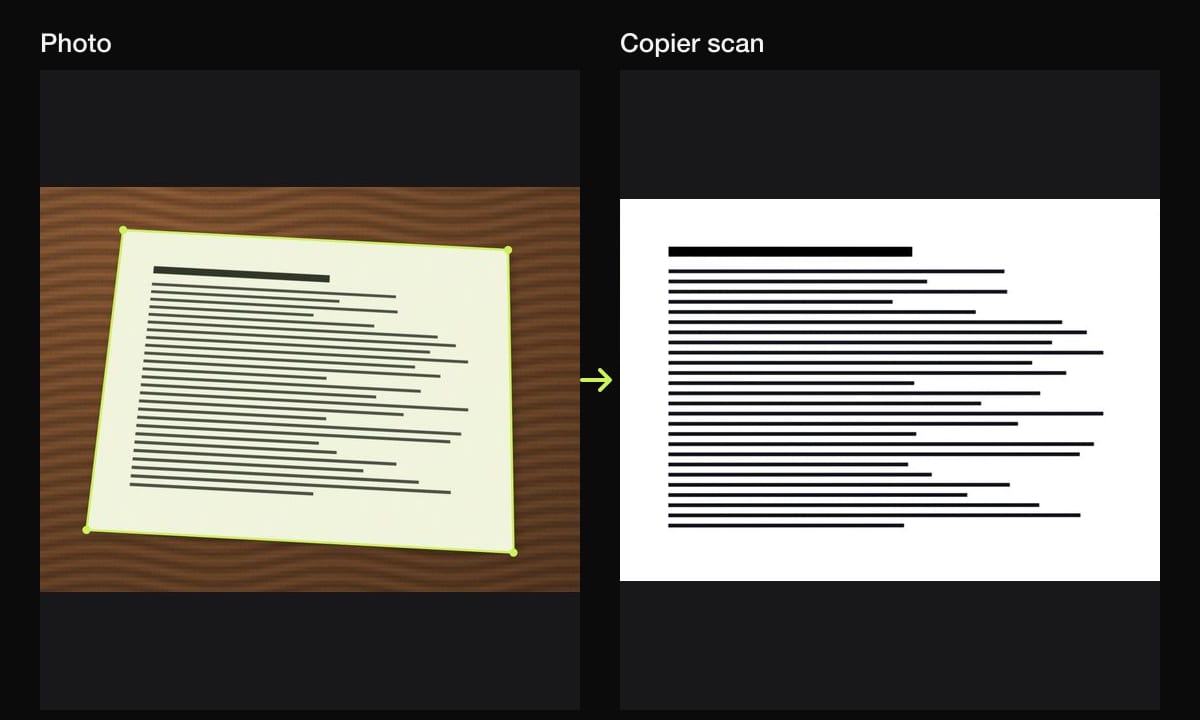
Copier can also import photos you’ve already taken and clean them up the same way. There’s no account and nothing is uploaded; pages stay on the phone until you share them. Scanning and sharing as JPG is free for up to 10 documents. Copier doesn’t read text yet, so for copying text off a page, use Live Text.
Tips for scanning with the iPhone camera
- Clean the lens. Most blurry scans come from a smudged lens.
- Shoot from straight above, or close to it. The scanner fixes a tilt, but a steep angle stretches the far end of the page.
- Use the main camera at normal zoom. Zooming in digitally loses detail; move closer instead.
- Turn off the flash for glossy paper and laminated cards, which reflect it.
- Put the page on a darker surface so its edges stand out.
- Having trouble with shadows or curled pages? See how to get clean scans, or how to scan a document without a scanner for other devices.
Questions
Can the iPhone Camera app scan documents?
Not as a document. The Camera app reads text with Live Text and opens QR codes, but to get a cropped, straightened PDF you use the scanner in Notes, Files or Preview, which uses the same camera.
How do I copy text with my iPhone camera?
Open Camera, point it at the text until a yellow frame appears, and tap the Detect Text button. Then select the text and tap Copy, Translate or another action.
How do I scan a QR code with my iPhone camera?
Open Camera, point it at the code, and tap the link that appears. You can also add the Code Scanner control to Control Center.
Is a photo of a document the same as a scan?
No. A photo keeps the desk, the angle and any shadow. A scanner finds the page's edges, straightens it and evens out the light, so it reads like a flat sheet.