 COPIER
JPG vs PNG for Scans: Best File Format for Documents
JPG vs PNG for scans comes down to what’s on the page. For most scanned documents JPG is the better choice: a color or gray page is several times smaller as a JPG and looks the same at normal quality. PNG wins for pure black and white pages, line drawings and signatures, where it keeps edges sharp, stays small and can have a transparent background. For a document with more than one page, the best file format is usually PDF, which holds the pages in one file.
Below is how each format stores a page, what that does to file size and text, and where TIFF still fits in.
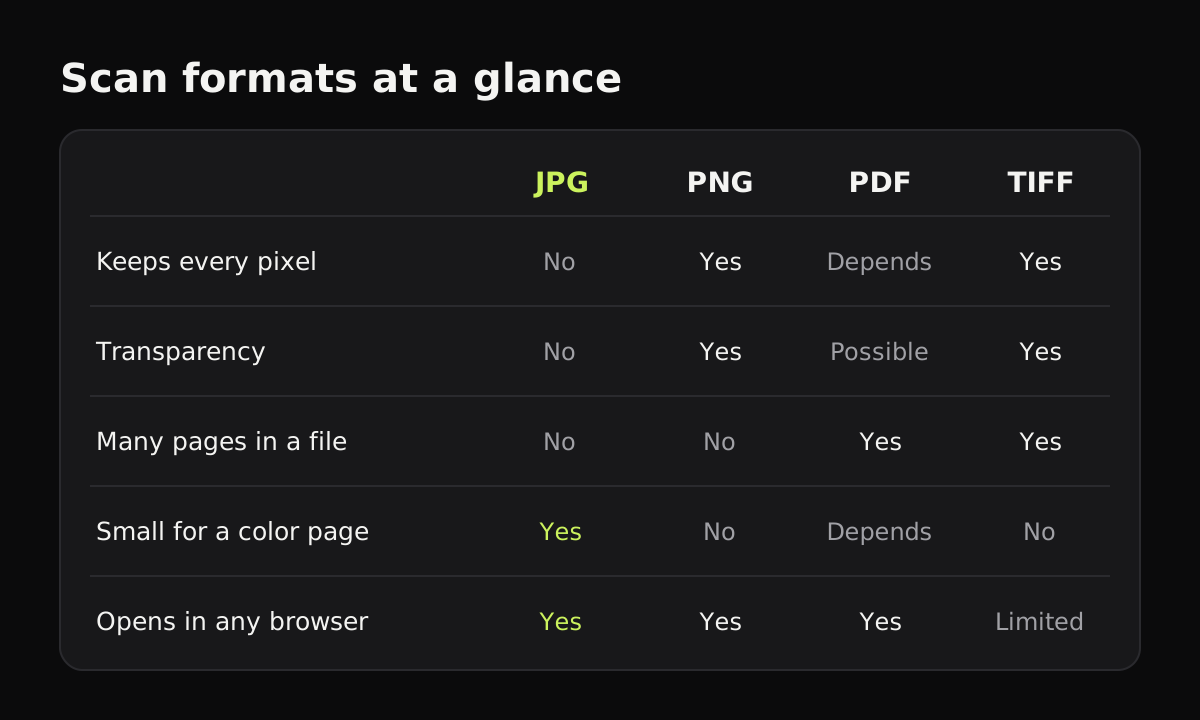
How JPG and PNG store a page
JPG (or JPEG) uses lossy compression. It splits the image into small blocks and throws away fine detail that eyes are unlikely to notice, mostly subtle color changes. That works very well for photos and color scans, and it’s why JPG files are small. The cost shows at sharp edges: at high compression, letters get faint smudges or “ringing” around them. Saving a JPG again after editing loses a little more each time.
PNG uses lossless compression. Every pixel comes back exactly as it was saved. It compresses large areas of one flat color extremely well, so a black and white page or a drawing on white paper can be small. A photo or a color page full of gentle shading, paper grain and shadows has little to compress, so as a PNG it comes out many times larger than the JPG. PNG also supports transparency, which JPG doesn’t.
PNG vs JPG for documents: file sizes
The size of a scanned page depends on resolution, color and content, so take these as rough estimates for one Letter or A4 page of typed text at 300 dpi:
| Page, 300 dpi | JPG | PNG | TIFF |
|---|---|---|---|
| Color | about 0.5 to 1.5 MB | about 5 to 15 MB | about 25 MB uncompressed |
| Grayscale | about 300 to 800 KB | about 2 to 6 MB | about 8.4 MB uncompressed |
| Black & white (1-bit) | not a 1-bit format; saved as grayscale | about 50 to 150 KB | about 30 to 100 KB with CCITT G4 |
The uncompressed figures are exact for a Letter page: 2550 × 3300 pixels is 25.2 MB in color and 8.4 MB in grayscale. JPG can’t store true 1-bit black and white, so a “black and white” JPG is really a grayscale image of a black and white page. It’s still fine, just not as small as it could be.
Which keeps text sharper?
At the same resolution, PNG keeps text edges exactly as scanned, and JPG keeps them very nearly so at normal quality. The difference shows in two cases:
- Heavily compressed JPGs, often made by apps that squeeze files for email or upload portals. Text gets blotchy.
- Pages you’ll edit and save several times, where JPG’s losses add up.
For reading and printing, resolution matters far more than format. A 300 dpi JPG beats a 100 dpi PNG every time. Best DPI for scanning documents covers what to pick.
Transparency: why signatures go in PNG
If you scan your signature to put on documents, save it as a PNG with a transparent background. The ink stays sharp and the paper disappears, so the signature can sit on a form without a white rectangle around it. JPG always has a solid background. How to scan a signature walks through cutting one out.
Where PDF and TIFF fit
PDF isn’t an image format like the other two; it’s a container for pages. A scanned PDF usually holds one JPG per page, sometimes 1-bit images for black and white pages. Use it whenever a document has more than one page, or when it’ll be printed, since each page keeps its paper size. PDF vs JPG goes into that choice.
TIFF is the old workhorse of flatbed scanners and archives. It can be lossless, can hold several pages, and has a very efficient 1-bit mode (CCITT Group 4) for black and white documents. The downsides are size in color and poor support: most web browsers won’t show a TIFF, and phones handle it unevenly. Use it when an archive, a fax system or a program asks for it.
Best file format for scanned documents, by use
| What you’re scanning | Best format |
|---|---|
| A form, letter or contract to send | |
| A multi-page document to keep | |
| One page to paste into a chat or slide | JPG |
| A photo or a color drawing | JPG, at high quality |
| A signature or a logo | PNG with transparency |
| Black and white line art, sheet music, a diagram | PNG |
| An archive or software that asks for it | TIFF |
What Copier saves
Copier shares scans as JPG, free for up to 10 documents, or as PDF with Copier Pro, a one-time lifetime purchase. Each page is kept as a JPEG, and the PDF holds those same JPEGs unchanged, one per A4 sheet. It doesn’t export PNG or TIFF. If you need a PNG, for a signature say, open the JPG in an editor such as Preview on a Mac or Paint on Windows and save a copy as PNG, though that won’t add transparency by itself.
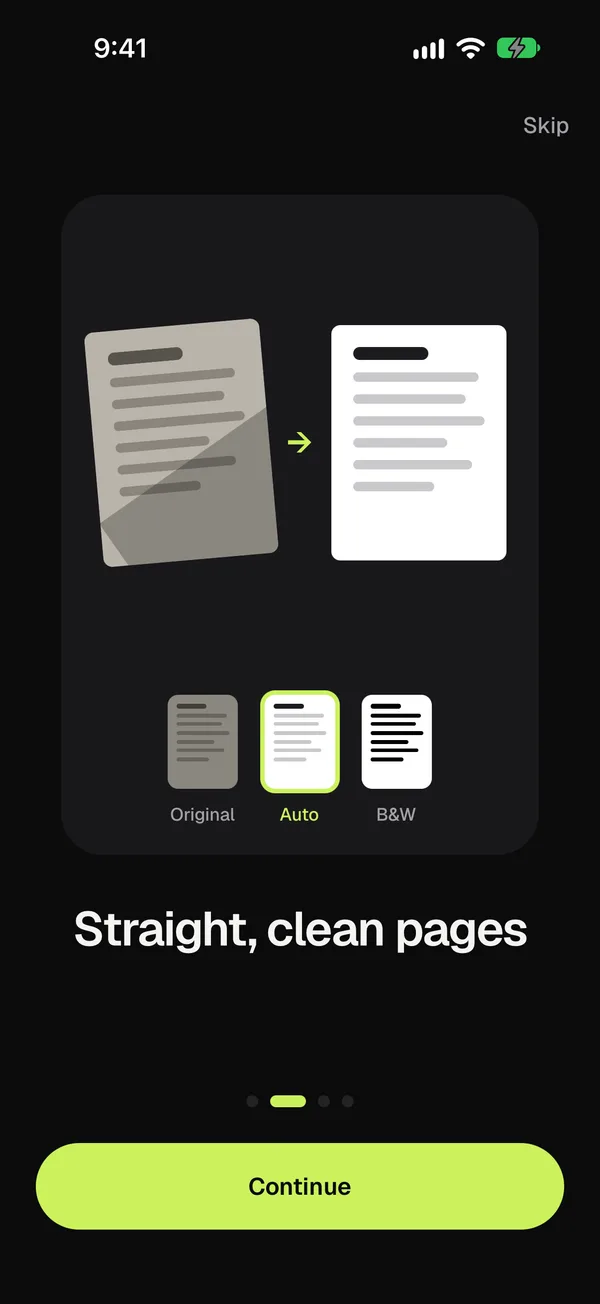
Before sharing, pick a look for the page: Auto keeps color and makes the paper white, Black & white gives the crispest text, and Original leaves photos alone.
Quick tips
- Don’t convert a JPG to PNG to “improve” it. The detail JPG dropped doesn’t come back; the file just gets bigger.
- Keep an original if you’ll edit a scan several times, and save the edits from that original rather than from the last JPG.
- When an upload form allows only images and has a size limit, a JPG at 150 to 200 dpi is usually the safest bet.
Questions
Is PNG or JPG better for scanned documents?
For a color or gray page, JPG, because it is several times smaller and looks the same at normal quality. PNG is better for pure black and white pages, line drawings and signatures, where it stays sharp and small and can have a transparent background.
What is the best file format for scanned documents?
PDF for documents you send, print or keep, since it holds every page in one file. JPG for single pages and photos, PNG for signatures and line art, and TIFF only when an archive or a program asks for it.
Does JPG make text blurry?
At high compression, yes. JPG can leave faint smudges around the edges of letters. At normal quality settings, around 80 to 90, printed text at 200 to 300 dpi stays crisp.
Should I scan a signature as PNG or JPG?
PNG. It keeps the edges sharp and can have a transparent background, so the signature can sit on top of a document without a white box around it.