 COPIER
How to Scan Business Cards Into Your Phone
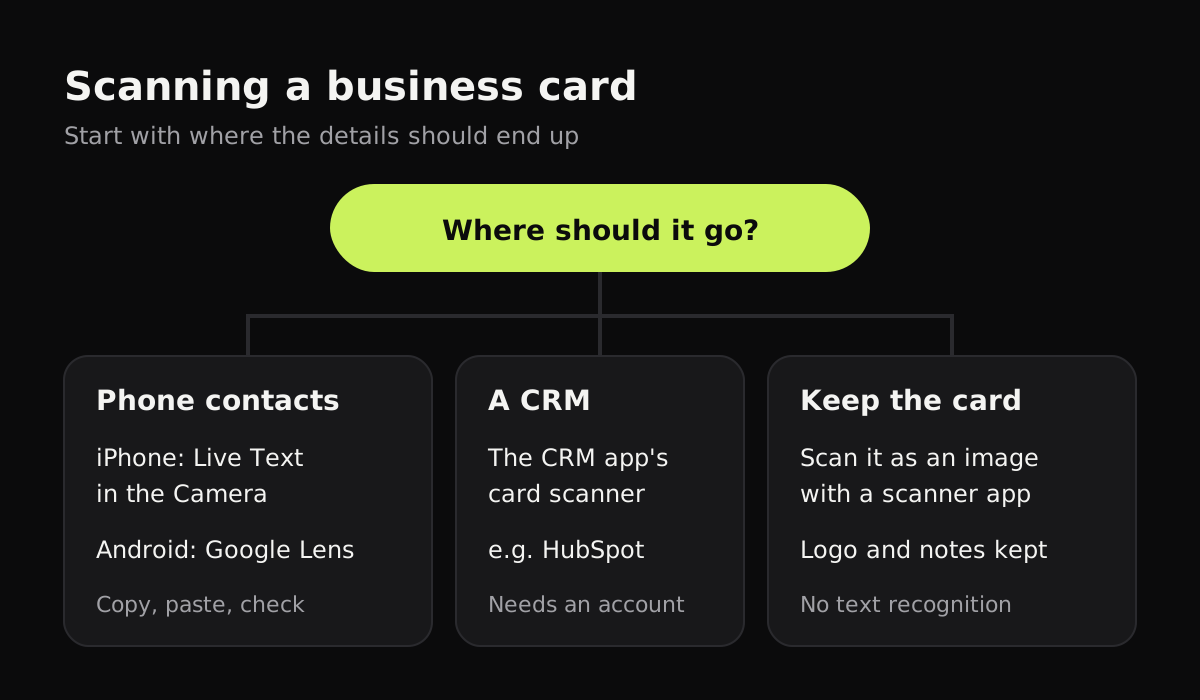
The quickest way to scan business cards is to use the text recognition your phone already has: Live Text in the iPhone Camera, or Google Lens on Android. Point the camera at the card, copy the name, number and email, and paste them into a new contact. If you’d rather keep the card itself, scan it as an image with a scanner app; if your team lives in a CRM, its mobile app may scan cards straight into it.
How to scan business cards on iPhone
Live Text is built into the Camera on recent iPhones. Apple’s guide to Live Text has the full details; for a business card:
- Open Camera and point it at the card. Wait for the yellow frame to appear around the text.
- Tap the Live Text button (the square with lines in it) in the corner of the frame.
- Touch and hold the text, then drag the grab points to select a name, number or email. Tap Copy.
- Open Contacts, tap +, and paste each detail into its field. Tap Done.
You don’t always need to copy. While the text is frozen, quick actions appear at the bottom of the screen for some details: tap one to call a number, start an email or open a website.
Live Text also works on a photo you’ve already taken. Open it in Photos, tap the Live Text button, and select the text the same way. That’s useful at events: take a picture of each card on the spot and add the contacts later.
Live Text isn’t available in every region or language, so check Apple’s page if you don’t see the button.
How to scan business cards on Android
On Android, Google Lens does the same job:
- Open Google Lens, from the Google app, the search bar on your home screen, or your camera app if it has a Lens button.
- Point it at the card and choose Text.
- Select the details and copy them, or tap a phone number or email to use it.
- If Lens recognizes the text as contact details, it can offer to add them as a contact. Check every field before you save.
Some Samsung and other phones also recognize text in their own camera app. The steps differ by brand; look for a “T” or text icon when the camera sees writing.
Scan business cards into a CRM
If your contacts belong in a CRM rather than your phone, see if its mobile app has a card scanner. HubSpot’s mobile app, for example, can scan a business card into a new contact record and fills in fields like name, job title, email and phone where it can read them. Other CRMs and contact apps have similar scanners, some free and some paid. They’re the right choice when a whole team needs the same contacts, and less so for a handful of cards of your own, since the card details are stored with that company.
Which method to use
How you scan a card depends on where you want the details to end up.
| Method | Makes a contact? | What you need | Where the details go |
|---|---|---|---|
| Live Text in the iPhone Camera | You copy and paste the details | An iPhone with Live Text | Contacts, or wherever you paste them |
| Google Lens | Copy, or add a contact when Lens offers it | An Android phone or the Google app | Your phone’s contacts |
| A CRM’s card scanner (HubSpot and others) | Yes, a contact record | An account with that CRM | The CRM |
| A scanner app | No, a clean image of the card | Any scanner app | The app’s library, or wherever you share it |
| A quick photo | No | The Camera | Your photo library, mixed in with everything else |
Why keep an image of the card too
Text recognition is good, but not perfect. It can confuse a 0 with an O, miss an extension, or split a name in two. A picture of the card lets you check later, and it keeps what text recognition throws away: the logo, the person’s job title as they wrote it, and any note you scribbled on the back about where you met.
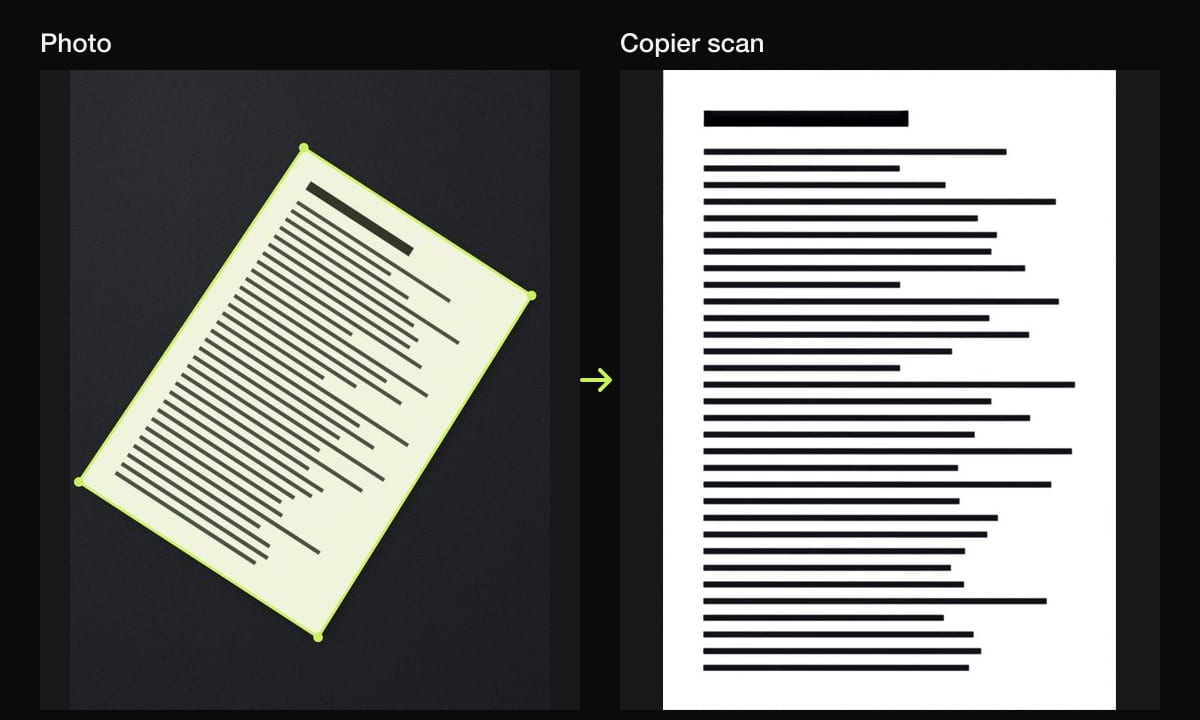
A scanner app gives a better image than a quick photo. It finds the card’s edges, straightens it if you took it at an angle, and makes the background white so it reads clearly.
Scanning business cards with Copier
Copier scans cards as images; it doesn’t read the text on them or create contacts, so pair it with Live Text or Lens if you need the details in your phone. What it does is make a clean, straight image of each card. Point your camera at the card and the outline appears around it; with Auto on, it takes the picture once you’ve held still for about a second. Use Batch to scan a stack of cards one after another, flipping each one to scan the back if it has notes.
Put the card on a dark surface so its edges stand out, and choose the Auto look to keep the colors of the logo. Name each document with the person and company, and search your library by name later. Everything stays on your phone: no account, and nothing is uploaded. Sharing as JPG is free for up to 10 documents.
Tips for scanning a stack of cards
- Use a dark, plain surface. Most cards are white or pale, and they’re small, so the edges need contrast.
- Turn the flash off. Glossy and foil cards reflect it.
- Scan the back if it has a second language, a QR code or your own notes.
- Do it the same day. Cards from an event are easy to lose and hard to place a week later.
- Add a note to the contact with where you met. It’s the detail you’ll want most in six months.
For scanning other small items, see how to scan receipts and how to scan an ID card. If you want to pull text out of any image, see how to scan text from an image.
Questions
Can my iPhone scan a business card into Contacts?
Not in one step. Point the Camera at the card, tap the Live Text button, then copy the name, number and email into a new contact, or tap a number or email to use it right away.
How do I scan a business card on Android?
Open Google Lens from the Google app or your camera, point it at the card and choose Text. You can copy the details, and when Lens recognizes contact details it can offer to add them as a contact.
What's the best app to scan business cards?
It depends where you want the details. Your phone's own text recognition is enough for a few cards, a CRM app's scanner suits sales teams, and a plain scanner app suits keeping an image of each card.
Should I keep a picture of the card as well as the contact?
It helps. Text recognition can misread names and numbers, and the card itself shows the logo, any notes you wrote on the back, and how the person spells their name.