 COPIER
How to Scan Recipes and Digitize Recipe Cards
To scan recipes, lay each card on a dark table in soft light, scan it with your phone’s scanner app in batch mode, and keep it in color so handwriting, stains and faded ink stay readable. Scan the back of any card with writing on it, name each scan after the dish, and you can digitize a whole recipe box in an afternoon. If you want to share them as a family cookbook, combine the scans into one PDF.
Recipe cards are worth saving properly. They’re often in the handwriting of someone you miss, with the stains of every time the dish was made.
Recipe card sizes
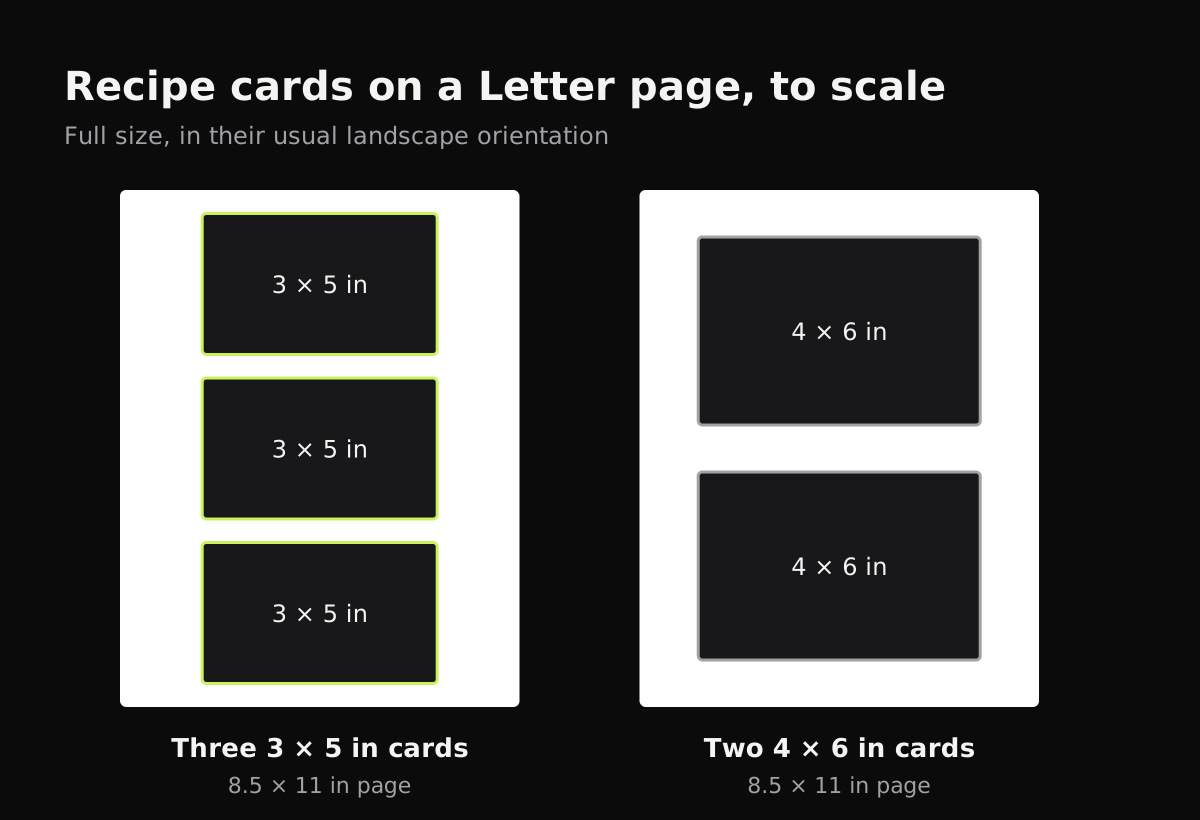
Most recipe cards are ordinary index cards. Knowing the size helps if you plan to print copies at their original size.
| Card | Size | Fits on one Letter page at full size | Fits on one A4 page at full size |
|---|---|---|---|
| Small index card | 3 × 5 in (76 × 127 mm) | 3, stacked | 3, stacked |
| Large index card | 4 × 6 in (102 × 152 mm) | 2, stacked | 2, stacked |
| Recipe binder page | often half-letter, 5.5 × 8.5 in | 2, side by side in landscape, edge to edge | 1 (2 only if shrunk slightly) |
| Clipped magazine page | varies | 1 | 1 |
How to scan recipe cards with your phone
- Sort before you scan. Put the cards in the order you want them, by course or by person, and the scans will come out in the same order.
- Clear a dark spot near a window. A dark table, cutting board or placemat makes the edges of a pale card easy to find. A white kitchen counter makes it hard.
- Turn off the flash. Many cards are glossy or laminated, and old ones have greasy patches that shine.
- Switch the scanner to batch mode, so the camera stays open from one card to the next.
- Hold the phone straight above the card and let it fill most of the screen. A 3 × 5 card is small, so you’ll be close.
- Flip and scan the back if there’s writing: notes, “double this,” who it came from.
- Pick a color look. A look that makes the card white but keeps colors is ideal. Pure black and white can make faded pencil and old blue ink disappear.
- Save, naming each recipe after the dish, like “Grandma Rose’s lemon cake”.
The built-in scanners in Notes on iPhone and Google Drive on Android work for this, and both save several cards into one PDF. For more on them, see how to scan with the iPhone camera and Google Drive scan.
Scanning recipe cards with Copier
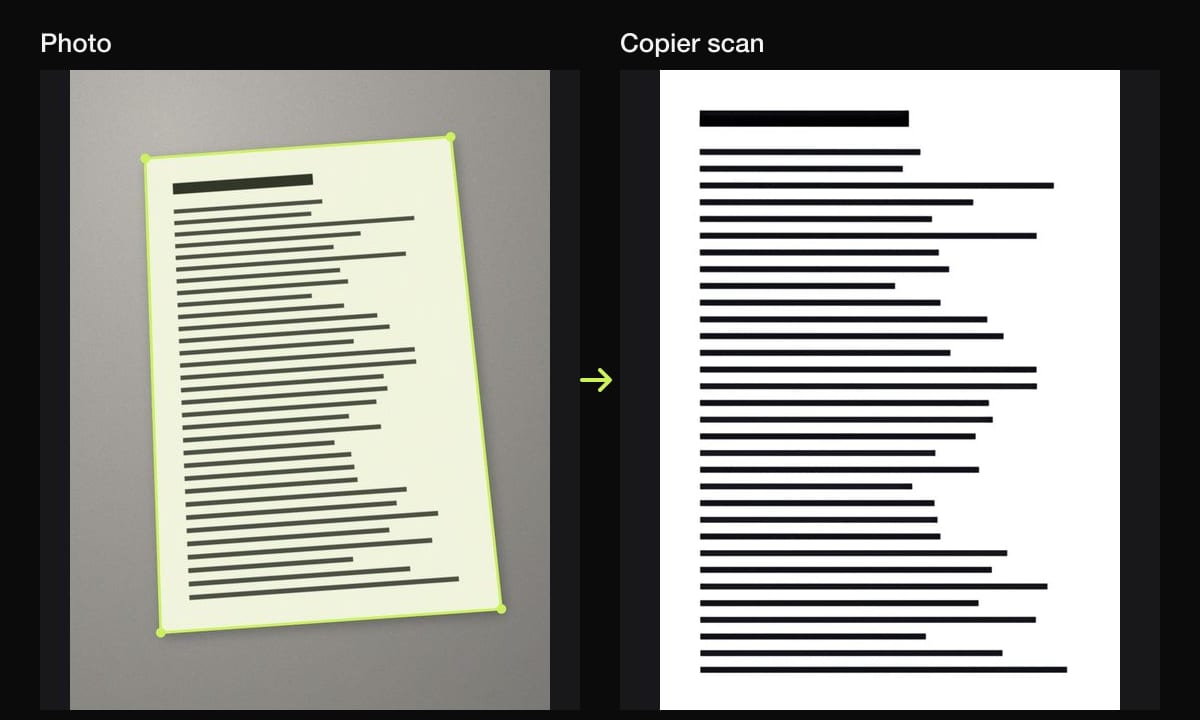
Copier finds each card’s edges and straightens it, even if you shoot at an angle. Use Batch to scan the whole box, and choose Auto on the Enhance screen: it evens out the light so the card is white, removes the yellow cast of kitchen lighting, and keeps colored ink and stains. If a card is very faded, tap Auto again and move the strength slider until the writing stands out. Apply to all pages sets one look for every card; turn it off for a card that needs something different, like a printed photo of the dish, which looks best in Original.
Copier works offline and keeps your scans on your phone, without an account. Sharing cards as JPG is free; combining them into a PDF cookbook is part of Copier Pro.
How to organize scanned recipes
Once the box is scanned, a little structure makes the recipes easy to find:
- Use one document per category (“Baking”, “Soups”, “Holidays”) with every card in it as a page, or one document per recipe if you’ll mostly look things up one at a time.
- Put the dish name first in the file name, and the person’s name after it. “Lemon cake, Grandma Rose” sorts better than “Grandma Rose’s recipes 3”.
- Keep the front and back of a card next to each other.
- Store a copy where the family can get to it: a shared folder in iCloud Drive, Google Drive or Dropbox, or a USB stick in the recipe box.
If you’d rather have the recipes as text, to search ingredients or resize quantities in a recipe app, use text recognition on the scans. Live Text on iPhone and Google Lens on Android can copy printed recipes and neat handwriting, and you can paste the text into a notes or recipe manager app. Messy handwriting usually needs typing by hand. More in how to scan text from an image.
Making a family cookbook from recipe cards
A family cookbook is a nice way to share a recipe box with everyone. A simple way to make one:
- Scan every card, front and back, in the order you want them in the book.
- Add a cover page: a photo of the recipe box, or of the person whose cards they were.
- Save it all as one PDF. See how to scan multiple pages into one PDF for each device.
- Share it by email or a shared folder. A big PDF may be over email limits; how to email a scanned document has the size limits and workarounds.
- For a printed book, print-on-demand photo book services take PDFs or images. Check the page size they want before you lay it out.
Tips for old and fragile cards
- Don’t flatten a curled card by force. Hold it at the very edges, or let it relax under a heavy book overnight first.
- Wipe a sticky card gently with a dry cloth before scanning; never with water.
- Keep the stains. They’re part of the card’s history, and a color look keeps them looking like stains instead of dark blotches.
- Scan clippings stuck to cards in Original or a light color look if the newsprint is yellowed and you like it that way.
- Put the originals back in the box. Scans are a backup, not a replacement.
Questions
What is the best way to digitize recipe cards?
Scan each card with a phone scanner app in batch mode, in color so stains and handwriting look natural, scanning the back too if it has writing. Name each file after the dish and keep them in one folder or PDF.
What size are recipe cards?
Most recipe cards are standard index cards, either 3 × 5 inches or 4 × 6 inches. Some printed and boxed sets use other sizes, so measure a card if you plan to print copies.
Should I scan recipe cards in color or black and white?
Color. A color look that whitens the card keeps faded ink, colored pen and stains readable, and the card still looks like the original. Black and white can drop faint pencil and pale ink.
Can I turn scanned recipes into text?
Yes, with text recognition. Live Text on iPhone or Google Lens on Android can copy typed and neatly handwritten recipes from a scan, so you can paste them into a notes or recipe app.